Problem sending over 99 bytes using AT-commands “AT+GATTCWRITEB” and “AT+GATTCWRITEWRB” resulted in an unexpected behaviour.
To meet the demands of users, the BleuIO team will continue to update and add new features. To find out more about the updates of the dongles new firmware 2.0.7, please visit our Getting Started Guide.
Swedish IoT company Smart Sensor Devices AB believes developing new Bluetooth applications should be as easy as using them. That’s why they created the BleuIO Bluetooth Low Energy USB dongle – a smart, highly integrated device that lets developers create new BLE 5.0 applications with minimal effort.
Founded in 2016, Smart Sensor Devices provides products and data services for indoor and outdoor applications, mainly in the business-to-business (B2B) sector. This offering is built around its own Internet of Things (IoT) sensor platform, using connectivity based on industry standards such as Bluetooth, Wi-Fi and LTE-M/NB-IoT.
“Our full stack approach gives our customers a complete plug-and-play solution so they can easily start collecting and analyzing sensor data. Thanks to this ease of use, we have been able to establish ourselves as an IoT connected sensor supplier worldwide during the last year,” says CEO Axel Hammar.
Plug-and-play applications
That commitment to ease of use is perfectly demonstrated in the company’s BleuIO Bluetooth Low Energy USB dongle. It offers a quick and easy way to create new BLE 5.0 applications with minimal development effort.
Targeting both B2B and B2C markets, the BleuIO dongle can be used to create peripherals, central applications or both. It offers the latest in Bluetooth security, and is suitable for secured identity and payment applications. With integrated Flash memory and a bootloader, it supports in-field firmware and application upgrades – while custom settings can be stored in Flash or one-time programmable (OTP) memory for greater integrity.
An easy-to-use solution
At the heart of the BleuIO dongle is Dialog’s SmartBond DA14683 high-security, single-chip Bluetooth solution. This combines an ARM microcontroller and Bluetooth 5.0 radio in one energy efficient chip.
“We created a quick, innovative and user-friendly Bluetooth USB dongle based on Dialog’s DA14683 Bluetooth chip and AT commands example. The DA14683 provided a real advantage in power consumption and bill of materials component count while also delivering excellent performance,” Hammar explains.
The use of Smart Sensor Devices’ version of the Dialog AT commands, greatly simplifies development for BleuIO customers. They can develop complete Bluetooth applications without writing a single line of code. Developers can also take advantage of Smart Sensor Devices’ own Python / JavaScript libraries.
Growing market success
This ease of use has already generated market interest in the BleuIO dongle, leading to its use in a range of applications. For example, Swedish air conditioning expert InventiAir is using the dongle in its InventiAir Digital program to digitalize its products and services for even greater energy savings. Within this program, the dongle allows data to be exchanged between ventilation systems and an app on the user’s portable device to control ventilation across multiple units.
Elsewhere, Ipoxo is using the BleuIO dongle as hardware platform for its Phrase Lock USB key password manager. By adding its own software application on top of the dongle’s hardware, Ipoxo has created a brand new product that its own customers can further customize to deliver secure login keys that protect data, people’s identities and IT systems.
Building on such early successes, Smart Sensor Devices is now ready to scale up business in selected sales regions and transition to a stable higher level of business.
“Dialog have always given us outstanding support from all parts of their organization, bringing innovative solutions to our market challenges that help our business move forward and grow. Our company wouldn’t be in as strong a position today without Dialog’s support,” Hammar adds.
BleuIO: BleuIO is Bluetooth low energy (BLE) USB dongle that can be used to create new BLE 5.0 applications in the fastest and easiest way. Just use the AT Commands available on the device or use our Python/Javascript libraries for faster development.
InventiAir: InventiAir´s unique, well-proven ventilation technology and solutions offer a range of benefits. Our system provides better air circulation, cleaner air and an ideal indoor climate. At the same time, it´s possible to reduce the power consumption of your property’s ventilation system, increasing efficiency and lowering costs.
iPoxo IT GmbH: IPoxo provides Phrase-Lock USB-Keys which enables entering passwords into your computer with the mobile phone with strong security. Integrate Phrase-Lock USB-Keys into your own app following our API. To make integration easier for you, we provide libraries for iOS and Android.
The BleuIO comes with a bootloader to allow you to update the firmware or flash your own application to the dongle. To flash the dongle, you will need an image file containing the new firmware or your own application and a host USB loader application.
You can download the latest firmware, and host USB loader from our getting started guide.
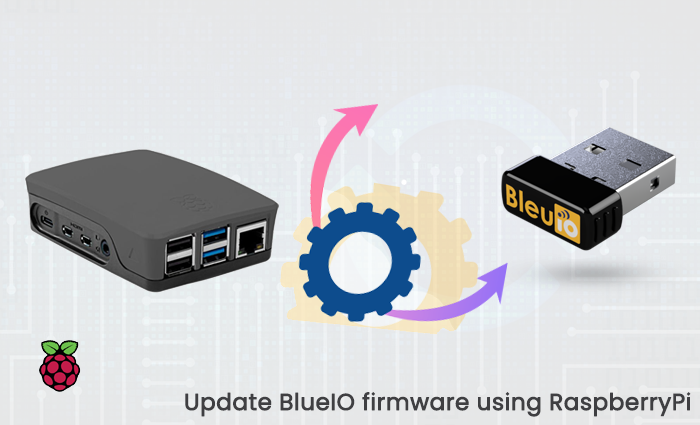
This article will explain how to update a BleuIO dongle using a RaspberryPi.
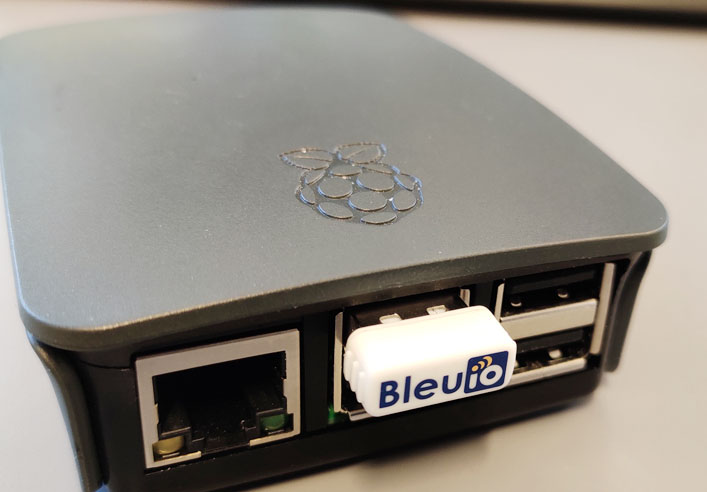
Connect the BleuIO dongle to your Linux / RaspberryPi.
To identify which device name the dongle is connected to, you will need to run ls /dev on the terminal. You might need to do it twice, once before you connect the dongle and once after, to be able to identify which one is the device name.
The following screenshot shows devices list before and after connecting the dongle.
The BleuIO includes a bootloader that allows you to update the firmware easily. When starting up, the dongle will open up a COM port for the bootloader for 10 seconds to allow you to update the firmware (or flash your own application). Afterwards, it will close that port and open a new port for the BleuIO application.
Now that you know the device name, you can run the following command to update the dongle.
Distance to a Bluetooth device can be measured using RSSI value. The following script will help you locate nearby unique BLE devices within a selected range.
This script scans for nearby unique Bluetooth devices within the given range using a well-known RSSI to distance formula.
Smart Sensor Devices was awarded the Nordic Growth Company award from UC for success in the financial year 2019/2020. The company is doing steady and robust development and growth. The award was given for efforts during the previous financial year. The company sees a continued positive development and sales have increased compared with the previous financial year.
“The development is very positive with steady growth during the current financial year. Demand for our products and services has increased in the recent period for all our offerings, We are very gratefully for all our new customers” says Axel Hammar, Founder & CEO of Smart Sensor Devices.
Added a new command AT+CLEARNOTI that will clear notification for the selected handle. For example AT+CLEARNOTI=0012
Updated command for AT+GAPCONNECT. Now you can set Connection interval,Slave latency,Connection supervision timeout while connecting to a peripheral.
Understand BLE connection parameters
For a BLE connection, The connection parameters determine when and how the Central and a Peripheral in a link transmits data. The Central always sets the connection parameters; however, the Peripheral can send a Connection Parameter Update Request that the Central can accept or reject.
There are basically three different parameters:
Connection interval: Defines how often the Central will ask for data from the Peripheral. It contains minimum and maximum connection interval values.
The parameter value has to be chosen with a balance of throughput and power consumption in mind. A high connection interval value (e.g. 4 seconds) will decrease power consumption and reduce data throughput, and vice versa.
Therefore, if you want to increase the data throughput, you can decrease the connection interval value, but keep in mind that this will also increase power consumption.
Slave latency: slave latency can be applied to help the peripheral (slave) device reduce power consumption further. This parameter is useful to avoid changing connection parameters frequently to achieve both high-speed data transfer and low power consumption when idle.
For example, suppose there is a 30 ms connection interval with a slave latency of 4. In that case, the connection can handle data transfers with 30 ms connection intervals, and when idle, it sends empty packets to keep the connection only once every 150 ms (on the slave side).
Connection supervision timeout: This timeout is determined from the last data exchange until a link is considered lost. A Central will not start trying to reconnect before the timeout has passed, so if you have a device that goes in and out of range often, and you need to notice when that happens, it might make sense to have a short timeout.
To meet the demands of users, the BleuIO team will continue to update and add new features. To find out more about the updates of the dongles new firmware 2.0.6, please visit our Getting Started Guide.
Bluetooth ranging technology is very popular. There are many localization systems that exist based on beacons. Beacon technology usually estimates the distance between devices using the received signal strength (RSSI).
Bluetooth can be an excellent way to narrow down a search area at close distances when tracking something. This feature can be used in several fields. such as Secure Locks for Buildings and Automotive, Asset localization & tracking, Indoor navigation etc
GPS tracking isn’t excellent at giving accurate measurements of the close distance, especially in the indoor environment. On the other hand, Bluetooth is excellent in short ranges because the waves can go through walls. This might fill the gap that GPS tracking has when tracking devices in indoor spaces.
However, most calculations of the distance between two Bluetooth devices are estimates. It’s hard to determine the exact distance between two Bluetooth devices because many factors affect the calculations. Despite the challenges, there are methods to determine the distance between two Bluetooth devices with an accuracy of at least 60-80%.
The ranging method is simple to implement, and it has the formula to calculate the distance between two Bluetooth devices. As the name suggests, both devices need to be within Bluetooth range to estimate the distance.
This article will share a simple script written in JavaScript to determine nearby Bluetooth devices and their distance in meters.
This script scans for nearby Bluetooth devices and gets an approximation of the distance by using the well-known RSSI to distance formula.
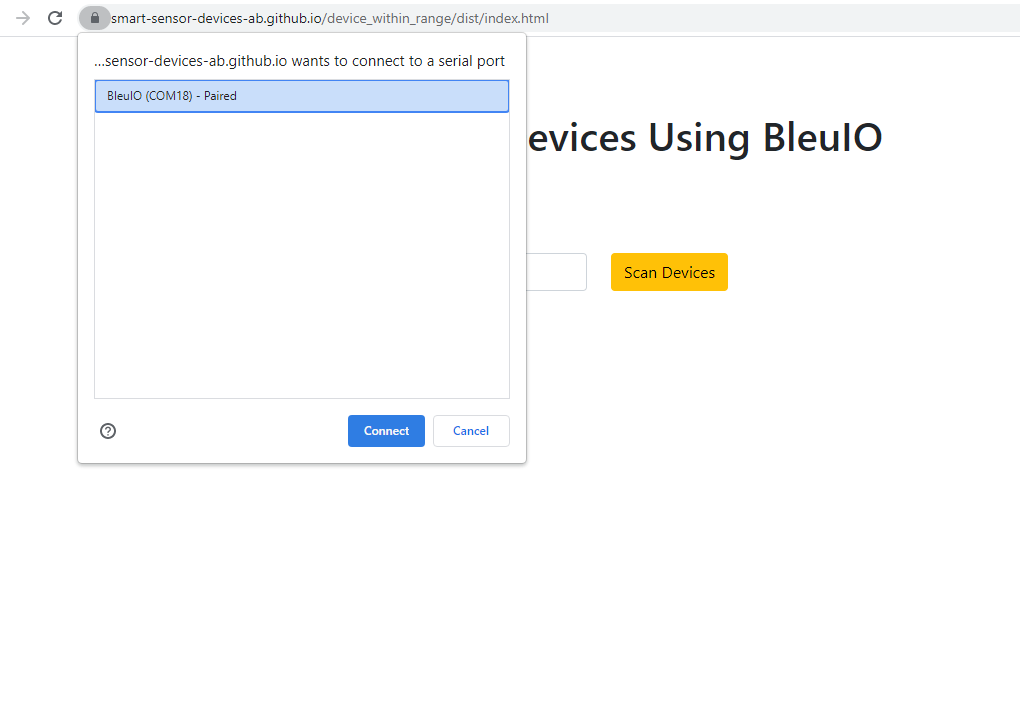
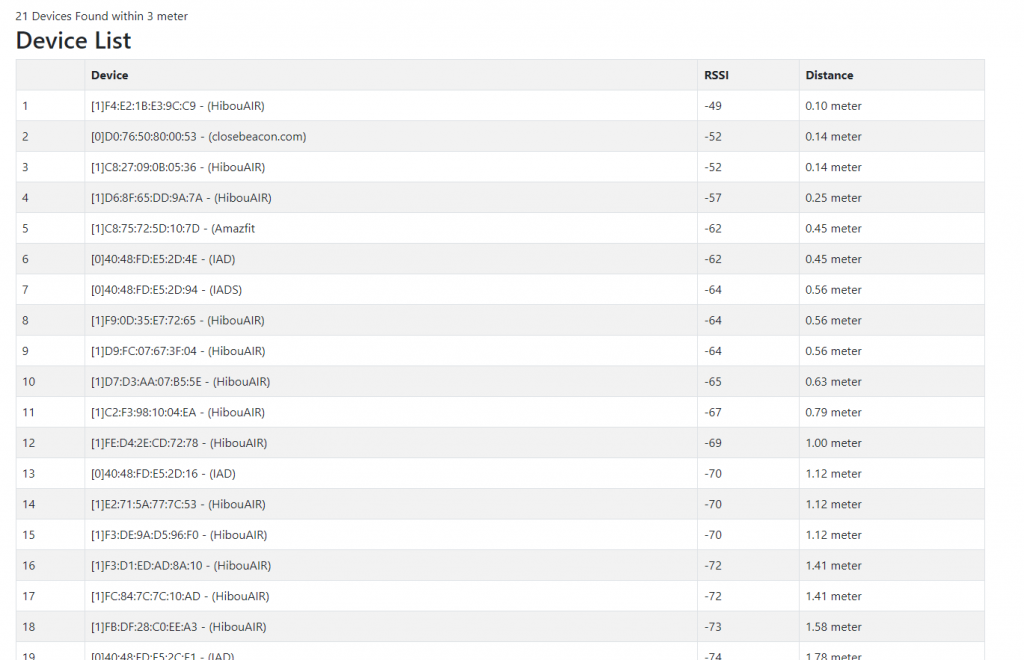
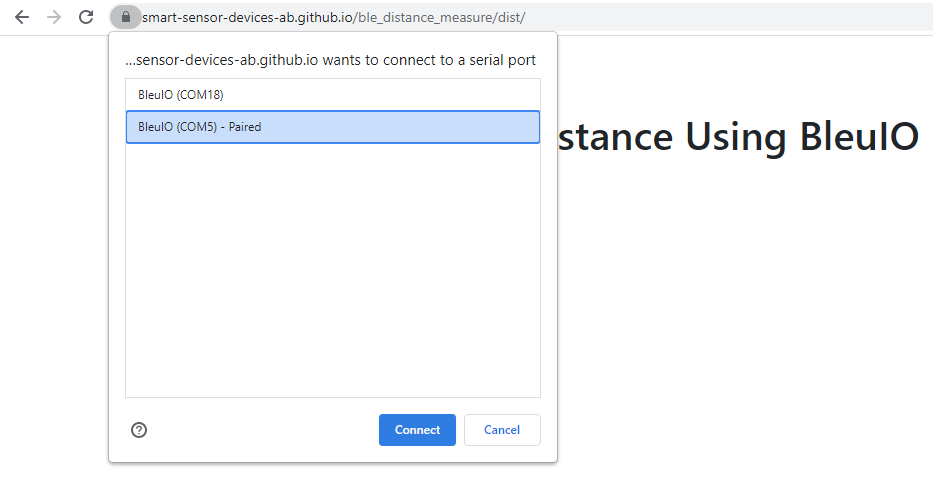
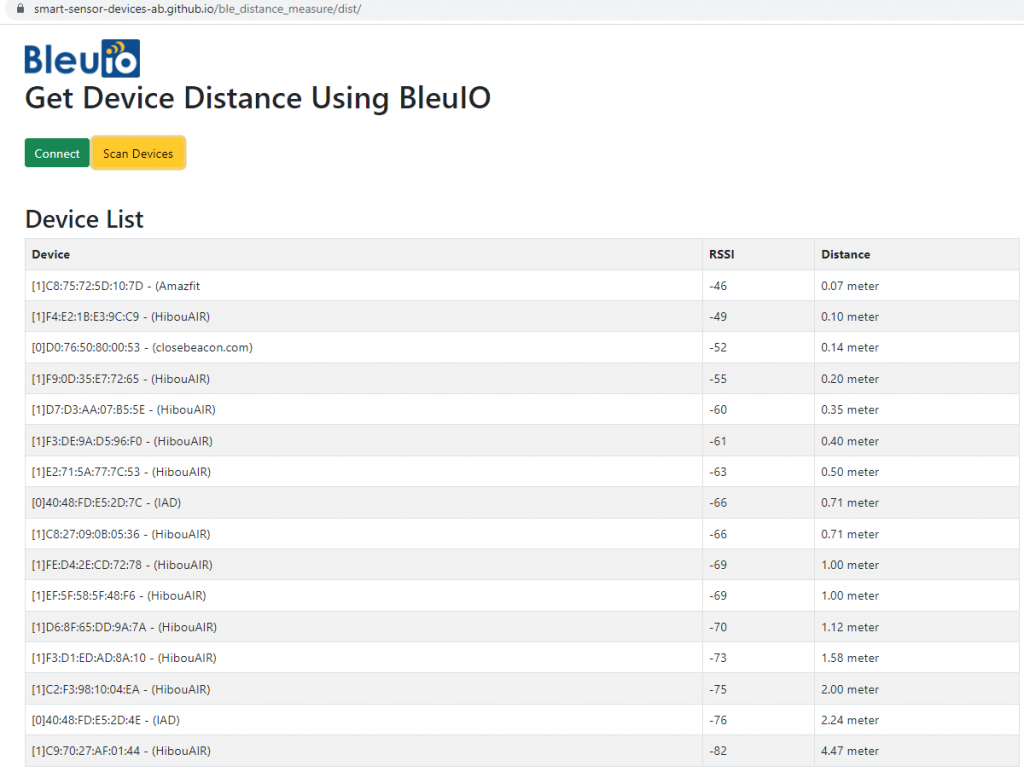
The script will an index.html and script.js file. Index.html is just has a connect and scan for device button. upon connecting we will be able to scan for nearby devices and. Once the scanning is completed we will be able to see a list of devices and their distance from my computer.
The script.js file uses bleuio javascript library to connect and scan for BLE devices. Once we get the device list, we try to sort it out by RSSI value and convert RSSI value to distance. Finally we print the result into a table.
Here is the script.js file
import * as my_dongle from 'bleuio'
document.getElementById('connect').addEventListener('click', function(){
  my_dongle.at_connect()
})

/*
Functions to converts rssi to distance
read more at
https://iotandelectronics.wordpress.com/2016/10/07/how-to-calculate-distance-from-the-rssi-value-of-the-ble-beacon/
*/
const getDistance =(rssi=>{
  let n=2
  let mp=-69
  return 10 ** ((mp - (rssi))/(10 * n))
})
document.getElementById('scan').addEventListener('click', function(){
  var element = document.getElementById("scanning");
  element.classList.remove("d-none");
  my_dongle.at_central().then((data)=>{
    my_dongle.at_gapscan(4,false).then((dev)=>{
      //convert array string to array of object with key value
      const formated = dev.map((item) => {
        const [ id, dev,devid,none,rssi,rssival,devname ] = item.split(' ');
        return { id, dev,devid,none,rssi,rssival,devname};
      });
      //array list unique
      let uniqueArr= formated.filter(y=>y.devname!=undefined)
      //sort based on rssi value
      uniqueArr.sort((a, b) => a.rssival > b.rssival && 1 || -1)

      let withDistance= uniqueArr.map(r=>{
        r.distance=getDistance(r.rssival).toFixed(2)+' meter'
        return r
      })
      //generate output
      let mytable = `<h2>Device List</h2>
      <table class='table table-striped table-bordered'>
      <tr>
      <th>Device</th>
      <th>RSSI</th>
      <th>Distance</th>
      </tr>`;
      withDistance.map(j=>{
        mytable += "<tr><td>" +j.devid+" - "+ j.devname + "</td><td>"+ j.rssival+"</td><td>"+j.distance+"</td></tr>";
      })
      mytable += "</table>";
      document.getElementById("deviceList").innerHTML = mytable;
      element.classList.add("d-none");
    })
  })
})
To run this script , we can use a web bundler called parcel. https://parceljs.org/
lets go inside the folder and in terminal type.
parcel index.html
The script will scan for five seconds for nearby devices. You can update the value based on your requirements.
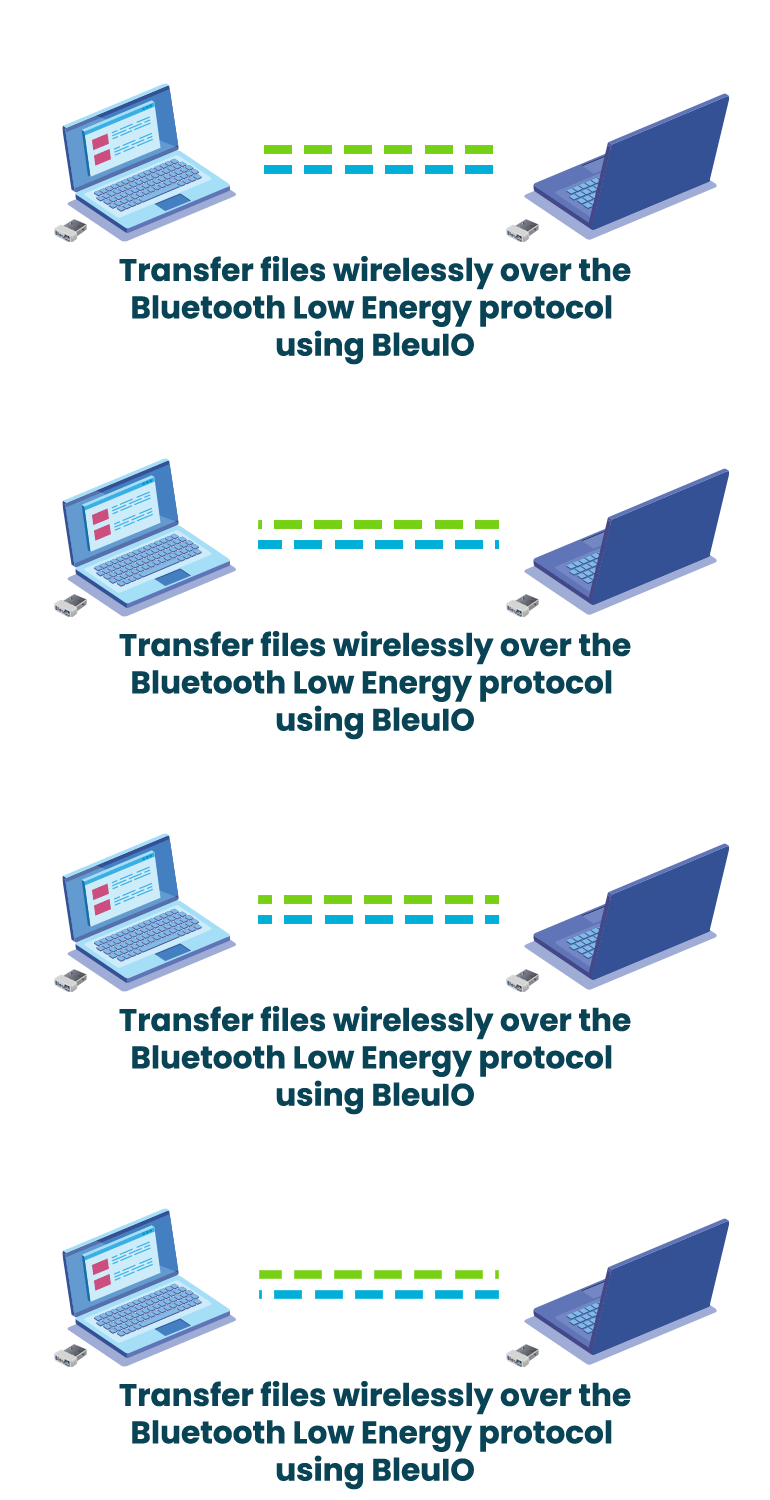
This tutorial will show how to transfer files wirelessly over the Bluetooth Low Energy protocol. We will use two BleuIO dongles for this project—one for sending and another one for receiving. The sender dongle will be in central mode, while the receiver dongle will be in peripheral mode.
We have already created two python scripts for sending and receiving. You can get the source code from
First, connect two BleuIO dongles to your computer.
Note down the COM port for each dongle. You can find the port using device manager.
Try to find receiver dongle MAC id. To do that, start advertising your receiver dongle and note down the MAC id. Follow the video if you need more details on how to do it.
Open file_recieve.py and file_transfer.py files. Update COM port and MAC id where necessary.
Here is the file_recieve.py
import serial
import time

your_com_port = "COM6"  # Change this to the com port your dongle is connected to.
file_name = "result.png"  # Change this to match the file type you are recieving

connecting_to_dongle = True
trying_to_connect = False

print("Connecting to dongle...")
# Trying to connect to dongle until connected. Make sure the port and baudrate is the same as your dongle.
# You can check in the device manager to see what port then right-click and choose properties then the Port Settings
# tab to see the other settings
while connecting_to_dongle:
    try:
        console = serial.Serial(
            port=your_com_port,
            baudrate=57600,
            parity="N",
            stopbits=1,
            bytesize=8,
            timeout=0,
        )
        if console.is_open.__bool__():
            connecting_to_dongle = False
    except:
        print("Dongle not connected. Please reconnect Dongle.")
        time.sleep(5)

print("Connected to Dongle.")

file_data = ""
file_transfer_done = False
connected = "0"
line = ""
while 1 and console.is_open.__bool__() or not file_transfer_done:
    console.write(str.encode("AT+DUAL"))
    console.write("\r".encode())
    print("Putting dongle in Dual role.")
    time.sleep(0.1)
    console.write(str.encode("AT+ADVSTART"))
    console.write("\r".encode())
    time.sleep(0.1)
    print("Starting advertising and awaiting connection from other dongle...")
    while connected == "0":
        dongle_output2 = console.read(console.in_waiting)
        time.sleep(2)
        if not dongle_output2.isspace():
            if dongle_output2.decode().__contains__("\r\nCONNECTED."):
                connected = "1"
                print("Connected!")
            if dongle_output2.decode().__contains__("\r\nDISCONNECTED."):
                connected = "0"
                print("Disconnected!")
            dongle_output2 = " "
    while connected == "1" or not file_transfer_done:
        time.sleep(0.2)
        dongle_output3 = console.read(console.in_waiting)
        if not dongle_output3.isspace():
            if dongle_output3.__contains__(str.encode("\r\nDISCONNECTED.")):
                print("Disconnected!")
                connected = "0"
            elif dongle_output3.__contains__(str.encode("[DONE]")):
                file_transfer_done = True
                print("File transfer complete!\r\n")
                fo = open(file_name, "wb")
                hex = bytes.fromhex(file_data)
                fo.write(hex)
                fo.close()
                print("Exiting script...")
                exit()
            elif dongle_output3.__contains__(str.encode("[Received]:")):
                line = dongle_output3.decode()
                line = line.replace("\r", "")
                line = line.replace("\n", "")
                line = line.replace("[Received]:", "")
                line = line.replace(" ", "")
                file_data += line
                print(line)
            dongle_output3 = ""
        msg = ""
Set the file type that you are expecting to receive. For example, if you are expecting a jpg file, change file_name on file_recieve.py to result.jpg, and for a text file, you can rename it to result.txt
Here is the file_transfer.py
import serial
import time

target_dongle_mac_address = (
    "[0]40:48:FD:E5:2D:AF"  # Change this to the peripheral's mac address.
)
your_com_port = "COM25"  # Change this to the com port your dongle is connected to.

connecting_to_dongle = True
trying_to_connect = False
file_name = "test.txt"

print("Connecting to dongle...")
# Trying to connect to dongle until connected. Make sure the port and baudrate is the same as your dongle.
# You can check in the device manager to see what port then right-click and choose properties then the Port Settings
# tab to see the other settings
while connecting_to_dongle:
    try:
        console = serial.Serial(
            port=your_com_port,
            baudrate=57600,
            parity="N",
            stopbits=1,
            bytesize=8,
            timeout=0,
        )
        if console.is_open.__bool__():
            connecting_to_dongle = False
    except:
        print("Dongle not connected. Please reconnect Dongle.")
        time.sleep(5)

print("Connected to Dongle.")

connected = "0"
while 1 and console.is_open.__bool__():
    console.write(str.encode("AT+DUAL"))
    console.write("\r".encode())
    time.sleep(0.1)
    print("Putting dongle in Dual role and trying to connect to other dongle.")
    while connected == "0":
        time.sleep(0.5)
        if not trying_to_connect:
            console.write(str.encode("AT+GAPCONNECT="))
            console.write(str.encode(target_dongle_mac_address))
            console.write("\r".encode())
            trying_to_connect = True
        dongle_output2 = console.read(console.in_waiting)
        time.sleep(2)
        print("Trying to connect to Peripheral...")
        if not dongle_output2.isspace():
            if dongle_output2.decode().__contains__("\r\nCONNECTED."):
                connected = "1"
                print("Connected!")
                time.sleep(10)
            if dongle_output2.decode().__contains__("\r\nDISCONNECTED."):
                connected = "0"
                print("Disconnected!")
                trying_to_connect = False
            dongle_output2 = " "
    while connected == "1":
        dongle_output3 = console.read(console.in_waiting)
        want_to_exit = input(
            "Press Enter to start sending file or 'exit' to quit script.\n\r>> "
        )
        want_to_exit = want_to_exit.upper()
        if "EXIT" in want_to_exit:
            print("Exiting script...")
            exit()
        hex_to_send = ""
        fo2 = open(file_name, "rb")
        print("Sending file. Please wait...")
        while (byte := fo2.read(1)) :
            hex_to_send += byte.hex().upper()
            if len(hex_to_send) >= 200:
                # my_dongle.at_spssend(hex_to_send)
                console.write(str.encode("AT+SPSSEND=" + hex_to_send + "\r"))
                time.sleep(0.2)
                hex_to_send = ""
        if len(hex_to_send) != 0:
            # my_dongle.at_spssend(hex_to_send)
            console.write(str.encode("AT+SPSSEND=" + hex_to_send + "\r"))
            time.sleep(0.2)
        fo2.close()
        console.write(str.encode("AT+SPSSEND=[DONE]\r"))
        print("File transfer complete!\r\n")
        print("Exiting script...")
        exit()
Keep the file in the same directory with file_transfer.py and change the file name accordingly.
Now run the script file_recieve.py using a terminal. It will start advertising and will be ready to receive.
Now run the file_transfer.py script.
Once both the dongles are connected, you will be asked to send the file from the file transfer script.
The receiver dongle will give you a confirmation once received, and you will find the file stored in the same folder with the receiver script.
Finally, you can check if you received the file correctly by running a checksum.
Please follow the video if you have difficulty in understanding.
Smart Sensor Devices is announcing a firmware update v2.0.5 for BleuIO and Smart USB dongle 2.0. We invite all the users to apply the updated firmware. The new firmware will be available to download on 2nd July 2021, at https://www.bleuio.com/getting_started/docs/firmware/
Added features:
Added a new command ATASPS that will allow you to choose if the SPS responses will be shown as ASCII or Hex. ASCII is shown by default at startup.
Bug fixes
Fixed a bug where if you sent more than 244 characters at once before sending a carriage return (or pressed Enter) the dongle would restart.
To meet the demands of users, the BleuIO team will continue to update and add new features. To find out more about the updates of the dongles new firmware 2.0.5, please visit our Getting Started Guide.
Smart Sensor Devices is announcing a firmware update v2.0.4 for BleuIO and Smart USB dongle 2.0. We invite all the users to apply the updated firmware. The new firmware will be available to download on 21st May 2021, at https://www.bleuio.com/getting_started/docs/firmware/
Added features:
Added two new AT command for writing without response. AT+GATTCWRITEWR for ASCII and AT+GATTCWRITEWRB for hex.
Added a new command AT+GETSERVICESONLY that will discover only all the services of the connected peripherals.
Added a new command AT+GETSERVICEDETAILS that will discover all the characteristics and descriptors of a selected service. Must run AT+GETSERVICESONLY command first to get the service handle.
To meet the demands of users, the BleuIO team will continue to update and add new features. To find out more about the updates of the dongles new firmware 2.0.4, please visit our Getting Started Guide.