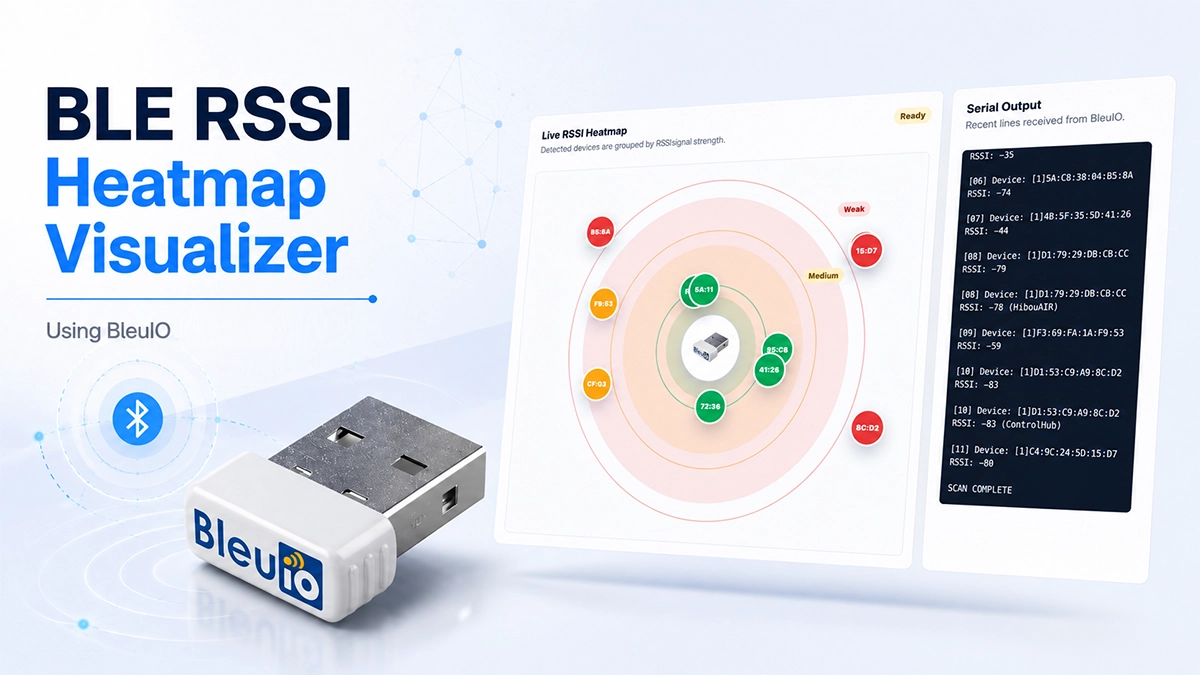
Build a BLE RSSI Heatmap Visualizer Using BleuIO

Bluetooth Low Energy devices are everywhere, from smart sensors and beacons to IoT devices and proximity-based applications. When working with BLE, developers often need a quick way to scan nearby advertising devices and understand their signal strength.

In this project, we build a simple BLE RSSI Heatmap Visualizer using the BleuIO USB dongle. The application runs directly in the browser and connects to BleuIO through the serial port. It performs a BLE scan, reads nearby advertising devices, extracts their RSSI values, and displays them in a visual heatmap.

This is helpful because raw BLE scan output can be difficult to read, especially when many devices are advertising at the same time. With this visualizer, developers can quickly see which devices have strong, medium, or weak signal strength.

BleuIO makes this project simple because it handles the BLE scanning through easy AT commands. Instead of writing low-level Bluetooth code, we can send commands from JavaScript and focus on building the visualization.

Requirements

To try this project, you need:

How It Works

The application connects to the BleuIO dongle using the browser’s Web Serial API. Once connected, it sends BleuIO AT commands to put the dongle into central scanning mode and start a BLE GAP scan.

The main commands used are:

AT+CENTRAL
AT+SHOWRSSI=1
AT+GAPSCAN=5

AT+CENTRAL prepares BleuIO for scanning. AT+SHOWRSSI=1 enables RSSI values in the scan output. AT+GAPSCAN=5 scans nearby BLE devices for 5 seconds.

The browser app then reads the serial output and looks for device information such as MAC address, RSSI value, and device name if available. Each device is grouped based on RSSI strength.

The signal categories are simple:

Strong signal: RSSI >= -50
Medium signal: RSSI between -51 and -70
Weak signal: RSSI <= -71

The heatmap places BleuIO at the center and displays nearby BLE devices around it. Stronger devices appear closer to the center, while weaker devices appear farther away. The device bubbles are also color-coded, making it easier to understand the BLE environment at a glance.

A table below the heatmap shows the detected devices with MAC address, RSSI, name, signal category, and last seen time.

GitHub Project Code

The full source code is available here:

https://github.com/smart-sensor-devices-ab/ble-rss-heatmap-visualizer

You can download or clone the project and open it in a supported browser.

Live Testing

You can also try the live version here:

https://smart-sensor-devices-ab.github.io/ble-rss-heatmap-visualizer/

To test it:

  1. Plug in the BleuIO USB dongle.
  2. Open the live page in your browser.
  3. Click Connect.
  4. Select the BleuIO serial port.
  5. Click Scan.
  6. View the BLE RSSI heatmap and detected device table.

Output Screenshot

Add output screenshot here.
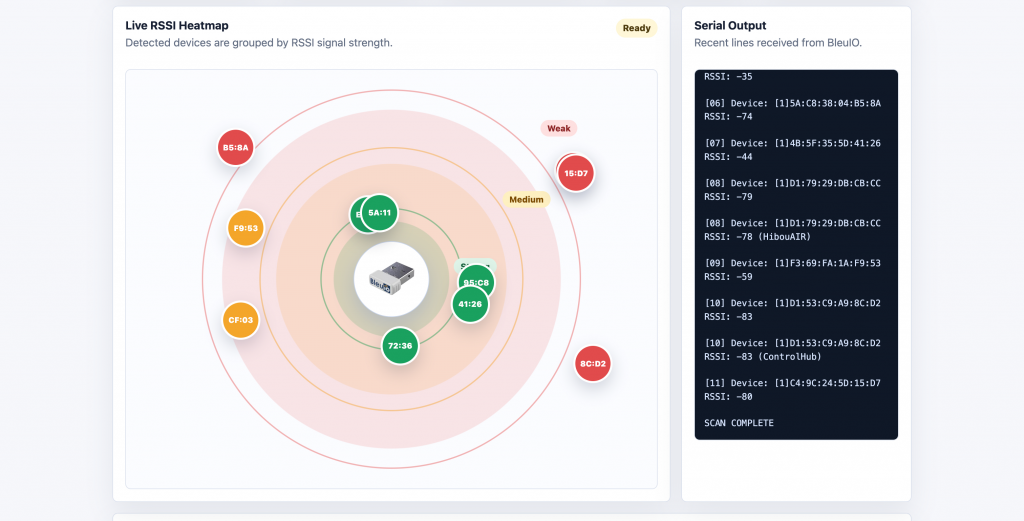
This is an example project showing how BleuIO can be used with the Web Serial API to build a practical BLE scanning and visualization tool. Developers can use the source code as a starting point and modify it for their own use cases.

For example, the project can be extended to scan for a longer period of time, change the RSSI threshold values, filter specific devices, highlight known BLE sensors, or integrate the scan results into a larger web dashboard.

Because BleuIO works with simple AT commands over serial, it is easy to integrate with different programming languages, platforms, and browser-based tools like this one.
Share this post on :

Using BleuIO with Fortran to Scan and Decode BLE Advertising Data

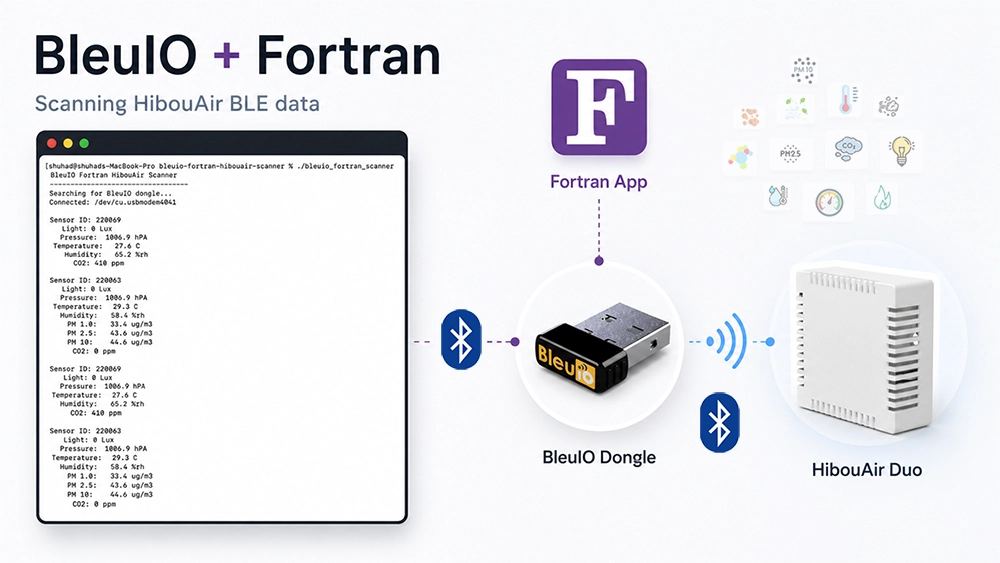
Bluetooth Low Energy development is often associated with languages like C, Python, JavaScript, or mobile frameworks. But with BleuIO, BLE communication becomes accessible from almost any programming language that can work with a serial port. In this tutorial, we will build a simple Fortran terminal application that connects to a BleuIO USB dongle, sends AT commands, scans for nearby HibouAir BLE advertisements, decodes the advertising data, and prints the sensor values directly in the terminal.

This project is intentionally small and beginner-friendly. The goal is not to build a full production BLE application, but to demonstrate how Fortran can communicate with BLE devices through BleuIO using simple serial communication.

Why Fortran for a BLE Example?

Fortran is one of the oldest programming languages still actively used today, especially in scientific computing, engineering, numerical modelling, and high-performance applications. While Fortran is not normally the first language people think of for BLE development, this example shows an interesting advantage of using BleuIO.

What We Are Building

The application does the following:

It connects to a BleuIO USB dongle using serial terminal. Then it configures the serial port and sends BleuIO AT commands. After that, it starts a filtered BLE scan for HibouAir advertisements using the command:

AT+FINDSCANDATA=FF5B07

The program then reads the incoming scan data, extracts the advertising payload, decodes the HibouAir manufacturer data, and prints values such as sensor ID, light or noise, pressure, temperature, humidity, CO2, and particulate matter values where available. The README also notes that the program automatically searches for a BleuIO dongle using VID 0x2dcf and PID 0x6002.

Project Requirements

Before running the project, install the required packages on macOS using Homebrew:

brew install gcc libserialport pkg-config

You will also need the following hardware:

1. BleuIO USB dongle
2. HibouAir CO2 Sensor

Getting the Project

The full source code is available on GitHub:

https://github.com/smart-sensor-devices-ab/bleuio-fortran

Building the Project

Build the project with:

make

This creates the executable:

./bleuio_fortran_scanner

The README confirms that the project is built using make and creates the bleuio_fortran_scanner binary.

Running the Project

Run the scanner from the terminal:

./bleuio_fortran_scanner

Once started, the program searches for the connected BleuIO dongle, opens the serial port, prepares the dongle, and starts scanning for HibouAir BLE advertisements.

You can stop the program at any time using:

Ctrl-C

How It Works

The project is split into small Fortran source files to keep the example easy to understand.

The libserialport_bindings.f90 file contains the small ISO_C_BINDING interface required to call libserialport. The serial_utils.f90 file handles finding, opening, configuring, reading from, writing to, and closing the serial port. The bleuio_commands.f90 file contains helper procedures for sending BleuIO AT commands. The simple_json.f90 file extracts the predictable fields needed from the BleuIO scan response. The hibouair_decoder.f90 file decodes HibouAir manufacturer data and prints the sensor values. Finally, main.f90 contains the main scanner flow.

The main idea is simple. BleuIO receives BLE advertising data and returns it through the serial port. The Fortran application reads each line, checks whether it contains valid scan data, extracts the advertisement payload, and decodes the bytes according to the HibouAir data format.

Because BleuIO handles the BLE communication, the Fortran code does not need to manage Bluetooth scanning directly. It only sends AT commands and reads the response.

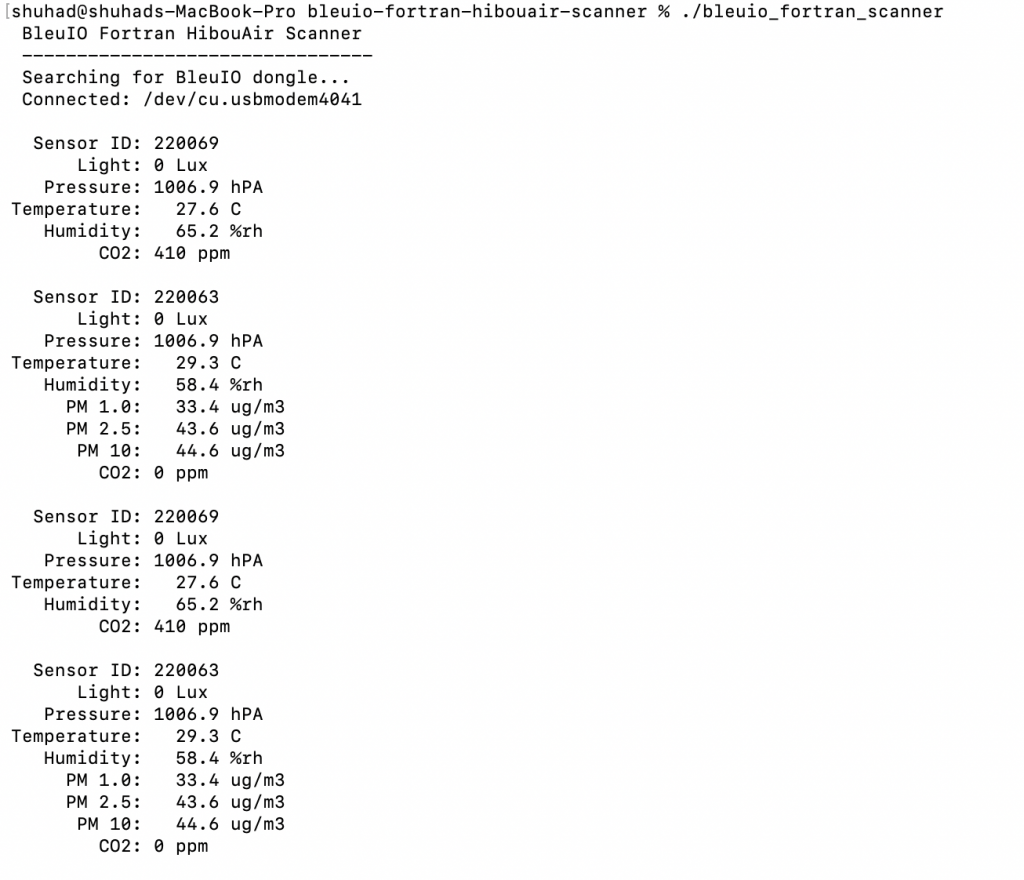
Example Output

When a HibouAir CO₂ sensor is found, the terminal output looks like this:

BleuIO Fortran HibouAir Scanner
--------------------------------
Searching for BleuIO dongle...
Connected: /dev/tty.usbmodemXXXX

Sensor ID: 123ABC
Light: 52 Lux
Pressure: 1012.4 hPA
Temperature: 23.6 C
Humidity: 45.1 %rh
CO2: 612 ppm

For a PM sensor board, the output includes particulate matter values:

  Sensor ID: 456DEF
Light: 38 Lux
Pressure: 1011.8 hPA
Temperature: 22.9 C
Humidity: 47.2 %rh
PM 1.0: 2.1 ug/m3
PM 2.5: 4.8 ug/m3
PM 10: 7.3 ug/m3
CO2: 0 ppm

These sample outputs are also included in the project README.

Output Screenshot

Add a screenshot here showing the terminal running the Fortran application and printing decoded HibouAir sensor values.

Further Development

This project is a simple example showing how BleuIO can be used with Fortran when building BLE applications. It demonstrates the basic workflow: connect to BleuIO through a serial port, send AT commands, scan for BLE advertisements, read the response, and decode the data.

Developers can use this example as a starting point and expand it for their own projects. For example, the script could be extended to save sensor readings to a file, export data as CSV, monitor multiple HibouAir devices, trigger alerts when CO₂ or PM values are high, or integrate the data with scientific and engineering workflows where Fortran is already used.

Share this post on :