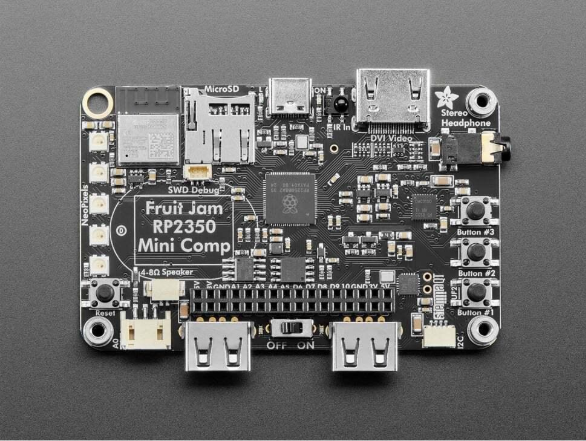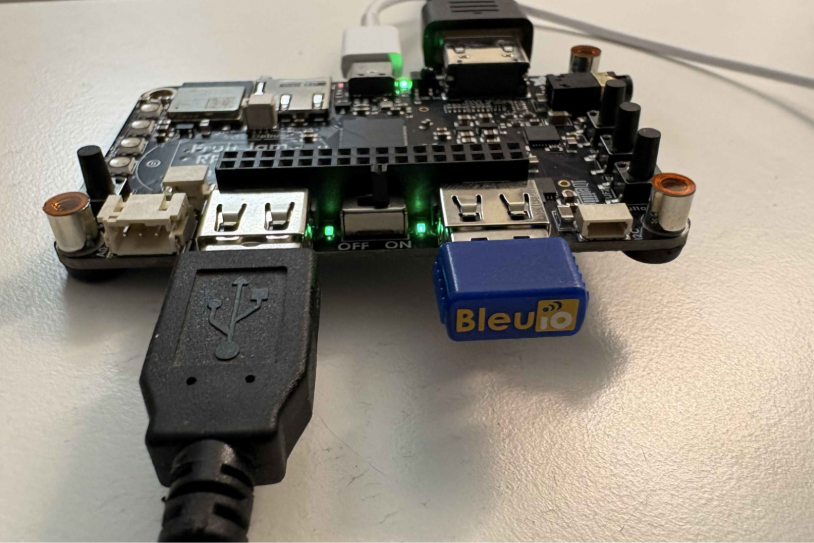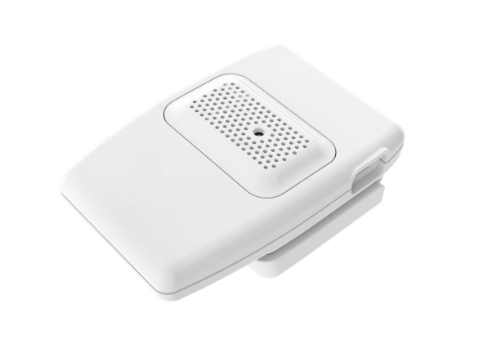
Building a BLE Application with Zig and BleuIO: Reading Sensor Data from HibouAir

In this tutorial, we will build a lightweight command-line application that interacts with Bluetooth Low Energy (BLE) devices using Zig and a BleuIO USB dongle. The application will scan for nearby BLE advertisements and decode sensor data broadcast by a HibouAir device. While HibouAir is used here as a test case, the main goal is to demonstrate how BleuIO simplifies BLE application development and how Zig can be used to build efficient, low-level tools for working with wireless data. By the end of this guide, you will have a working example of a BLE-powered CLI tool that reads, processes, and displays real-time data directly in your terminal.

About ZipLang (Zig)

Zig is a modern systems programming language designed with a focus on simplicity, performance, and control over hardware resources. It is particularly well-suited for applications that require direct interaction with devices, such as serial communication and embedded systems. In this project, Zig is used to communicate with the BleuIO dongle over a serial interface, process incoming BLE scan data, and decode raw payloads into meaningful values. Its minimal runtime and explicit design make it a strong choice for building reliable BLE tools without unnecessary abstraction.

Project Requirements

Hardware

Software

  • Zig installed
  • libserialport
  • pkg-config

How It Works

The application uses BleuIO as a bridge between the computer and BLE devices. When the program starts, it automatically detects the connected BleuIO dongle by matching its vendor and product ID, then opens a serial connection configured for communication. Once the connection is established, the program sends AT commands to initialize the dongle and begin scanning for BLE advertisement data that matches a specific identifier used by HibouAir devices.

As BLE data is received, the Zig application continuously reads the serial output, interprets the incoming JSON responses, and extracts the relevant payload. This payload is then decoded into human-readable sensor values such as temperature, humidity, pressure, particulate matter, and CO2 levels. The decoded information is printed directly in the terminal, allowing real-time monitoring without requiring any additional tools or manual decoding steps. When the program is stopped, it gracefully sends commands to halt scanning and reset the dongle before closing the connection.

Source Code

You can find the complete source code for this project on GitHub:

https://github.com/smart-sensor-devices-ab/bleuio-ziglang

Install and Run the Project

Follow the readme file inside the project to install and run. Once dependencies are installed, follow these steps:

Build the project

zig build

Run the application

zig build run

Make sure your BleuIO dongle is connected before running the program.

Example Output

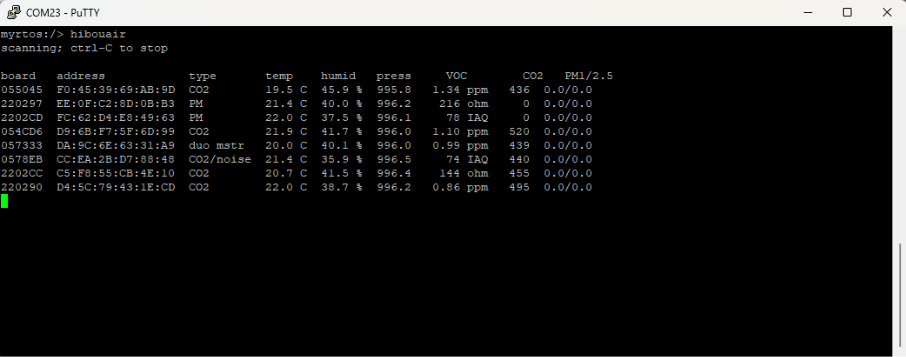
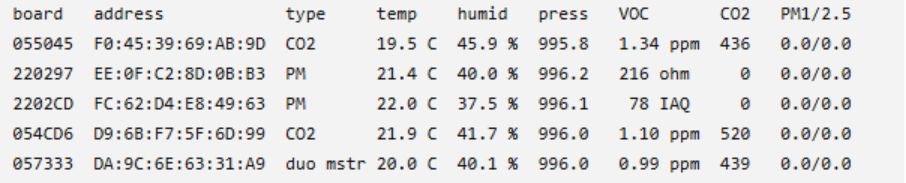
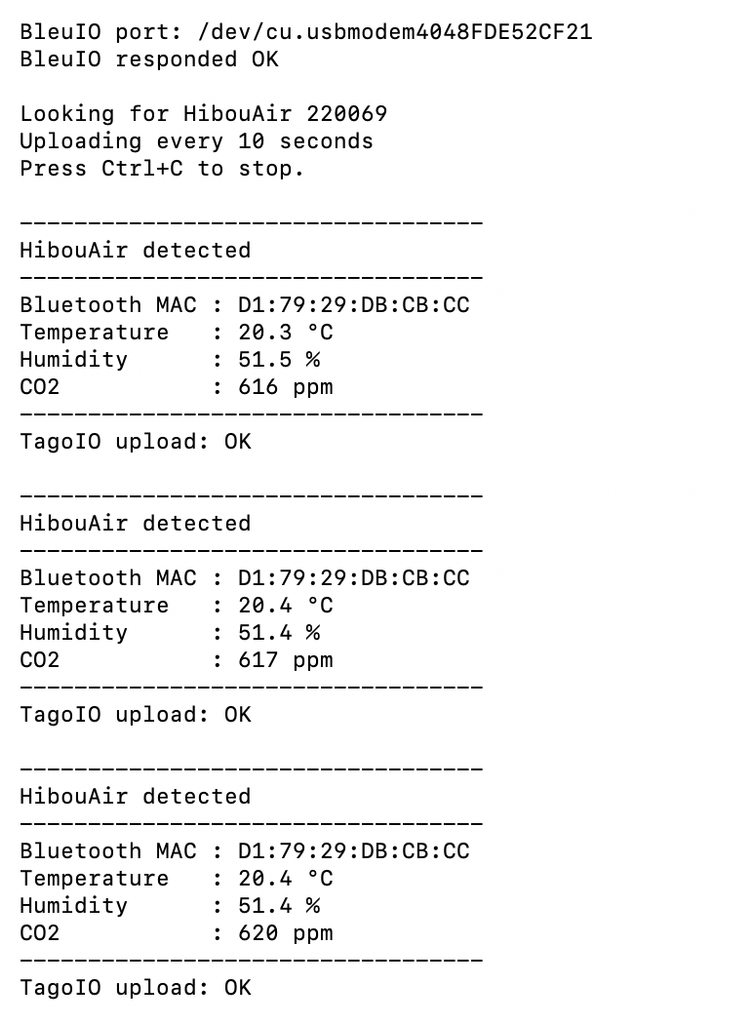
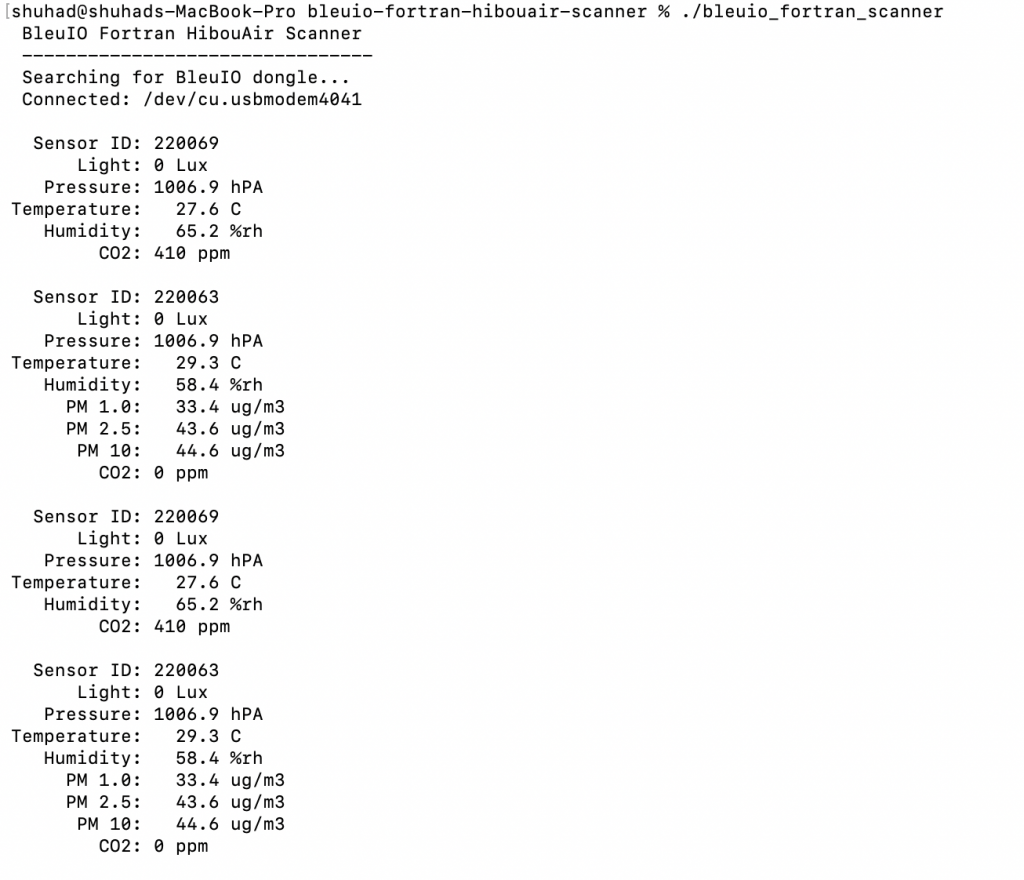
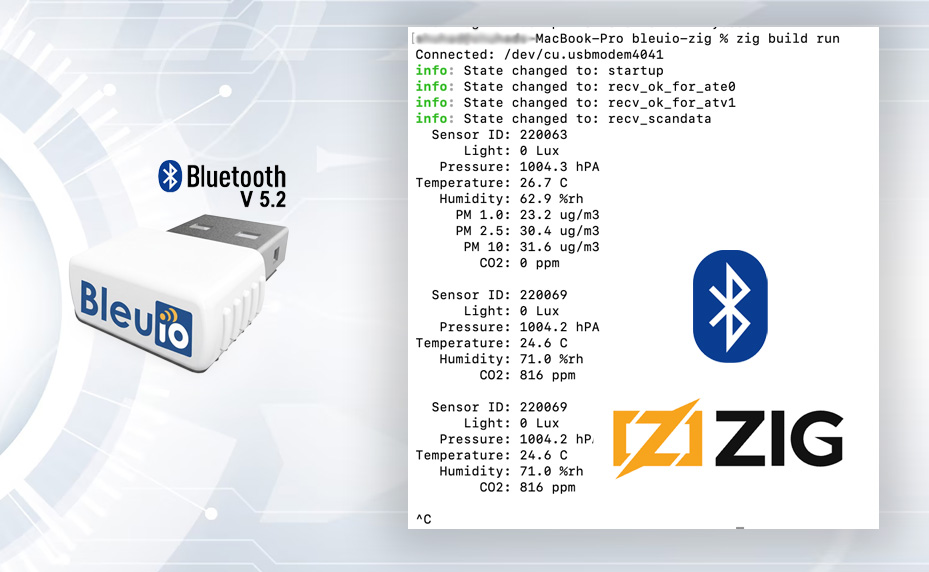
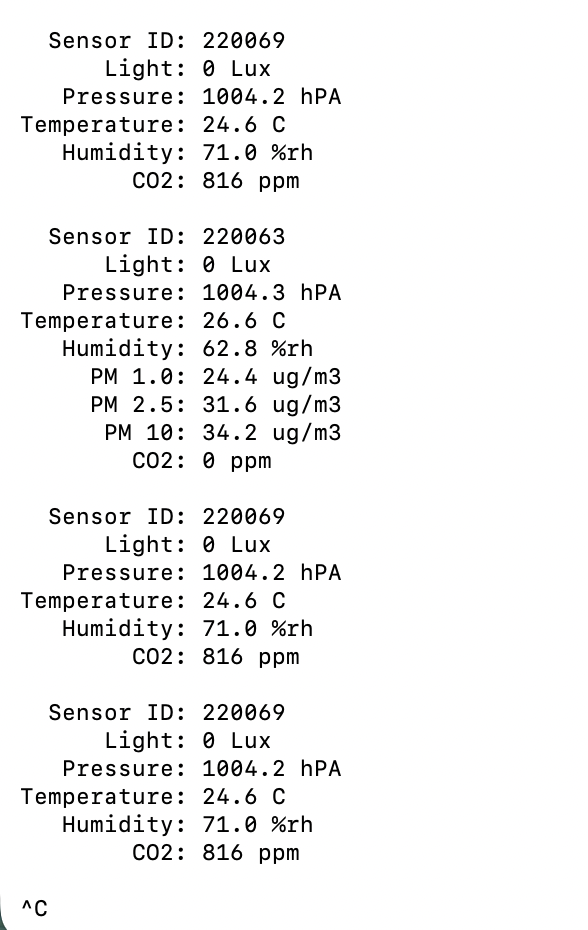
When the application is running, it prints decoded BLE sensor data directly to the terminal. Each detected broadcast from a matching device is processed and displayed in a readable format, making it easy to observe environmental data in real time.

About BleuIO

BleuIO plays a central role in this project by abstracting the complexity of BLE communication. Instead of implementing a full Bluetooth stack within the application, developers can interact with BLE devices using simple AT commands over a serial interface. This approach allows BLE functionality to be integrated into applications written in virtually any programming language and run on any major operating system. By handling scanning, filtering, and communication at the hardware level, BleuIO enables developers to focus on application logic, making BLE development faster and more accessible.

This tutorial demonstrates how Zig and BleuIO can be combined to build a practical BLE application with minimal overhead. While HibouAir is used here as a sample device for testing, the same approach can be applied to a wide range of BLE-enabled sensors and devices. The combination of a lightweight programming language and a simple BLE interface creates a powerful development workflow that is both efficient and easy to extend for real-world use cases.

Share this post on :

Building a BLE Sensor Scanner with Nim and BleuIO

Working with Bluetooth Low Energy devices often means dealing with multiple layers—hardware, protocols, and data decoding. In this tutorial, we are going to simplify that process by building a small command-line application using Nim and a BleuIO USB Dongle.

The goal is simple: scan nearby BLE devices, detect HibouAir sensors, decode their broadcast data, and display readable environmental values directly in the terminal.

By the end, you will have a working local tool that reads real-time air quality data without needing cloud connectivity.

What We Are Building

In this project, we build a lightweight desktop utility that connects to a BleuIO dongle and continuously scans for BLE advertisement data. When a compatible HibouAir device is detected, the application decodes the raw hex payload and prints meaningful values such as temperature, humidity, pressure, CO2, and particulate matter levels.

This is not a heavy application or a full dashboard. It is intentionally simple. The idea is to give developers a clean starting point to understand how BLE data flows from a device to a readable format.

Why Nim with BleuIO?

Nim is a compiled programming language that feels lightweight but powerful. It combines the simplicity of scripting languages with the performance of C. For developers who want fast execution, low memory usage, and clean syntax, Nim is a very practical choice.

Using Nim with BleuIO makes the development process even smoother. The BleuIO dongle abstracts away complex BLE stack handling and exposes everything through simple AT commands over a serial interface. Instead of dealing with platform-specific BLE APIs, you can send commands and receive structured data in return.

This combination allows you to focus more on logic and less on low-level Bluetooth complexity.

Requirements

Before running the project, make sure you have the following:

How the Project Works

When the application starts, it first looks for the connected BleuIO dongle by checking the USB device identifiers. Once the dongle is found, the program opens the serial port and prepares the device for communication.

The setup phase uses a short sequence of AT commands:

ATV0
ATE0
ATV1

These commands are used to configure how the dongle responds over serial so that the application can read and process the output more reliably.

After setup, the application starts scanning for BLE advertisement data using this command:

AT+FINDSCANDATA=FF5B07

This tells BleuIO to scan and report advertisement packets that match the data pattern used by HibouAir devices.

As scan results come in, the program reads the serial output line by line. It looks for valid scan data entries and then extracts the raw advertisement payload. Once a matching payload is found, the Nim code decodes the hex data into readable sensor values such as temperature, humidity, pressure, CO2, and particulate matter values depending on the device type.

When you stop the program with Ctrl + C, it also sends a final reset command to close things down cleanly:

ATR

Example Output

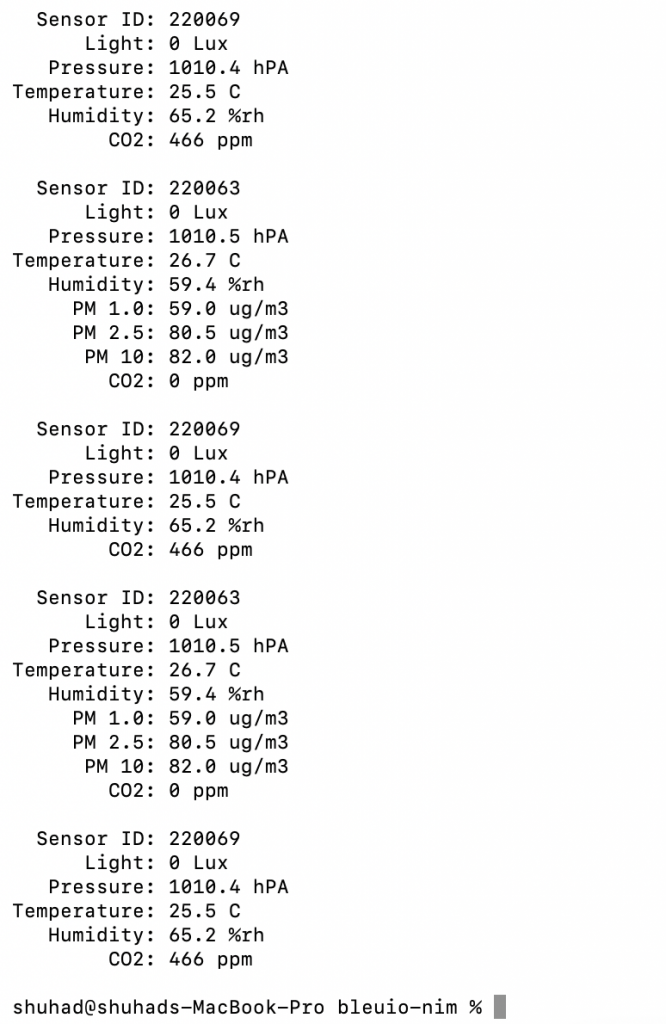
Below is an example of how the data appears in the terminal when a device is detected and decoded.

You will see values like temperature, humidity, pressure, and CO2 being printed in real time as the device broadcasts data.

Source Code

You can access the full project source code here:

[GitHub Repository ]

The code is intentionally kept small and readable so it is easy to follow and modify.

Running the Project

Once the project is downloaded and the BleuIO dongle is plugged into your Mac, you can build and run it directly from Terminal.

First, move into the project folder:

cd ~/Downloads/bleuio-nim

If you have not already installed the required tools, install them with Homebrew:

brew install nim libserialport pkg-config

After that, build the project:

nimble build

Once the build is complete, run it with:

nimble run

If everything is set up correctly, the application will detect the connected BleuIO dongle, initialize it, and begin scanning for HibouAir advertisement data. Within a few seconds, you should start seeing decoded sensor readings appear in the terminal.

When you want to stop the scanner, press:

Ctrl + C

The application will then stop scanning, send its cleanup command, and close the serial connection.

This project is best seen as a foundation rather than a finished product. It shows how to connect to a BLE device, scan for advertisement data, and decode it into something useful.
From here, you can take it in many directions. You might want to store the data locally, send it to a cloud service, build a graphical dashboard, or integrate it into a larger system. Since the core BLE communication is already handled through BleuIO, extending the project becomes much easier.

Share this post on :

Scanning BLE Devices with C++ and Boost Using the BleuIO Dongle

Bluetooth Low Energy (BLE) has become one of the most widely used wireless technologies for IoT devices, sensors, wearables, and industrial monitoring systems. Developers working with embedded systems, automation platforms, and hardware integration often rely on C++ because of its performance, low-level hardware access, and portability.

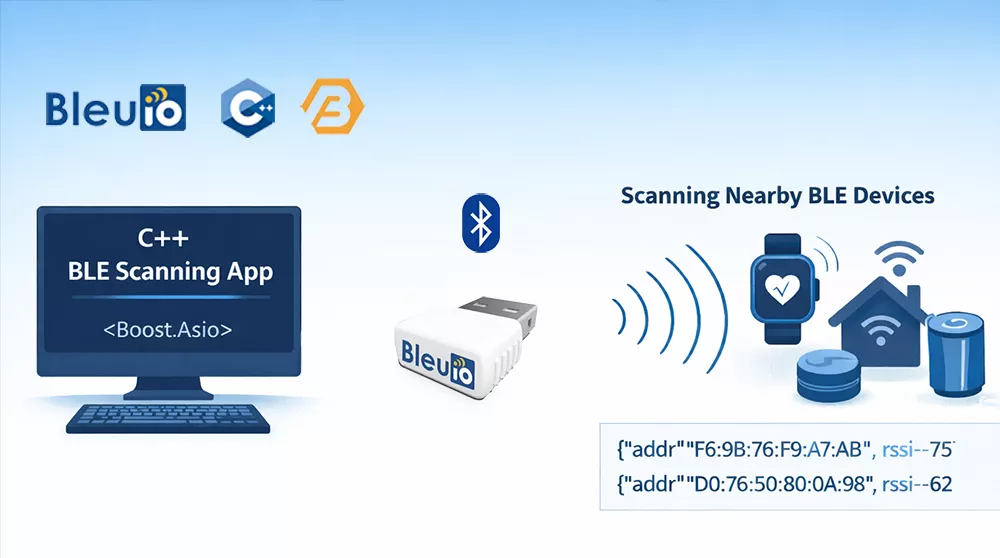
In this tutorial, we will create a simple command-line BLE scanning application using C++. The program connects to the BleuIO USB dongle through a serial port and sends AT commands to control Bluetooth operations. After starting the program, the user enters the number of seconds to scan, and the application instructs the BleuIO dongle to perform a BLE scan and print the detected devices directly in the terminal. This example demonstrates the basic workflow of communicating with BleuIO from a C++ application.

Why C++ and Boost Are Commonly Used for Bluetooth Development

C++ is widely used in Bluetooth and embedded development because it provides high performance and direct access to hardware interfaces such as serial communication. Many IoT gateways, embedded systems, and industrial applications rely on C++ to interact with sensors and wireless devices. To simplify development, developers often use the Boost libraries, which extend the C++ standard library with reliable cross-platform tools. In this tutorial we use Boost.Asio, which provides a portable and efficient way to handle serial communication and asynchronous input/output across different operating systems.

Requirements

Before starting this project, you should have the following:

Installing the Required Tools

macOS Setup

First install Xcode Command Line Tools, which provide the C++ compiler.

xcode-select --install

Next install Homebrew if it is not already installed.

/bin/bash -c "$(curl -fsSL https://raw.githubusercontent.com/Homebrew/install/HEAD/install.sh)"

Then install Boost:

brew install boost

You can verify the installation using:

brew --prefix boost

Windows Setup

On Windows you will need:

  • Visual Studio or MSVC compiler
  • Boost libraries

Steps:

  1. Install Visual Studio Community Edition
  2. Enable Desktop development with C++
  3. Download Boost from https://www.boost.org
  4. Extract Boost and configure it for your project.

Alternatively, Boost can be installed using vcpkg.

Have a look into the getting started guide on boost office page

https://www.boost.org/doc/user-guide/getting-started.html

Understanding How the Script Works

The example script uses Boost.Asio serial communication to interact with the BleuIO dongle.

The application works in several stages.

Serial Connection

The program opens a serial port connected to the BleuIO dongle.

serial_.open(port_name);

The serial port parameters are configured to match BleuIO’s default UART settings.

serial_.set_option(serial_port_base::baud_rate(57600));
serial_.set_option(serial_port_base::character_size(8));
serial_.set_option(serial_port_base::parity(serial_port_base::parity::none));
serial_.set_option(serial_port_base::stop_bits(serial_port_base::stop_bits::one));
serial_.set_option(serial_port_base::flow_control(serial_port_base::flow_control::none));

Asynchronous Serial Reader

The script uses an asynchronous reader to continuously listen for responses from the BleuIO dongle.

serial_.async_read_some(...)

Whenever the dongle sends data, the program prints the received information to the terminal.

This allows us to see scan results in real time.

Sending AT Commands

Commands are sent to BleuIO using the sendCommand() function.

bleuio.sendCommand("AT+CENTRAL");

The command is written to the serial port followed by a carriage return and newline.

Setting Central Role

BLE devices can operate in different roles.
Before scanning, the BleuIO dongle must be set to central mode.

bleuio.sendCommand("AT+CENTRAL");

Starting a BLE Scan

The scan command is then issued.

AT+GAPSCAN=<seconds>

For example:

AT+GAPSCAN=5

This instructs the BleuIO dongle to scan for nearby BLE devices for five seconds.

The dongle returns advertising data for detected devices during the scan.

Full Source Code

You can find the full source code on GitHub.

GitHub repository

https://github.com/smart-sensor-devices-ab/bleuio-cpp-boost

The repository contains the complete C++ script used in this tutorial.

How to Run the Script

First compile the program.

clang++ -std=c++17 main.cpp -I$(brew --prefix boost)/include -o bleuio_scan

After compilation, run the program:

./bleuio_scan

The program will ask for the scan duration.

Example:

Enter scan duration in seconds: 5

The script will then:

Connect to the BleuIO serial port,Put the dongle into central mode,Start scanning for BLE devices,Print scan results in the terminal

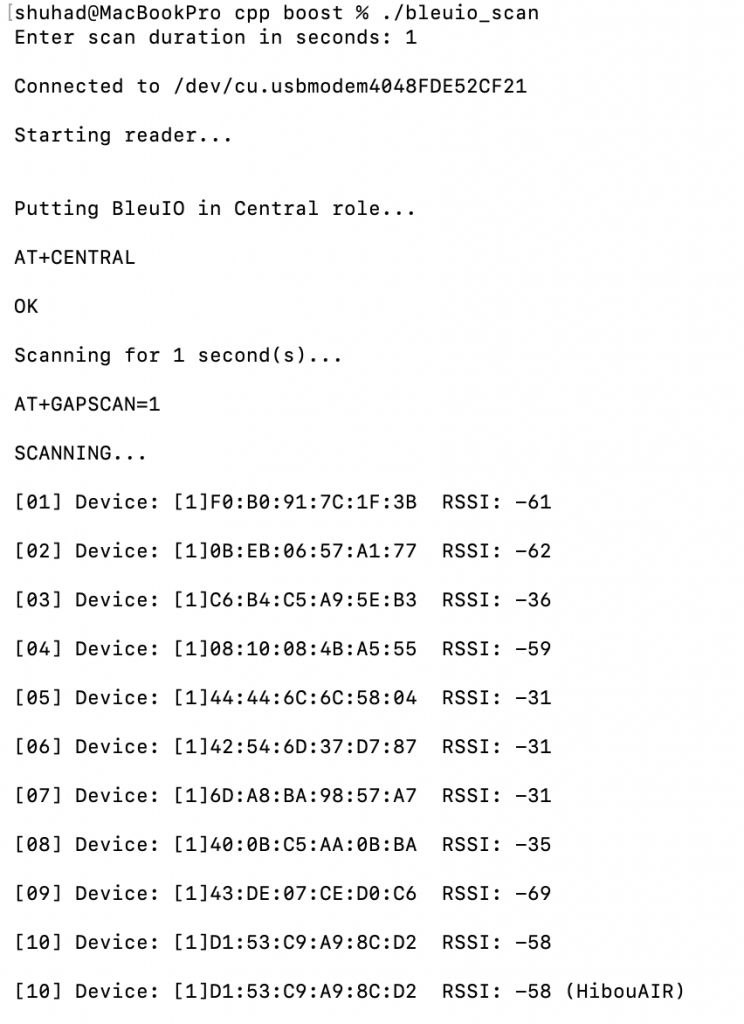
Example output may look like this:

Locating the BleuIO Serial Port

Before running the program, you need to identify the serial port where the BleuIO dongle is connected.

On macOS, you can list available serial devices using the terminal command:

ls /dev/cu.*

The BleuIO device will typically appear with a name similar to:

/dev/cu.usbmodemXXXXXXXX

This value can then be used in the script as the serial port path.

On Windows, the serial port can be identified through Device Manager. After plugging in the BleuIO dongle, open Device Manager and expand the Ports (COM & LPT) section. The device will appear as a USB serial device with a COM port number, such as COM17.

Expanding This Example

The script in this tutorial is a basic example showing how to communicate with the BleuIO dongle using C++ and Boost.Asio. Although it only performs BLE scanning, the same approach can be used to send any AT command supported by BleuIO. Developers can extend this example to connect to devices, read GATT characteristics, parse advertisement data, or integrate BLE functionality into larger applications such as IoT gateways, monitoring tools, or automation systems.

Share this post on :

Integrating BleuIO with Teensy 4.1 – Scanning and Decoding HibouAir Sensor Data (Part 2)

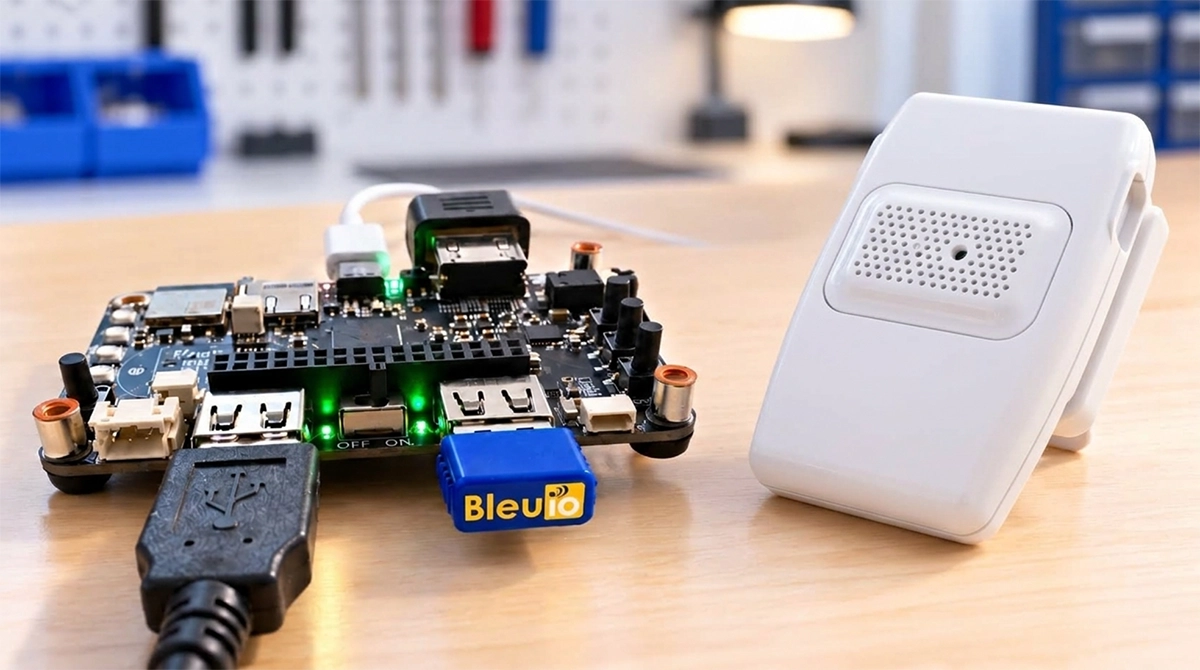
In the previous project, we focused on getting Teensy 4.1 working as a USB Host for the BleuIO. The goal was simple: remove the PC from the equation and prove that a microcontroller could directly control BleuIO and communicate over BLE using AT commands.

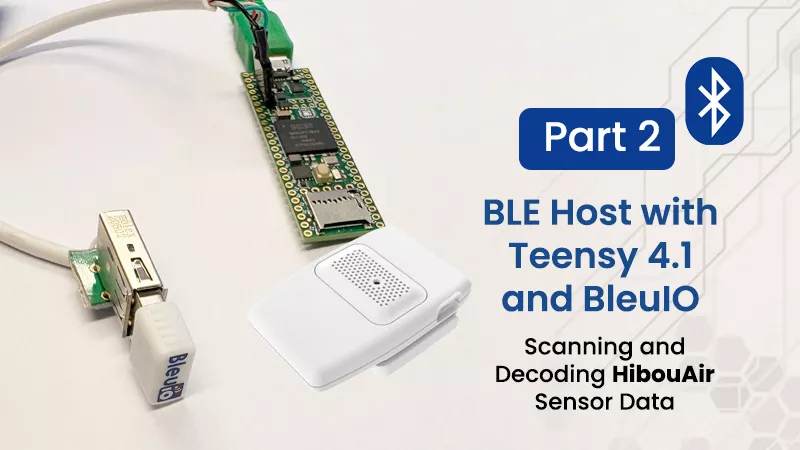
This project builds on that foundation and does something practical with it. Instead of manually sending commands and observing responses, we now create a complete scanner that automatically detects nearby HibouAir sensors, reads their BLE advertisement data, decodes it, and prints meaningful environmental values in real time.

At this point, the system stops being a connectivity demo and becomes an actual application.

Hardware Requirements

Software Requirements

Install ArduinoJson

This project uses ArduinoJson to parse scan results from BleuIO.

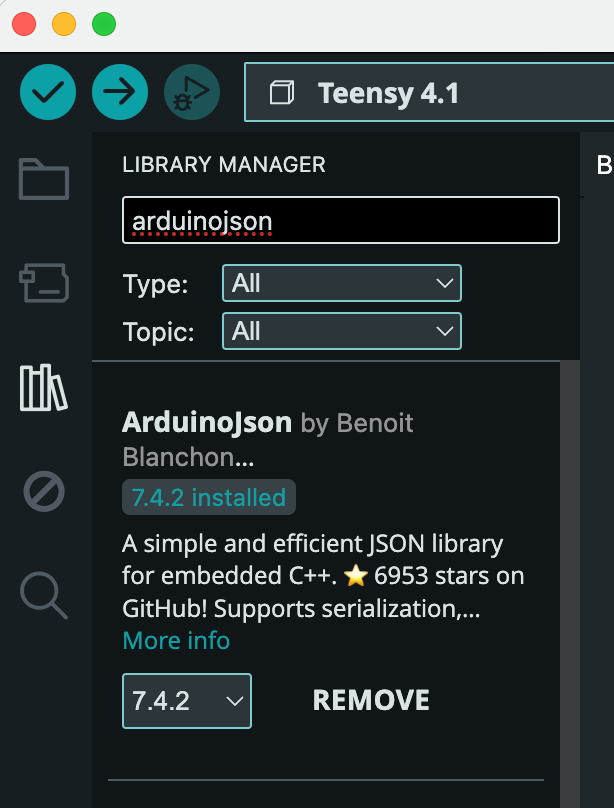
In Arduino IDE:

  1. Open Library Manager
  2. Search for arduinojson
  3. Install version 7.x or compatible

ArduinoJson is required to deserialize the JSON scan data received from BleuIO.

How it Works

The architecture remains the same as in Part 1, but now it is used with purpose.

Teensy operates in USB Host mode and communicates directly with BleuIO. BleuIO handles all Bluetooth Low Energy scanning internally and outputs scan results as structured JSON strings over USB serial. Teensy receives those strings, parses the JSON content, extracts the manufacturer-specific payload, and decodes it into usable values.

Conceptually, the flow looks like this:

Teensy 4.1 (USB Host + Application Logic)

BleuIO (BLE Scanning Engine)

BLE Advertisement Data (JSON)

HibouAir Decoder

Readable Environmental Measurements

The important thing to notice here is that Teensy never deals with BLE packets directly. There is no radio handling, no GAP or GATT management, and no BLE stack integration. Everything related to Bluetooth stays inside BleuIO. The microcontroller simply receives structured scan results and processes them like any other data stream.

Automatic Startup and Scanning

When the firmware starts, it configures BleuIO automatically. It disables command echo, enables verbose mode, and then sends a filtered scan command:

AT+FINDSCANDATA=FF5B07

This tells BleuIO to report only devices containing the HibouAir manufacturer identifier. From that moment, scan results begin arriving continuously as JSON lines.

Each line contains fields such as the device address and a data field containing the manufacturer payload in hex format. That hex string is where the sensor readings are encoded.

Parsing the JSON Data

Since scan data arrives asynchronously, the project includes a small USB serial line reader. It buffers incoming characters until a newline is detected, ensuring that we always attempt to parse complete JSON messages.

The ArduinoJson library is used to deserialize each line into a JsonDocument. Once deserialized, we check that the expected scan fields are present. If so, we extract the hex-encoded manufacturer payload and pass it to the HibouAir decoder.

At this stage, the data is still raw — just a long hex string representing packed bytes from the BLE advertisement.

Decoding the HibouAir Advertisement Payload

The core of this project is the HibouAir structure. Instead of manually extracting bytes in the main loop, the decoding logic is encapsulated in a dedicated class.

The constructor receives the JSON document, extracts the data field, and interprets the hex string as a packed binary structure. Using offsetof() ensures that the correct byte offsets are used, and helper functions convert the hex pairs into integers. Because the BLE advertisement uses little-endian ordering, some fields require byte swapping before they become meaningful.

Once decoded, the class provides clean accessor functions such as:

  • getTemp()
  • getHum()
  • getBar()
  • getCo2()
  • getPM2_5()

These functions already return properly scaled values. For example, temperature is divided by 10 to convert from raw integer format to degrees Celsius.

This separation keeps the application logic simple. The main loop only needs to create a HibouAir object and call show_sensor() to print the values.

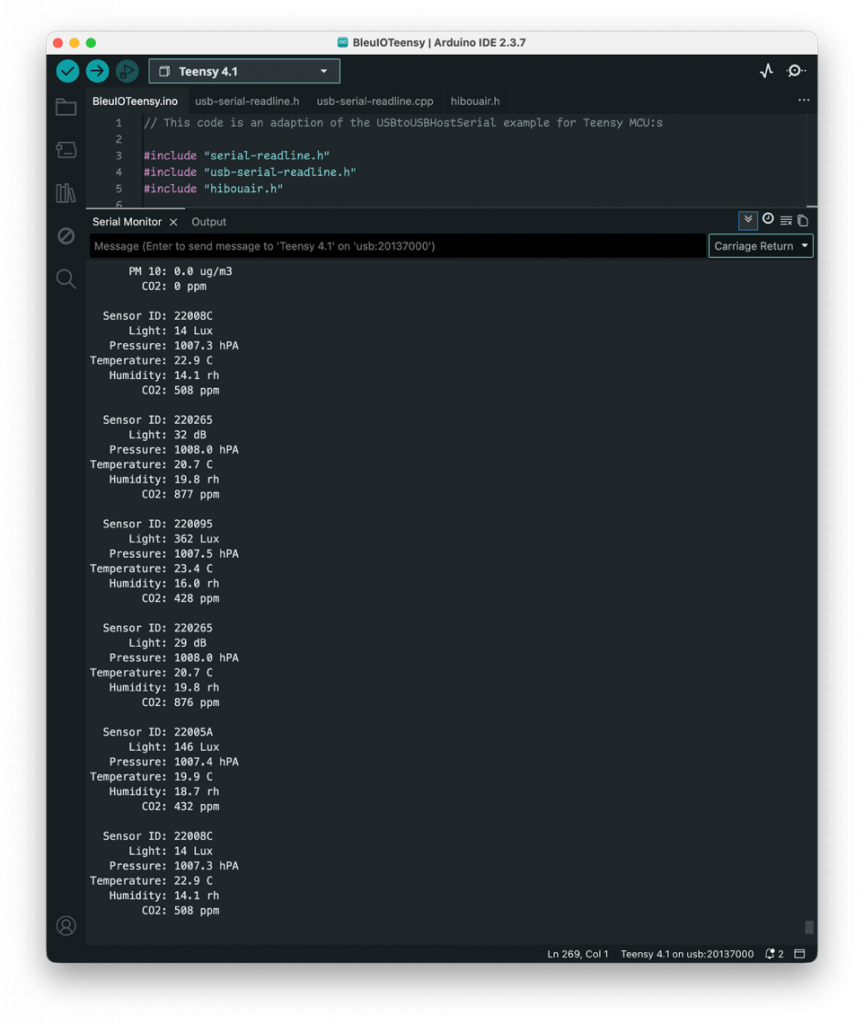
Example Output

When running the project with a nearby HibouAir sensor, the Serial Monitor shows structured environmental readings like this:

Sensor ID: 22008C
Light: 14 Lux
Pressure: 1007.3 hPA
Temperature: 22.9 C
Humidity: 14.1 %rh
CO2: 508 ppm

For particulate matter devices, additional values appear:

PM 1.0: 0.0 ug/m3
PM 2.5: 1.2 ug/m3
PM 10: 2.5 ug/m3

This output is generated directly from BLE advertisements without establishing a connection to the sensor. The sensors simply broadcast their measurements, and the system passively collects and decodes them.

GitHub Repository

The complete source code for this project is available here:

https://github.com/smart-sensor-devices-ab/bleuio-teensy-hibouair-scanner

You can clone the repository, install the ArduinoJson library through the Arduino IDE Library Manager, upload the sketch to Teensy 4.1, and run it immediately. The code is modular and organized so you can reuse the USB line reader, the HibouAir decoder, or the scanning logic in your own applications.

With this foundation in place, several natural extensions become possible. You could store measurements on an SD card, publish them via MQTT, expose them through a REST interface, or even build a complete air-quality gateway. The BLE side does not need to change.

Share this post on :

Integrating BleuIO with Teensy 4.1 for Seamless BLE Applications

In this project, we will show how to integrate BleuIO with Teensy 4.1 to create Seamless BLE Applications. The goal is to turn the Teensy into a USB Host controller that communicates directly with BleuIO through a simple Arduino sketch, allowing us to create BLE applications without implementing a full BLE stack on the microcontroller.

By the end of this project, you will have a fully functional embedded BLE platform where Teensy 4.1 acts as the application controller and BleuIO handles all Bluetooth Low Energy communication internally. You will be able to send AT commands from Teensy to scan for BLE devices, connect to them, read characteristics, and build your own BLE-based solutions. More importantly, you will gain a reusable architecture that can serve as the foundation for industrial gateways, IoT devices, monitoring systems, or custom embedded products.

Why We Chose Teensy 4.1

The Teensy 4.1 is built around the powerful NXP i.MX RT1062 ARM Cortex-M7 processor running at 600 MHz. This makes it one of the fastest microcontrollers compatible with the Arduino ecosystem. Its high clock speed, large memory capacity, and hardware floating point support allow it to handle complex logic, real-time data processing, and communication tasks with ease.

What makes Teensy 4.1 particularly ideal for this project is its USB Host capability. Since BleuIO is a USB device, it requires a host controller to operate independently of a PC. Teensy 4.1 provides exactly that. It allows us to connect BleuIO directly to the microcontroller and build a fully standalone BLE system. The board’s performance headroom ensures stable communication, fast response handling, and scalability for advanced applications.

Rather than choosing a minimal low-power MCU, we selected Teensy 4.1 because it bridges the gap between traditional microcontrollers and more complex application processors. It gives developers flexibility, speed, and reliability in embedded BLE projects.

Project Requirements

To build this project, you will need:

Project Architecture Overview

The system architecture is straightforward. Teensy 4.1 operates as a USB Host and communicates directly with the BleuIO dongle over serial. BleuIO then manages all Bluetooth Low Energy communication with nearby BLE devices. This separation of responsibilities simplifies development significantly. Teensy focuses on application logic, while BleuIO handles the BLE stack internally.

Teensy 4.1 (USB Host)
        ↓
BleuIO USB Dongle
        ↓
BLE Devices

How the Project Works – Step-by-Step

Step 1: Install Arduino IDE and Teensy Support

First download the Arduino 2.x.x IDE from Arduino’s website. All versions 2.0.4 and later are supported. Versions 2.3.0 or later are recommended, due to improvements in Boards Manager. 

To install Teensy on Arduino IDE 2.x, click File > Preferences (on MacOS, click Arduino IDE > Settings). 

In the main Arduino window, open Boards Manager by clicking the left-side board icon, search for “teensy”, and click “Install”. 

Step 2: Configure USB Type

Teensy supports multiple USB configurations. Under Tools → USB Type, select the appropriate mode so the board can manage serial communication while operating with USB Host functionality. Teensyduino is also compatible with many Arduino libraries

Step 3: Upload the Sketch

The source code for this project, USBtoUSBHostSerial.ino sketch, is publicly available on GitHub: https://github.com/smart-sensor-devices-ab/bleuio_Teensy_host

Upload the provided USBtoUSBHostSerial.ino sketch to the Teensy 4.1 using the Arduino IDE. This sketch initializes the USB Host interface and establishes a communication bridge between the Teensy and the BleuIO dongle. Once programmed, the Teensy essentially becomes a serial terminal for BleuIO, allowing you to type AT commands through the Arduino Serial Monitor and receive responses in real time.

Instead of embedding complex BLE logic in the microcontroller firmware, the sketch focuses on maintaining stable USB communication and forwarding user commands to the dongle. BleuIO processes these commands internally and returns structured responses. This design keeps the firmware clean, modular, and easy to expand.

Why This Approach Is Powerful

Developing BLE applications directly on microcontrollers traditionally requires integrating a BLE stack, managing connection states, handling security layers, parsing protocol events, and debugging complex timing issues. This process can be time-consuming and hardware-dependent. Each microcontroller family often requires a different SDK, stack configuration, and maintenance strategy.

By using BleuIO, this complexity is dramatically reduced. BLE functionality is abstracted behind a simple AT command interface. The microcontroller does not need to manage low-level BLE operations. Instead, it communicates using straightforward serial commands while BleuIO takes care of scanning, connecting, reading characteristics, and maintaining protocol compliance internally. This modular architecture makes the system portable across hardware platforms and reduces firmware complexity, development time, and maintenance effort.

GitHub Repository

The source code for this project, USBtoUSBHostSerial.ino sketch, is publicly available on GitHub:

https://github.com/smart-sensor-devices-ab/bleuio_Teensy_host

This project is shared as a public example to demonstrate how BleuIO can be integrated into high-performance embedded systems. It is intentionally simple in structure so that developers can clearly understand the architecture and reuse it in their own applications.

By combining the computational power of Teensy 4.1 with the modular BLE capabilities of BleuIO, we created a clean and scalable embedded architecture. This project highlights how BLE integration does not need to be complicated. With the right approach, developers can focus on innovation and application logic rather than low-level protocol management.

Share this post on :

Developing a Desktop BLE Air-Quality Application with Rust, Dioxus, and BleuIO

Bluetooth Low Energy is often associated with mobile apps, embedded firmware, or cloud gateways. In practice, however, BLE is equally powerful on the desktop. With the right tools, a desktop application can scan, decode, and visualize BLE sensor data in real time—without relying on browsers or mobile platforms.

In this tutorial, we demonstrate how BleuIO can be used as a flexible BLE interface for desktop applications written in Rust, using the Dioxus framework. The result is a native desktop application that scans nearby HibouAir sensors, decodes their BLE advertisement data, and presents air-quality metrics in a clean, responsive user interface.

This project is intended as a practical example that shows how BleuIO fits naturally into modern desktop development workflows—regardless of programming language.

What We Are Building

The application is a native desktop air-quality dashboard. It connects to a BleuIO USB dongle over a serial port, puts the dongle into BLE scanning mode, and continuously listens for BLE advertisements from nearby HibouAir sensors. These advertisements contain manufacturer-specific data with environmental measurements such as CO2 concentration, particulate matter, temperature, humidity, pressure, VOC levels, and ambient light.

The desktop application decodes this data locally and displays it in real time. Each detected sensor is shown as its own panel, with a clear header identifying the device type and a structured content area showing the latest measurements.

The entire solution runs locally on the user’s computer. There is no cloud dependency, no browser runtime, and no mobile device involved.

Why Rust and Dioxus?

Rust has become increasingly popular for system-level and desktop applications because it combines performance, memory safety, and strong tooling. For BLE applications that involve continuous serial communication and real-time data processing, these properties are particularly valuable.

Dioxus is a Rust UI framework inspired by modern component-based design. It allows developers to build native desktop interfaces using a declarative approach while still compiling to a true desktop binary. In this project, Dioxus is used to render the dashboard, manage state updates as sensor data arrives, and keep the UI responsive even during continuous BLE scanning.

The combination of Rust, Dioxus, and BleuIO demonstrates that desktop BLE applications do not need to rely on platform-specific SDKs or heavyweight frameworks.

Requirements

To run this project, the following hardware and software are required:

Hardware

Software

No proprietary SDKs or BLE drivers are required. BleuIO communicates using standard AT commands over a serial interface, making the setup lightweight and portable.

How the Project Works Internally

When the application starts, it first searches for a connected BleuIO dongle by scanning available serial ports and matching the dongle’s USB vendor and product IDs. Once the correct device is found, the application opens the serial port and initializes the dongle by disabling command echo and enabling verbose mode.

After initialization, the application instructs BleuIO to start scanning for BLE advertisements that match HibouAir’s manufacturer identifier. BleuIO then streams scan results back to the application as JSON-formatted lines over the serial connection.

Each incoming scan packet is parsed and inspected. The application locates the BLE manufacturer-specific data, verifies that it belongs to HibouAir, and decodes the payload into a structured Rust data type. To ensure stable and predictable readings, only the full advertisement format used by HibouAir beacon type 0x05 is processed. Partial or auxiliary beacon formats are ignored in this example project.

Decoded sensor data is stored in memory and immediately reflected in the user interface. As new advertisements arrive, the corresponding sensor panel updates automatically.

Project Structure

The source code is organized into clear, functional modules. UI components are separated from BLE logic and data models, making the project easy to understand and extend. The main application entry point configures the desktop window and mounts the dashboard component. BLE communication is encapsulated in a dedicated hook that runs asynchronously and feeds decoded sensor data into the UI layer.

src/
├── components/
│   ├── dashboard.rs
│   ├── sensor_panel.rs
│   └── mod.rs
├── hooks/
│   ├── use_bleuio.rs
│   └── mod.rs
├── models/
│   ├── bleuio.rs
│   ├── hibouair.rs
│   ├── sensor_data.rs
│   └── mod.rs
├── main.rs
assets/
├── main.css
├── tailwind.css
└── favicon.ico

This structure mirrors how larger Rust desktop applications are typically organized, and it provides a solid foundation for adding features such as data logging, historical charts, filtering, or export functionality.

Source Code and How to Run the Project

The complete source code for this project is publicly available on GitHub:

GitHub repository:
https://github.com/smart-sensor-devices-ab/hibouair-bleuio-rust-readltime-desktop

After cloning the repository, the application can be run in development mode using the Dioxus CLI. This launches the desktop window and enables hot reloading, which is useful when experimenting with UI changes or decoding logic. The project can also be built and run using standard Cargo commands, producing a native desktop binary.

Because the code is open and self-contained, developers are free to study it, modify it, or reuse parts of it in their own BLE-based desktop applications.

The complete instruction on how to run this project is available on the Readme file.

Application Output

When running, the application displays a dashboard with one panel per detected HibouAir sensor. Each panel includes a colored header identifying the sensor type, followed by a white content area showing live air-quality measurements. Values update continuously as new BLE advertisements are received, providing an immediate view of the surrounding environment.

A screenshot of the running application is shown below to illustrate the final result.

This project is intentionally kept simple. It is not a finished product, but rather an educational example that demonstrates how BleuIO can be used with Rust and Dioxus to build a native desktop BLE application. The source code is public, easy to follow, and designed to be extended.

Share this post on :

Building an IoT BLE Gateway to the Cloud Using BleuIO and Thinger.io

Bluetooth Low Energy (BLE) sensors are excellent at collecting environmental data close to where it matters. Many air-quality devices broadcast their readings using BLE advertisements, which keeps power consumption low and avoids the overhead of maintaining a connection. The challenge appears when you want to access that data remotely, share it with a team, or visualize trends over time.

In this tutorial project, we demonstrate a simple and transparent way to bridge that gap. A BleuIO USB dongle scans BLE advertisements from a HibouAir sensor, a lightweight Python script decodes the values, and the data is sent to Thinger.io for storage and visualization. The goal is not to build a product-specific solution, but to show how easily BLE advertisement data can be integrated into a modern cloud platform using readily available tools.

From local BLE data to remote access

BLE advertisement data is, by design, local: a sensor broadcasts data into the surrounding area, and only nearby devices can receive it. This works perfectly for local dashboards, logging, or automation running on a PC or embedded computer. However, as soon as you want to view data remotely, share readings with others, analyze trends over longer periods, or build dashboards that are accessible from anywhere, a cloud layer becomes necessary. A gateway approach solves this neatly by listening to BLE advertisements, decoding them, and forwarding the results to the cloud without requiring changes to the sensor firmware or the addition of complex SDKs. This keeps the BLE side simple while allowing the cloud to handle storage, visualization, and access control.

About Thinger.io

Thinger.io offers a generous free tier that is well suited for prototyping, demos, and proof-of-concept projects. It allows you to create devices that accept data over HTTP, store incoming measurements in data buckets, and build dashboards with charts and widgets in just a few steps.

For this project, Thinger.io acts as a remote endpoint that receives decoded air-quality data and makes it immediately visible through its web dashboard. This makes it easy to demonstrate end-to-end data flow—from BLE advertisements in the air to charts in a browser—without maintaining your own backend.

Project requirements

Hardware

Software

  • Python 3.9 or later
  • pyserial Python library
  • requests Python library
  • Thinger.io account (free tier)

No embedded firmware development and no BLE SDKs are required.

How the project works

The HibouAir device periodically broadcasts its sensor readings inside BLE advertisement packets. BleuIO, connected to computer via USB, continuously scans for nearby BLE advertisements and filters packets that match the HibouAir identifier.

A Python gateway script reads the scan output from BleuIO, extracts the raw advertisement payload, and decodes the air-quality values such as CO2, temperature, and humidity. These decoded values are then packaged into a simple JSON object and sent to Thinger.io using an authenticated HTTP request.

Thinger.io receives the data, stores it in a bucket, and makes it available for visualization on dashboards. This entire process runs continuously, creating a real-time BLE-to-cloud data pipeline without establishing a persistent BLE connection to the sensor.

Source code

The complete source code for this project is available on GitHub. It includes the Python gateway script, configuration examples, and setup notes.

https://github.com/smart-sensor-devices-ab/bleuio_thinger_cloud/

Setting up the Thinger.io dashboard

On the Thinger.io side, the setup is straightforward. You create an HTTP device that acts as the data entry point, generate an access token for authentication, and configure a data bucket to store incoming measurements. Once the bucket is in place, dashboards can be built by adding widgets such as numeric values, gauges, or time-series charts.

Step 1: Create an HTTP Device

Go to Dashboard → Devices and create a new device.

  1. Click Add Device / New Device
  2. Choose HTTP Device
  3. Set a clear Device ID (example: hibouair_bleuio_gateway)
  4. Save

Step 2: Get the Callback URL (endpoint)

Open the device you just created and locate the callback endpoint that will receive your JSON payload.

  1. Click your device (example: hibouair_bleuio_gateway)
  2. Go to Callback
  3. Copy the Callback URL / Endpoint URL

This is the URL your Python gateway will send data to using an HTTP POST.

Step 3: Create a Data Bucket (storage)

Buckets store your incoming time-series data and make charts/dashboard widgets easy.

  1. Go to Data Buckets
  2. Click Create Bucket
  3. Name it something like: hibouair_air_quality
  4. Save

Step 4: Link the Device Callback to the Bucket

Now tell Thinger.io to store incoming device payloads into your bucket.

  1. Go back to your device: Devices → hibouair_ble_gateway
  2. Open Callback settings
  3. Enable storing/forwarding incoming data to a bucket
  4. Select bucket: hibouair_air_quality
  5. Save

Step 5: Create a Dashboard

This is where the live visualization happens.

  1. Go to Dashboards
  2. Click New Dashboard
  3. Name it: HibouAir Live (BleuIO)
  4. Save

Step 6: Add widgets to visualize your data

Use the bucket as the data source for widgets.

Suggested widgets (example mapping):

  • Numeric / Value widgetco2_ppm
  • Gauge widgettemperature_c
  • Time-series charthumidity_rh (and optionally CO2 too)

Steps:

  1. Click Add Widget
  2. Choose widget type (Value, Gauge, Chart)
  3. Select bucket: hibouair_air_quality
  4. Choose the field (co2_ppm / temperature_c / humidity_rh)
  5. Save widget
  6. Arrange widgets on the dashboard

Running the gateway

After configuring the Thinger.io credentials and ensuring BleuIO is connected to the correct serial port, the project is started with a single command:

python3 gateway_thinger.py

Once running, the script scans for BLE advertisements, decodes the sensor data, and pushes updates to Thinger.io at regular intervals. Terminal output confirms successful scans and uploads, while the dashboard updates in near real time.


This project is meant to showcase an integration pattern, not to define a fixed solution. By combining BLE advertisement scanning with a simple Python gateway and a cloud platform like Thinger.io, it becomes clear how flexible this approach can be. Engineers can take this example, replace the sensor, adjust the decoder, or switch the cloud endpoint to suit their own needs.

Share this post on :

Building a BLE Device Detection Web App with Phoenix and BleuIO

In this tutorial, we build a simple but practical web application that demonstrates how BleuIO can be integrated with a modern web framework to interact with Bluetooth Low Energy (BLE) devices in real time. The goal of this project is not to create a full-featured product, but to provide a clear example that developers can learn from and extend for their own use cases.

The application connects to a BleuIO USB dongle via a serial port, enables verbose mode, performs a BLE scan, and detects whether a specific nearby BLE device is present. If the target device is found, the application displays its MAC address. This approach is particularly useful for scenarios such as proximity detection, presence monitoring, or gateway-style BLE integrations.

The complete source code for this project is provided separately so developers can easily clone, modify, and build upon it.

Why Phoenix Framework?

Phoenix is a web framework written in Elixir and built on top of the Erlang/OTP ecosystem. It is designed for applications that require high concurrency, real-time updates, and long-running background processes. These characteristics make Phoenix particularly suitable for hardware-integrated applications where continuous communication with external devices is required.

In this project, Phoenix allows the BleuIO serial connection to remain open while BLE scan results are streamed to the web interface. The framework handles process supervision, message passing, and real-time UI updates in a clean and reliable way, without the need for complex front-end JavaScript logic.

How This Differs from a JavaScript-Based Web App

This project does not use the Web Serial API. Web Serial allows browser-based JavaScript applications to access serial devices, but it is primarily intended for interactive, user-driven scenarios. It requires explicit user permission, depends on browser support, and is not suitable for unattended or always-on systems.

By contrast, this Phoenix-based approach keeps all BLE logic on the backend. The web interface simply reflects the current state of the system and allows the user to trigger actions such as connecting or rescanning. This separation makes the application easier to extend, easier to deploy, and more suitable for real-world integrations where reliability and continuous operation are important.

Requirements

To follow this tutorial, you will need:

How the Application Works

The application follows a straightforward process. The user enters the serial port name where the BleuIO dongle is connected and initiates the connection from the web interface. Once connected, the application sends an AT command to enable verbose mode, making the responses easier to read and parse.

After verbose mode is enabled, the application starts a timed BLE scan. As scan results arrive from BleuIO, they are analyzed in real time. If a BLE device advertising the configured target name is detected, the application extracts its MAC address and updates the interface accordingly. The user can repeat the scan at any time using the rescan option.

All serial communication and BLE processing run in the background, while the web interface updates automatically based on events generated by the backend.

Running the Application

Installing Phoenix

Phoenix can be installed on macOS using standard tooling for Elixir. Once Elixir is installed, Phoenix can be added using the official project generator. Detailed installation steps are included in the project documentation.

Running the App

Download the source code from https://github.com/smart-sensor-devices-ab/bleuio-phoenix-erlang

After downloading the source code:

  1. Install dependencies
  2. Start the Phoenix server
  3. Open the application in a browser
  4. Enter the BleuIO serial port
  5. Click Connect
  6. View scan results and detected devices

Follow README.md for more details

The application runs locally and does not require any cloud services.

Configuring the Serial Port and Target Device

Two key parameters are intentionally easy to modify:

Serial Port

The serial port used by BleuIO can be updated either through the web interface or in the configuration file (config>runtime.exs). This allows the project to run on different machines without code changes.

The serial port name depends on the operating system being used. On macOS, BleuIO typically appears as a device starting with /dev/cu.usbmodem. On Linux systems, the dongle is commonly available as /dev/ttyUSB0 or /dev/ttyACM0, depending on the system configuration. On Windows, BleuIO appears as a COM port, such as COM3 or COM5.

Target BLE Device

The application looks for a specific BLE device name during scanning. This name is defined as a constant in the backend code on lib>bleuio_phx>bleuio_worker.ex and is matched case-insensitively.

Proximity Detection and CloseBeacon Use Case

In the example implementation, the application detects a device advertising the name closebeacon.com. This makes the project suitable for proximity detection use cases, such as presence awareness, zone monitoring, or asset tracking.

BLE beacons like CloseBeacon are commonly used in proximity-based systems, and this project demonstrates how BleuIO can serve as a reliable BLE scanning interface for such applications. More information about CloseBeacon can be found at https://www.closebeacon.com/.

How This Project Helps Developers

This tutorial is intended as an example project rather than a finished solution. It shows how BleuIO can be integrated with a backend web framework to handle BLE scanning in a clean and scalable way. Developers can use this project as a reference to understand the overall architecture and then build their own custom logic on top of it.

The complete source code is provided so that anyone interested can explore the implementation details, experiment with different configurations, and adapt the project for their own BLE-enabled applications.

By combining BleuIO with Phoenix, developers can build BLE-enabled web applications that are not limited by browser APIs or client-side constraints. This example demonstrates a backend-first approach to BLE scanning that is well suited for gateways, monitoring tools, and proximity detection systems.

Share this post on :

Sending BLE Air Quality Data to Arduino Cloud Using BleuIO

Bluetooth Low Energy (BLE) devices are widely used for environmental monitoring, but getting their data into the cloud often requires complex SDKs, gateways, or proprietary platforms. In this tutorial, we demonstrate a simple and flexible alternative: sending BLE advertisement data directly to Arduino Cloud using BleuIO as a USB BLE gateway.

In this project, we build a lightweight data pipeline where a HibouAir air quality sensor broadcasts environmental data over BLE advertisements, BleuIO scans and captures that data, a Python script decodes the values, and the results are sent straight to Arduino Cloud for storage and visualization — all using free tools.

This project is designed as a showcase example to illustrate how BLE development and cloud integration can be done quickly and transparently, without BLE SDKs or embedded firmware development.

Why Arduino Cloud?

Arduino Cloud offers a convenient and reliable platform for storing and visualizing IoT data without the need to build and maintain a custom backend. Although it is often associated with Arduino hardware, the platform supports Manual Devices, which makes it suitable for gateway-based solutions where data originates from external devices such as BLE sensors. In this project, Arduino Cloud serves as a secure endpoint where decoded air quality data can be published using standard MQTT communication. Its integrated dashboards allow developers to quickly visualize sensor data, making it especially useful for prototyping, demonstrations, and proof-of-concept projects that require minimal setup.

Hardware and Software Requirements

Hardware

Software

  • Python 3.9 or later
  • pyserial Python library
  • arduino-iot-cloud Python library
  • Arduino Cloud

No embedded programming or BLE SDKs are required.

How the System Works

The HibouAir device periodically broadcasts air quality data within its BLE advertisement payload. BleuIO continuously scans for nearby BLE advertisements and filters packets that match a specific device identifier. When a matching advertisement is detected, the Python gateway script extracts the raw data and applies decoding logic to convert the hexadecimal values into human-readable measurements. These decoded values are then published to Arduino Cloud using authenticated MQTT communication. The entire process runs continuously, enabling real-time data updates without establishing a persistent BLE connection to the sensor.

Arduino Cloud Setup (Step by Step)

Step 1: Create or Log In to Arduino Cloud

Go to:
https://app.arduino.cc/dashboards

Create a free account or log in to your existing one. After login Arduino Cloud will generate

  • Device ID
  • Secret Key

Save these securely — they will be used in the Python script.

Step 2: Create a Device

Navigate to:
https://app.arduino.cc/devices

  • Click Add Device from left menu
  • Choose Manual Device
  • Name the device HibouAir

Step 3: Create a Thing

When prompted after creating device, create a new Thing and name it HibouAir Thing.

Step 4: Add Cloud Variables

Add the following variables to the Thing:

Variable NameTypeDescription
co2_ppmintCO₂ concentration (ppm)
temperature_cfloatTemperature in °C
humidity_rhfloatRelative humidity (%)

Step 5: Create a Dashboard

Go back to Dashboards and create a new dashboard.

Add widgets such as:

  • Value widget for CO2
  • Gauge widget for temperature
  • Chart widget for humidity over time

Your cloud setup is now complete.

Project Source Code

Clone or download the project from GitHub:

https://github.com/smart-sensor-devices-ab/bleuio-to-arduino-cloud

Configure secrets.py

Update the following values:

DEVICE_ID = "YOUR_DEVICE_ID"
SECRET_KEY = "YOUR_SECRET_KEY"
SERIAL_PORT = "/dev/tty.usbmodemXXXX"

Make sure the serial port matches where BleuIO is connected.

Configure gateway.py

In gateway.py, update the scan command:

SCAN_CMD = "AT+FINDSCANDATA=220069=3"

In this example, 220069 is the HibouAir board ID used in the BLE advertisement.
If your HibouAir device uses a different ID, update this value accordingly.

Running the Project

Once the Arduino Cloud configuration and local script setup are complete, running the project requires only a single command.

python3 gateway.py

When the gateway script is executed, BleuIO is placed into dual-role mode and begins scanning for BLE advertisements that match the specified HibouAir board identifier. As advertisement packets are received, the script decodes the sensor values and immediately publishes them to Arduino Cloud. Within moments, the dashboard begins displaying live air quality data. This continuous loop allows the system to operate as a real-time BLE-to-cloud gateway with minimal overhead.

Customizing the Dashboard

Arduino Cloud dashboards can be customized to present air quality data in a way that best fits the user’s needs. Live values can be displayed using numeric widgets, gauges can be used to visualize ranges such as CO2 concentration or temperature, and chart widgets can be added to show trends over time. By arranging and configuring these widgets, users can create a clear and informative interface for monitoring indoor air quality. This flexibility makes the dashboard suitable not only for development and testing, but also for presentations and live demonstrations.

This project demonstrates how BLE advertisement data can be efficiently captured and delivered to the cloud using a minimal and transparent approach. By combining HibouAir sensors, BleuIO, a simple Python gateway, and Arduino Cloud, it is possible to create a complete end-to-end monitoring solution without relying on complex SDKs or embedded firmware development. While this tutorial focuses on air quality data, the same method can be extended to other BLE-based sensors and cloud platforms. As a showcase example, it highlights the flexibility of BleuIO as a BLE development tool and provides a solid foundation for developers who want to build and expand their own BLE-enabled cloud solutions.

Share this post on :

Integrating BleuIO with Adafruit Feather RP2040 for Seamless BLE Applications – Part 5 (Two-Way Communication)

In the earlier parts of this series, we combined the Adafruit Feather RP2040 with the BleuIO USB dongle to build different BLE applications: setting up the RP2040 as a USB host, reading sensor data, advertising measurements and handling secure connections.

In this Part 5, we take the next step and create a simple two-way communication setup. Instead of only broadcasting data, we let a Python script running on your computer talk to the BleuIO dongle connected to the Feather RP2040 and control its LED in real time. At the same time, the Feather responds over the Serial Port Service (SPS), echoing messages back so you can see exactly what was sent on both sides.

This project is a good starting point if you want to remotely control devices, test custom BLE command protocols or build interactive demos using BleuIO and RP2040.

What This Project Does

Arduino project on Adafruit Feather RP2040

On the hardware side, the Adafruit Feather RP2040 is configured as a USB host for the BleuIO dongle, using the same TinyUSB and Pico PIO USB approach as in Part 1 of the series. When the board starts, it initializes the USB host stack, detects the BleuIO dongle and sends a short sequence of AT commands. These commands disable echo, ask the dongle for its own MAC address, set a friendly advertising name (BleuIO Arduino Example) and start BLE advertising. After that, the sketch simply listens for BLE connection events and SPS messages. Depending on what text message it receives over SPS, it either echoes the message back or sends a command to change the LED behaviour on the dongle.

Python script on the computer

On the computer, a Python script acts as the BLE central. It uses the MAC address printed by the Feather’s serial output to connect to the advertising BleuIO dongle. Once connected, it sends text commands over SPS such as ALERT, NORMAL or OFF, and reads back whatever the Feather sends in response. When the Python script sends one of these special words, the Feather generates BLEU AT commands to control the dongle’s LED; for any other text, it just echoes the message. This creates a complete round-trip: you type in Python, the message travels over BLE to the RP2040 and BleuIO, and a response comes back the same way.

Requirements

Hardware

Software

If you already followed Part 1, your RP2040 USB host environment and board configuration should be ready to use.

Source Code on GitHub

You can find the complete source code for this project — both the Arduino sketch and the Python script — in our public GitHub repository: bleuio_arduino_message_transfer_example. Visit the repository at:

https://github.com/smart-sensor-devices-ab/bleuio_arduino_message_transfer_example

Feel free to clone or download the repo to get started quickly. All necessary files — including the .ino, helper headers, and the Python script — are included, so you can replicate the example or adapt it for your own project.

Recap: Preparing the Feather RP2040 as a USB Host

To quickly recap the setup from the earlier article: you install the Raspberry Pi RP2040 board package in the Arduino IDE, select the Feather RP2040 board, and install the Adafruit TinyUSB and Pico PIO USB libraries. You then make sure the CPU speed is set to 120 MHz or 240 MHz, since Pico PIO USB requires a clock that is a multiple of 120 MHz.

Uploading the Arduino Sketch

  1. Open the bleuio_arduino_connect_example.ino and usbh_helper.h in the same Arduino sketch folder.
  2. Select Adafruit Feather RP2040 (or your RP2040 board) under Tools → Board.
  1. Choose the correct COM port for the Feather.
  2. Click Upload.

After upload:

  1. Open Serial Monitor at 9600 baud.
  2. You should see something like:
Connect test v1.0
Core1 setup to run TinyUSB host with pio-usb
SerialHost is connected to a new CDC device. Idx: 0

BleuIO response:
{"own_mac_addr":"xx:xx:xx:xx:xx:xx"}
----
  1. Every 10 seconds (based on ALIVE_TIME) you’ll see an update:
H:M:S - 0:0:10
own_mac_addr: xx:xx:xx:xx:xx:xx
Not connected!

Initially it will say Not connected! because no BLE central is connected yet.

The Python Script (BLE Central)

The Python script acts as a BLE central that connects to the advertising BleuIO dongle and uses the Serial Port Service (SPS).

A typical flow in the Python script is:

  1. Read the MAC address printed by the Arduino Serial Monitor (own_mac_addr).
  2. Use the BleuIO Python library (or BLE stack) to connect to that address.
  3. Once connected, send plain text messages over SPS:
    • "ALERT"
    • "NORMAL"
    • "OFF"
    • Or any other text.

On the Python side you’ll see:

  • Connection success message.
  • Any SPS response sent from the RP2040 (e.g. [RP2040] Alert command Received: [...] or [RP2040] Echo: ...).

On the Arduino Serial Monitor you’ll see:

Connected!
SPS Received!
BleuIO response:
{"type":"SPS","evt":{"len":5,"ascii":"ALERT"}}
----
Sending command: AT+SPSSEND=[RP2040] Alert command Received: [ALERT]

And the LED on the BleuIO dongle will react according to the command:

  • ALERT → Blink pattern (AT+LED=T=100=100).
  • NORMAL → Toggle LED (AT+LED=T).
  • OFF → Turn LED off (AT+LED=0).
  • Any other message → Just an echo, no LED change.

Where to Go Next

This example completes the journey from simple advertising to full two-way communication between a computer application and a BleuIO dongle hosted by an Adafruit Feather RP2040. With this pattern in place, you can replace the LED commands with your own device protocol, combine it with the sensor examples from Part 2 and Part 4, or feed the exchanged messages into larger systems for logging, dashboards or control logic. Because the communication relies on the standard Serial Port Service and BleuIO AT commands, the same structure can be reused for many other projects where a PC, an embedded board and a BLE device need to work together.

Share this post on :