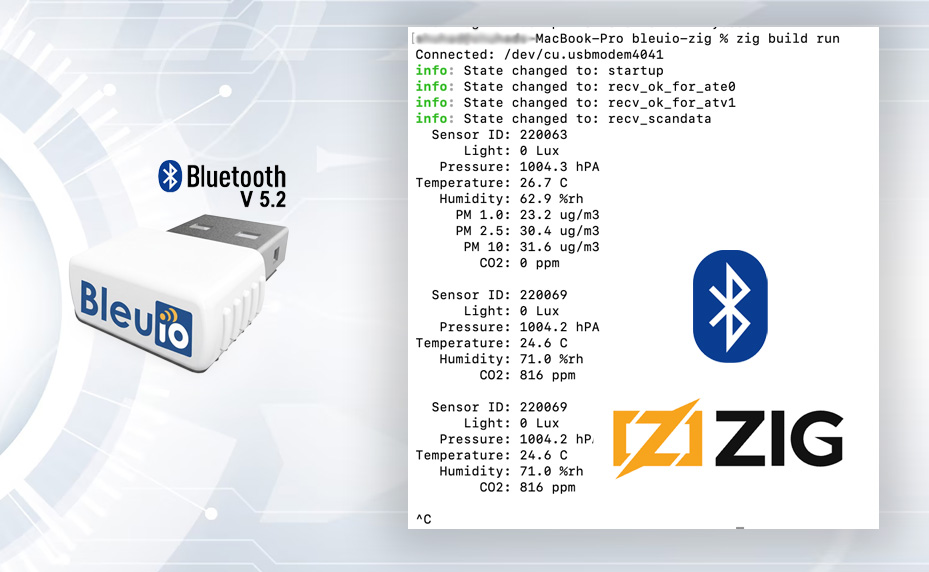
Building a BLE Application with Zig and BleuIO: Reading Sensor Data from HibouAir

In this tutorial, we will build a lightweight command-line application that interacts with Bluetooth Low Energy (BLE) devices using Zig and a BleuIO USB dongle. The application will scan for nearby BLE advertisements and decode sensor data broadcast by a HibouAir device. While HibouAir is used here as a test case, the main goal is to demonstrate how BleuIO simplifies BLE application development and how Zig can be used to build efficient, low-level tools for working with wireless data. By the end of this guide, you will have a working example of a BLE-powered CLI tool that reads, processes, and displays real-time data directly in your terminal.

About ZipLang (Zig)

Zig is a modern systems programming language designed with a focus on simplicity, performance, and control over hardware resources. It is particularly well-suited for applications that require direct interaction with devices, such as serial communication and embedded systems. In this project, Zig is used to communicate with the BleuIO dongle over a serial interface, process incoming BLE scan data, and decode raw payloads into meaningful values. Its minimal runtime and explicit design make it a strong choice for building reliable BLE tools without unnecessary abstraction.

Project Requirements

Hardware

Software

  • Zig installed
  • libserialport
  • pkg-config

How It Works

The application uses BleuIO as a bridge between the computer and BLE devices. When the program starts, it automatically detects the connected BleuIO dongle by matching its vendor and product ID, then opens a serial connection configured for communication. Once the connection is established, the program sends AT commands to initialize the dongle and begin scanning for BLE advertisement data that matches a specific identifier used by HibouAir devices.

As BLE data is received, the Zig application continuously reads the serial output, interprets the incoming JSON responses, and extracts the relevant payload. This payload is then decoded into human-readable sensor values such as temperature, humidity, pressure, particulate matter, and CO2 levels. The decoded information is printed directly in the terminal, allowing real-time monitoring without requiring any additional tools or manual decoding steps. When the program is stopped, it gracefully sends commands to halt scanning and reset the dongle before closing the connection.

Source Code

You can find the complete source code for this project on GitHub:

https://github.com/smart-sensor-devices-ab/bleuio-ziglang

Install and Run the Project

Follow the readme file inside the project to install and run. Once dependencies are installed, follow these steps:

Build the project

zig build

Run the application

zig build run

Make sure your BleuIO dongle is connected before running the program.

Example Output

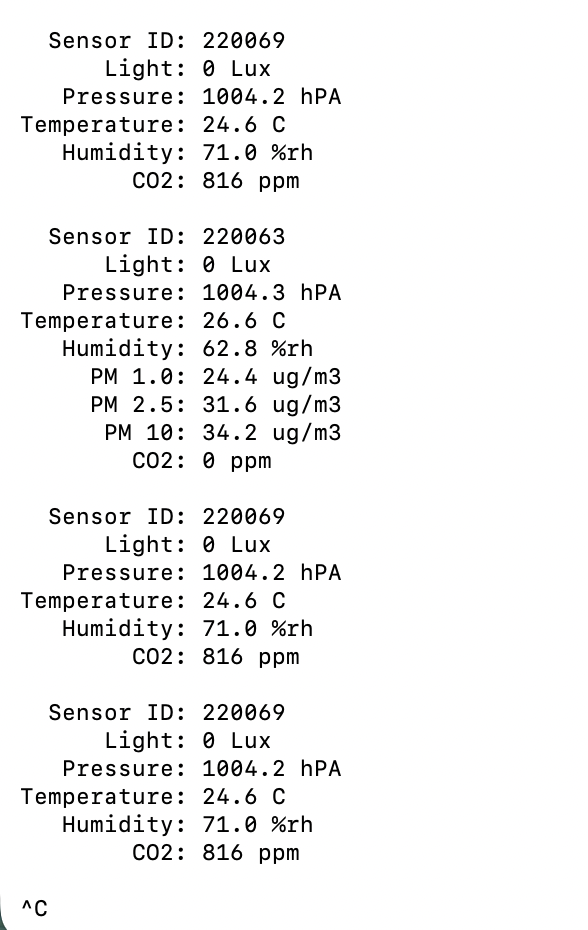
When the application is running, it prints decoded BLE sensor data directly to the terminal. Each detected broadcast from a matching device is processed and displayed in a readable format, making it easy to observe environmental data in real time.
About BleuIO

BleuIO plays a central role in this project by abstracting the complexity of BLE communication. Instead of implementing a full Bluetooth stack within the application, developers can interact with BLE devices using simple AT commands over a serial interface. This approach allows BLE functionality to be integrated into applications written in virtually any programming language and run on any major operating system. By handling scanning, filtering, and communication at the hardware level, BleuIO enables developers to focus on application logic, making BLE development faster and more accessible.

This tutorial demonstrates how Zig and BleuIO can be combined to build a practical BLE application with minimal overhead. While HibouAir is used here as a sample device for testing, the same approach can be applied to a wide range of BLE-enabled sensors and devices. The combination of a lightweight programming language and a simple BLE interface creates a powerful development workflow that is both efficient and easy to extend for real-world use cases.
Share this post on :

BleuIO Pro Firmware v1.0.6.4 Released

BleuIO has released a new firmware update for BleuIO Pro, version 1.0.6.4. This update focuses on improving connection reliability, refining command behavior, and addressing several inconsistencies that affected usability. The goal of this release is to make development smoother while ensuring better alignment with Bluetooth standards.

Improved Connection Stability

This version introduces enhancements to connection stability, making interactions between devices more reliable. Users working with BLE applications may notice fewer unexpected disconnections and more consistent behavior when establishing connections. These improvements are particularly valuable in environments where signal interference or frequent reconnections are common, helping ensure that BleuIO Pro performs more predictably in both development and production scenarios.

Updated MTU Command Behavior

A key change in this release involves the AT+MTU command. The minimum MTU value has been adjusted from 67 to 65 to comply with Bluetooth Secure Connection requirements defined by the Bluetooth SIG. This update ensures that developers can configure their devices according to official specifications without needing workarounds. By aligning with the required minimum MTU of 65, the firmware better supports secure BLE communication and improves compatibility with other Bluetooth-enabled devices.

Improved Advertising Command Handling and Interval Reporting

The behavior of the AT+ADVSTART command has been refined to address multiple inconsistencies and improve overall reliability. In earlier versions, the command could return misleading responses when advertising was already active, particularly in non-verbose mode, and it did not restart advertising or apply updated intervals when executed again. Additionally, it sometimes failed to report the correct advertising interval, which created uncertainty when configuring BLE behavior. With this update, the command now correctly returns an error if advertising is already running, ensuring consistent behavior across both verbose and non-verbose modes. It also reliably reports the configured advertising interval, giving developers clearer visibility and more precise control over advertising settings.

Consistent ASCII Formatting

This release also standardizes the formatting of the term “ASCII” across the firmware. In earlier versions, the term appeared in inconsistent forms such as lowercase or partially capitalized variations. It is now consistently presented in uppercase as “ASCII,” improving clarity and maintaining a uniform standard throughout command outputs and documentation.

How to Update Your Firmware

Updating to the latest firmware is straightforward. You can download the latest release and follow the step-by-step instructions available in our official documentation at https://www.bleuio.com/getting_started/docs/firmware_pro/ Alternatively, you can use the BleuIO web application to perform the update directly from your browser by visiting https://bleuio.com/bleuioapp/#/fw.

Both methods are designed to make the upgrade process quick and seamless.

Share this post on :

Building a BLE Sensor Scanner with Nim and BleuIO

Working with Bluetooth Low Energy devices often means dealing with multiple layers—hardware, protocols, and data decoding. In this tutorial, we are going to simplify that process by building a small command-line application using Nim and a BleuIO USB Dongle.

The goal is simple: scan nearby BLE devices, detect HibouAir sensors, decode their broadcast data, and display readable environmental values directly in the terminal.

By the end, you will have a working local tool that reads real-time air quality data without needing cloud connectivity.

What We Are Building

In this project, we build a lightweight desktop utility that connects to a BleuIO dongle and continuously scans for BLE advertisement data. When a compatible HibouAir device is detected, the application decodes the raw hex payload and prints meaningful values such as temperature, humidity, pressure, CO2, and particulate matter levels.

This is not a heavy application or a full dashboard. It is intentionally simple. The idea is to give developers a clean starting point to understand how BLE data flows from a device to a readable format.

Why Nim with BleuIO?

Nim is a compiled programming language that feels lightweight but powerful. It combines the simplicity of scripting languages with the performance of C. For developers who want fast execution, low memory usage, and clean syntax, Nim is a very practical choice.

Using Nim with BleuIO makes the development process even smoother. The BleuIO dongle abstracts away complex BLE stack handling and exposes everything through simple AT commands over a serial interface. Instead of dealing with platform-specific BLE APIs, you can send commands and receive structured data in return.

This combination allows you to focus more on logic and less on low-level Bluetooth complexity.

Requirements

Before running the project, make sure you have the following:

How the Project Works

When the application starts, it first looks for the connected BleuIO dongle by checking the USB device identifiers. Once the dongle is found, the program opens the serial port and prepares the device for communication.

The setup phase uses a short sequence of AT commands:

ATV0
ATE0
ATV1

These commands are used to configure how the dongle responds over serial so that the application can read and process the output more reliably.

After setup, the application starts scanning for BLE advertisement data using this command:

AT+FINDSCANDATA=FF5B07

This tells BleuIO to scan and report advertisement packets that match the data pattern used by HibouAir devices.

As scan results come in, the program reads the serial output line by line. It looks for valid scan data entries and then extracts the raw advertisement payload. Once a matching payload is found, the Nim code decodes the hex data into readable sensor values such as temperature, humidity, pressure, CO2, and particulate matter values depending on the device type.

When you stop the program with Ctrl + C, it also sends a final reset command to close things down cleanly:

ATR

Example Output

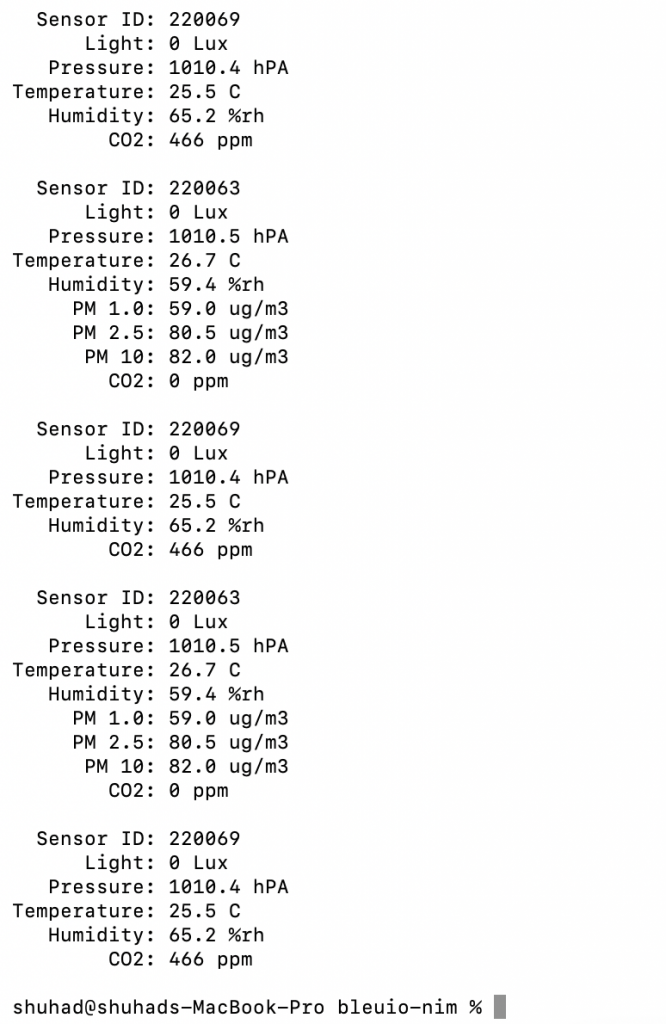
Below is an example of how the data appears in the terminal when a device is detected and decoded.

You will see values like temperature, humidity, pressure, and CO2 being printed in real time as the device broadcasts data.

Source Code

You can access the full project source code here:

[GitHub Repository ]

The code is intentionally kept small and readable so it is easy to follow and modify.

Running the Project

Once the project is downloaded and the BleuIO dongle is plugged into your Mac, you can build and run it directly from Terminal.

First, move into the project folder:

cd ~/Downloads/bleuio-nim

If you have not already installed the required tools, install them with Homebrew:

brew install nim libserialport pkg-config

After that, build the project:

nimble build

Once the build is complete, run it with:

nimble run

If everything is set up correctly, the application will detect the connected BleuIO dongle, initialize it, and begin scanning for HibouAir advertisement data. Within a few seconds, you should start seeing decoded sensor readings appear in the terminal.

When you want to stop the scanner, press:

Ctrl + C

The application will then stop scanning, send its cleanup command, and close the serial connection.

This project is best seen as a foundation rather than a finished product. It shows how to connect to a BLE device, scan for advertisement data, and decode it into something useful.
From here, you can take it in many directions. You might want to store the data locally, send it to a cloud service, build a graphical dashboard, or integrate it into a larger system. Since the core BLE communication is already handled through BleuIO, extending the project becomes much easier.

Share this post on :

Introducing BleuIO Firmware v2.7.9.78: Improved Stability & Data Reliability

We’re pleased to announce the release of BleuIO Firmware v2.7.9.78, bringing important fixes and enhancements that improve both data handling and communication reliability. This update reflects our continued focus on delivering a stable and developer-friendly BLE experience.

Improved Handling of Large GATT Data

This release resolves an issue where GATT data transfers exceeding 475 bytes could become truncated. In certain cases, this truncation resulted in invalid JSON formatting, which could lead to parsing errors in applications relying on structured data. With this fix in place, BleuIO now handles larger payloads reliably, ensuring data integrity and consistency across your BLE workflows.

More Reliable USB Communication

We have also strengthened the reliability of USB CDC read and write operations. The firmware now performs stricter checks to confirm that the dongle is properly configured and not in a suspended state before initiating communication. This improvement reduces the likelihood of unexpected failures and ensures more predictable behavior in various operating conditions.

How to Update Your Firmware

Updating to the latest firmware is straightforward. You can download the latest release and follow the step-by-step instructions available in our official documentation at https://www.bleuio.com/getting_started/docs/firmware/. Alternatively, you can use the BleuIO web application to perform the update directly from your browser by visiting https://bleuio.com/bleuioapp/#/fw.

Both methods are designed to make the upgrade process quick and seamless.

We recommend upgrading to BleuIO Firmware v2.7.9.78 to take advantage of these improvements. Updating ensures your projects benefit from the latest fixes and performance enhancements.

Share this post on :