Building a BLE Application with Zig and BleuIO: Reading Sensor Data from HibouAir

In this tutorial, we will build a lightweight command-line application that interacts with Bluetooth Low Energy (BLE) devices using Zig and a BleuIO USB dongle. The application will scan for nearby BLE advertisements and decode sensor data broadcast by a HibouAir device. While HibouAir is used here as a test case, the main goal is to demonstrate how BleuIO simplifies BLE application development and how Zig can be used to build efficient, low-level tools for working with wireless data. By the end of this guide, you will have a working example of a BLE-powered CLI tool that reads, processes, and displays real-time data directly in your terminal.

About ZipLang (Zig)

Zig is a modern systems programming language designed with a focus on simplicity, performance, and control over hardware resources. It is particularly well-suited for applications that require direct interaction with devices, such as serial communication and embedded systems. In this project, Zig is used to communicate with the BleuIO dongle over a serial interface, process incoming BLE scan data, and decode raw payloads into meaningful values. Its minimal runtime and explicit design make it a strong choice for building reliable BLE tools without unnecessary abstraction.

Project Requirements

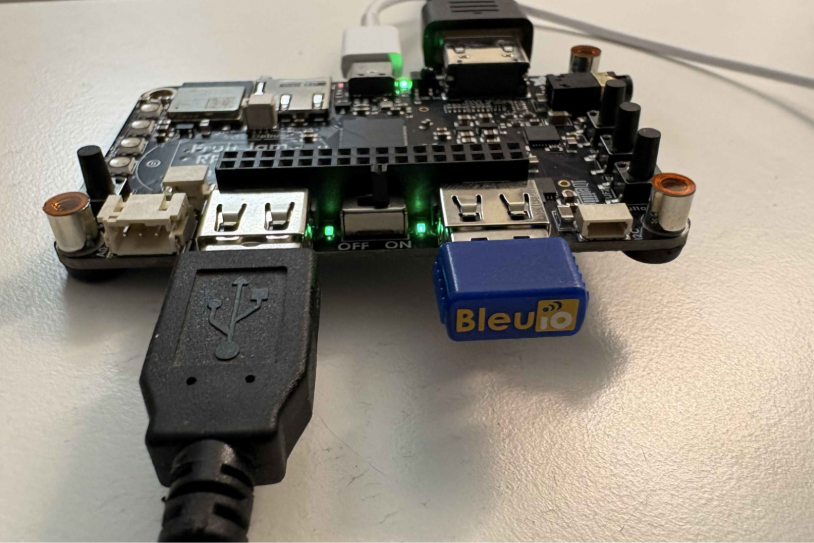
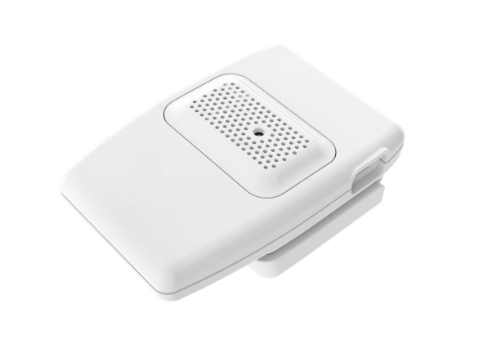
Hardware

Software

  • Zig installed
  • libserialport
  • pkg-config

How It Works

The application uses BleuIO as a bridge between the computer and BLE devices. When the program starts, it automatically detects the connected BleuIO dongle by matching its vendor and product ID, then opens a serial connection configured for communication. Once the connection is established, the program sends AT commands to initialize the dongle and begin scanning for BLE advertisement data that matches a specific identifier used by HibouAir devices.

As BLE data is received, the Zig application continuously reads the serial output, interprets the incoming JSON responses, and extracts the relevant payload. This payload is then decoded into human-readable sensor values such as temperature, humidity, pressure, particulate matter, and CO2 levels. The decoded information is printed directly in the terminal, allowing real-time monitoring without requiring any additional tools or manual decoding steps. When the program is stopped, it gracefully sends commands to halt scanning and reset the dongle before closing the connection.

Source Code

You can find the complete source code for this project on GitHub:

https://github.com/smart-sensor-devices-ab/bleuio-ziglang

Install and Run the Project

Follow the readme file inside the project to install and run. Once dependencies are installed, follow these steps:

Build the project

zig build

Run the application

zig build run

Make sure your BleuIO dongle is connected before running the program.

Example Output

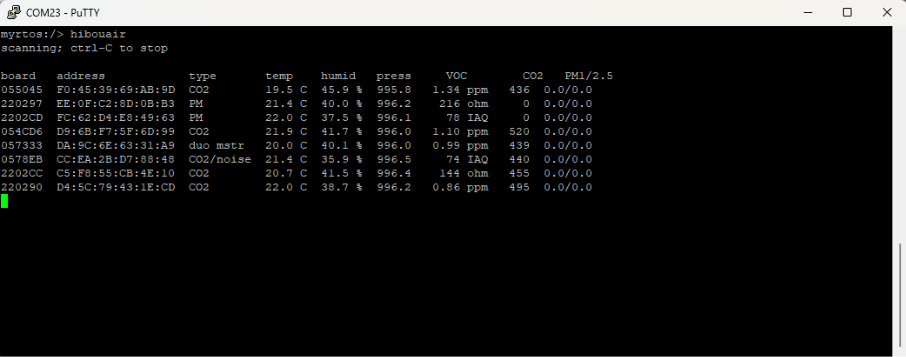
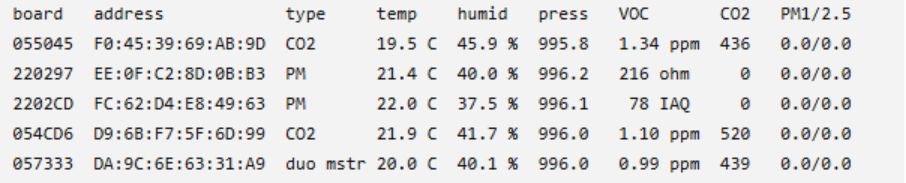
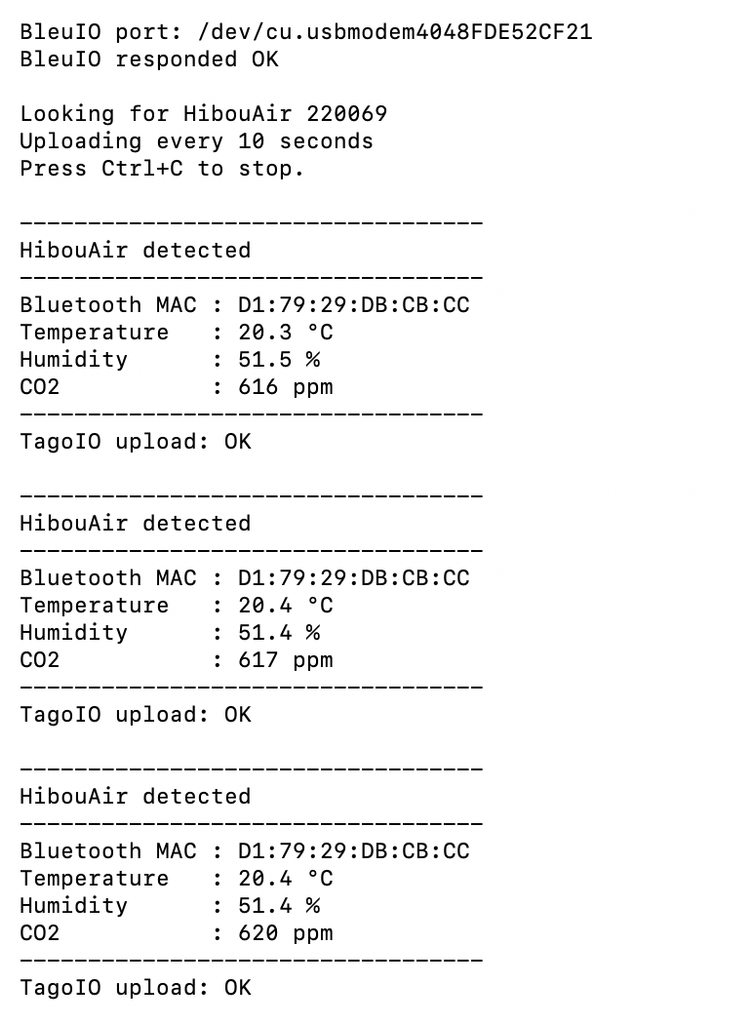
When the application is running, it prints decoded BLE sensor data directly to the terminal. Each detected broadcast from a matching device is processed and displayed in a readable format, making it easy to observe environmental data in real time.

About BleuIO

BleuIO plays a central role in this project by abstracting the complexity of BLE communication. Instead of implementing a full Bluetooth stack within the application, developers can interact with BLE devices using simple AT commands over a serial interface. This approach allows BLE functionality to be integrated into applications written in virtually any programming language and run on any major operating system. By handling scanning, filtering, and communication at the hardware level, BleuIO enables developers to focus on application logic, making BLE development faster and more accessible.

This tutorial demonstrates how Zig and BleuIO can be combined to build a practical BLE application with minimal overhead. While HibouAir is used here as a sample device for testing, the same approach can be applied to a wide range of BLE-enabled sensors and devices. The combination of a lightweight programming language and a simple BLE interface creates a powerful development workflow that is both efficient and easy to extend for real-world use cases.

Share this post on :

BleuIO Pro Firmware v1.0.6.4 Released

BleuIO has released a new firmware update for BleuIO Pro, version 1.0.6.4. This update focuses on improving connection reliability, refining command behavior, and addressing several inconsistencies that affected usability. The goal of this release is to make development smoother while ensuring better alignment with Bluetooth standards.

Improved Connection Stability

This version introduces enhancements to connection stability, making interactions between devices more reliable. Users working with BLE applications may notice fewer unexpected disconnections and more consistent behavior when establishing connections. These improvements are particularly valuable in environments where signal interference or frequent reconnections are common, helping ensure that BleuIO Pro performs more predictably in both development and production scenarios.

Updated MTU Command Behavior

A key change in this release involves the AT+MTU command. The minimum MTU value has been adjusted from 67 to 65 to comply with Bluetooth Secure Connection requirements defined by the Bluetooth SIG. This update ensures that developers can configure their devices according to official specifications without needing workarounds. By aligning with the required minimum MTU of 65, the firmware better supports secure BLE communication and improves compatibility with other Bluetooth-enabled devices.

Improved Advertising Command Handling and Interval Reporting

The behavior of the AT+ADVSTART command has been refined to address multiple inconsistencies and improve overall reliability. In earlier versions, the command could return misleading responses when advertising was already active, particularly in non-verbose mode, and it did not restart advertising or apply updated intervals when executed again. Additionally, it sometimes failed to report the correct advertising interval, which created uncertainty when configuring BLE behavior. With this update, the command now correctly returns an error if advertising is already running, ensuring consistent behavior across both verbose and non-verbose modes. It also reliably reports the configured advertising interval, giving developers clearer visibility and more precise control over advertising settings.

Consistent ASCII Formatting

This release also standardizes the formatting of the term “ASCII” across the firmware. In earlier versions, the term appeared in inconsistent forms such as lowercase or partially capitalized variations. It is now consistently presented in uppercase as “ASCII,” improving clarity and maintaining a uniform standard throughout command outputs and documentation.

How to Update Your Firmware

Updating to the latest firmware is straightforward. You can download the latest release and follow the step-by-step instructions available in our official documentation at https://www.bleuio.com/getting_started/docs/firmware_pro/ Alternatively, you can use the BleuIO web application to perform the update directly from your browser by visiting https://bleuio.com/bleuioapp/#/fw.

Both methods are designed to make the upgrade process quick and seamless.

Share this post on :

Building a BLE Sensor Scanner with Nim and BleuIO

Working with Bluetooth Low Energy devices often means dealing with multiple layers—hardware, protocols, and data decoding. In this tutorial, we are going to simplify that process by building a small command-line application using Nim and a BleuIO USB Dongle.

The goal is simple: scan nearby BLE devices, detect HibouAir sensors, decode their broadcast data, and display readable environmental values directly in the terminal.

By the end, you will have a working local tool that reads real-time air quality data without needing cloud connectivity.

What We Are Building

In this project, we build a lightweight desktop utility that connects to a BleuIO dongle and continuously scans for BLE advertisement data. When a compatible HibouAir device is detected, the application decodes the raw hex payload and prints meaningful values such as temperature, humidity, pressure, CO2, and particulate matter levels.

This is not a heavy application or a full dashboard. It is intentionally simple. The idea is to give developers a clean starting point to understand how BLE data flows from a device to a readable format.

Why Nim with BleuIO?

Nim is a compiled programming language that feels lightweight but powerful. It combines the simplicity of scripting languages with the performance of C. For developers who want fast execution, low memory usage, and clean syntax, Nim is a very practical choice.

Using Nim with BleuIO makes the development process even smoother. The BleuIO dongle abstracts away complex BLE stack handling and exposes everything through simple AT commands over a serial interface. Instead of dealing with platform-specific BLE APIs, you can send commands and receive structured data in return.

This combination allows you to focus more on logic and less on low-level Bluetooth complexity.

Requirements

Before running the project, make sure you have the following:

How the Project Works

When the application starts, it first looks for the connected BleuIO dongle by checking the USB device identifiers. Once the dongle is found, the program opens the serial port and prepares the device for communication.

The setup phase uses a short sequence of AT commands:

ATV0
ATE0
ATV1

These commands are used to configure how the dongle responds over serial so that the application can read and process the output more reliably.

After setup, the application starts scanning for BLE advertisement data using this command:

AT+FINDSCANDATA=FF5B07

This tells BleuIO to scan and report advertisement packets that match the data pattern used by HibouAir devices.

As scan results come in, the program reads the serial output line by line. It looks for valid scan data entries and then extracts the raw advertisement payload. Once a matching payload is found, the Nim code decodes the hex data into readable sensor values such as temperature, humidity, pressure, CO2, and particulate matter values depending on the device type.

When you stop the program with Ctrl + C, it also sends a final reset command to close things down cleanly:

ATR

Example Output

Below is an example of how the data appears in the terminal when a device is detected and decoded.

You will see values like temperature, humidity, pressure, and CO2 being printed in real time as the device broadcasts data.

Source Code

You can access the full project source code here:

[GitHub Repository ]

The code is intentionally kept small and readable so it is easy to follow and modify.

Running the Project

Once the project is downloaded and the BleuIO dongle is plugged into your Mac, you can build and run it directly from Terminal.

First, move into the project folder:

cd ~/Downloads/bleuio-nim

If you have not already installed the required tools, install them with Homebrew:

brew install nim libserialport pkg-config

After that, build the project:

nimble build

Once the build is complete, run it with:

nimble run

If everything is set up correctly, the application will detect the connected BleuIO dongle, initialize it, and begin scanning for HibouAir advertisement data. Within a few seconds, you should start seeing decoded sensor readings appear in the terminal.

When you want to stop the scanner, press:

Ctrl + C

The application will then stop scanning, send its cleanup command, and close the serial connection.

This project is best seen as a foundation rather than a finished product. It shows how to connect to a BLE device, scan for advertisement data, and decode it into something useful.
From here, you can take it in many directions. You might want to store the data locally, send it to a cloud service, build a graphical dashboard, or integrate it into a larger system. Since the core BLE communication is already handled through BleuIO, extending the project becomes much easier.

Share this post on :

Introducing BleuIO Firmware v2.7.9.78: Improved Stability & Data Reliability

We’re pleased to announce the release of BleuIO Firmware v2.7.9.78, bringing important fixes and enhancements that improve both data handling and communication reliability. This update reflects our continued focus on delivering a stable and developer-friendly BLE experience.

Improved Handling of Large GATT Data

This release resolves an issue where GATT data transfers exceeding 475 bytes could become truncated. In certain cases, this truncation resulted in invalid JSON formatting, which could lead to parsing errors in applications relying on structured data. With this fix in place, BleuIO now handles larger payloads reliably, ensuring data integrity and consistency across your BLE workflows.

More Reliable USB Communication

We have also strengthened the reliability of USB CDC read and write operations. The firmware now performs stricter checks to confirm that the dongle is properly configured and not in a suspended state before initiating communication. This improvement reduces the likelihood of unexpected failures and ensures more predictable behavior in various operating conditions.

How to Update Your Firmware

Updating to the latest firmware is straightforward. You can download the latest release and follow the step-by-step instructions available in our official documentation at https://www.bleuio.com/getting_started/docs/firmware/. Alternatively, you can use the BleuIO web application to perform the update directly from your browser by visiting https://bleuio.com/bleuioapp/#/fw.

Both methods are designed to make the upgrade process quick and seamless.

We recommend upgrading to BleuIO Firmware v2.7.9.78 to take advantage of these improvements. Updating ensures your projects benefit from the latest fixes and performance enhancements.

Share this post on :

Learn Bluetooth LE the Practical Way with BleuIO and the New Bluetooth LE Unplugged™ Course

Bluetooth Low Energy powers everything from smart sensors to industrial systems, yet learning it often feels unnecessarily complex. Many developers get stuck dealing with SDKs, toolchains, and setup issues before even understanding the basics. The Bluetooth LE Unplugged™ course takes a different approach by focusing on simplicity and hands-on learning. It removes traditional barriers and allows learners to start working with BLE immediately using real hardware.

How This Course Supports the BleuIO Community

This course aligns perfectly with what BleuIO stands for—making BLE accessible. Instead of requiring embedded experience, it allows developers from different backgrounds to learn Bluetooth LE in a practical way. By using two BleuIO dongles, learners can clearly understand both central and peripheral roles, making the learning process more complete and intuitive.

BleuIO Makes BLE Easier to Understand

BleuIO simplifies BLE development by replacing complex setups with simple AT commands. This allows learners to focus on core concepts like scanning, connecting, and data exchange without getting lost in configuration. The instant feedback from commands makes BLE behavior easier to understand, which is especially valuable for beginners and rapid prototyping.

A Course Built by a Trusted Bluetooth Educator

The course is created by Mohammad Afaneh, a well-known name in the Bluetooth space with over 20 years of experience. His teaching focuses on breaking down complex topics into practical, easy-to-follow lessons. Combined with BleuIO hardware, this creates a strong balance between expert guidance and hands-on learning.

What Learners Will Actually Get

The course includes BleuIO dongles, so learners can start experimenting right away. It is structured across multiple tiers and provides early access to content, with hardware shipped quickly. Importantly, the dongles are not just for the course—they can be used later for real projects, testing, and development.

A Strong Fit for the Existing BleuIO Ecosystem

The course also connects well with the existing BleuIO ecosystem. After completing it, learners can continue building using BleuIO tutorials, documentation, and real project examples. This creates a smooth path from learning to real-world application.

This is more than just a course—it highlights how BleuIO can simplify Bluetooth development. It shows that BLE can be learned in a practical and approachable way without unnecessary complexity.

Bluetooth LE Unplugged™ offers a clear and hands-on path into BLE development. With expert instruction and BleuIO’s simplicity, it becomes much easier to understand and apply Bluetooth concepts. Whether you are new to BLE or looking to strengthen your knowledge, this course provides a practical starting point.

Ready to Get Started with Bluetooth LE?

Take the next step and learn Bluetooth LE the practical way with real hardware and expert guidance.
Join the Bluetooth LE Unplugged™ course and start building your skills today.

Share this post on :

BleuIO Firmware Release v2.7.9.70 — Bug Fixes and Improved Connection Reliability

We’re happy to announce the release of BleuIO Firmware v2.7.9.70. This update focuses on improving stability and reliability when scanning and connecting to Bluetooth devices.

We recommend all BleuIO users update to the latest firmware to ensure the best performance and the most reliable Bluetooth Low Energy experience.

What’s New in v2.7.9.70

This release includes important bug fixes that improve device behavior during scanning and connection processes.

Fixed Duplicate Scan Results

In previous firmware versions, there were cases where the same Bluetooth device could appear twice in scan results. This could sometimes make it harder to interpret scan outputs or manage discovered devices.

With v2.7.9.70, this issue has been resolved, ensuring scan results are now displayed correctly and consistently.

Improved MTU Exchange Reliability

Another improvement addresses a situation where the MTU exchange was not always triggered after establishing a connection.

MTU exchange is important because it determines the maximum size of data packets transferred between BLE devices. With this fix, the MTU negotiation process is now reliably triggered during connection, improving data transfer stability.

How to Update Your BleuIO Firmware

You can also follow the firmware update instructions available in our documentation:

https://www.bleuio.com/getting_started/docs/firmware

This guide walks you through the update process step-by-step.

Stay Updated

Keeping your firmware up to date ensures you benefit from the latest improvements and fixes. We continue working on improving BleuIO and appreciate feedback from our developer community.

If you haven’t already, update your BleuIO device to Firmware v2.7.9.70 today.

Share this post on :

Scanning BLE Devices with C++ and Boost Using the BleuIO Dongle

Bluetooth Low Energy (BLE) has become one of the most widely used wireless technologies for IoT devices, sensors, wearables, and industrial monitoring systems. Developers working with embedded systems, automation platforms, and hardware integration often rely on C++ because of its performance, low-level hardware access, and portability.

In this tutorial, we will create a simple command-line BLE scanning application using C++. The program connects to the BleuIO USB dongle through a serial port and sends AT commands to control Bluetooth operations. After starting the program, the user enters the number of seconds to scan, and the application instructs the BleuIO dongle to perform a BLE scan and print the detected devices directly in the terminal. This example demonstrates the basic workflow of communicating with BleuIO from a C++ application.

Why C++ and Boost Are Commonly Used for Bluetooth Development

C++ is widely used in Bluetooth and embedded development because it provides high performance and direct access to hardware interfaces such as serial communication. Many IoT gateways, embedded systems, and industrial applications rely on C++ to interact with sensors and wireless devices. To simplify development, developers often use the Boost libraries, which extend the C++ standard library with reliable cross-platform tools. In this tutorial we use Boost.Asio, which provides a portable and efficient way to handle serial communication and asynchronous input/output across different operating systems.

Requirements

Before starting this project, you should have the following:

Installing the Required Tools

macOS Setup

First install Xcode Command Line Tools, which provide the C++ compiler.

xcode-select --install

Next install Homebrew if it is not already installed.

/bin/bash -c "$(curl -fsSL https://raw.githubusercontent.com/Homebrew/install/HEAD/install.sh)"

Then install Boost:

brew install boost

You can verify the installation using:

brew --prefix boost

Windows Setup

On Windows you will need:

  • Visual Studio or MSVC compiler
  • Boost libraries

Steps:

  1. Install Visual Studio Community Edition
  2. Enable Desktop development with C++
  3. Download Boost from https://www.boost.org
  4. Extract Boost and configure it for your project.

Alternatively, Boost can be installed using vcpkg.

Have a look into the getting started guide on boost office page

https://www.boost.org/doc/user-guide/getting-started.html

Understanding How the Script Works

The example script uses Boost.Asio serial communication to interact with the BleuIO dongle.

The application works in several stages.

Serial Connection

The program opens a serial port connected to the BleuIO dongle.

serial_.open(port_name);

The serial port parameters are configured to match BleuIO’s default UART settings.

serial_.set_option(serial_port_base::baud_rate(57600));
serial_.set_option(serial_port_base::character_size(8));
serial_.set_option(serial_port_base::parity(serial_port_base::parity::none));
serial_.set_option(serial_port_base::stop_bits(serial_port_base::stop_bits::one));
serial_.set_option(serial_port_base::flow_control(serial_port_base::flow_control::none));

Asynchronous Serial Reader

The script uses an asynchronous reader to continuously listen for responses from the BleuIO dongle.

serial_.async_read_some(...)

Whenever the dongle sends data, the program prints the received information to the terminal.

This allows us to see scan results in real time.

Sending AT Commands

Commands are sent to BleuIO using the sendCommand() function.

bleuio.sendCommand("AT+CENTRAL");

The command is written to the serial port followed by a carriage return and newline.

Setting Central Role

BLE devices can operate in different roles.
Before scanning, the BleuIO dongle must be set to central mode.

bleuio.sendCommand("AT+CENTRAL");

Starting a BLE Scan

The scan command is then issued.

AT+GAPSCAN=<seconds>

For example:

AT+GAPSCAN=5

This instructs the BleuIO dongle to scan for nearby BLE devices for five seconds.

The dongle returns advertising data for detected devices during the scan.

Full Source Code

You can find the full source code on GitHub.

GitHub repository

https://github.com/smart-sensor-devices-ab/bleuio-cpp-boost

The repository contains the complete C++ script used in this tutorial.

How to Run the Script

First compile the program.

clang++ -std=c++17 main.cpp -I$(brew --prefix boost)/include -o bleuio_scan

After compilation, run the program:

./bleuio_scan

The program will ask for the scan duration.

Example:

Enter scan duration in seconds: 5

The script will then:

Connect to the BleuIO serial port,Put the dongle into central mode,Start scanning for BLE devices,Print scan results in the terminal

Example output may look like this:

Locating the BleuIO Serial Port

Before running the program, you need to identify the serial port where the BleuIO dongle is connected.

On macOS, you can list available serial devices using the terminal command:

ls /dev/cu.*

The BleuIO device will typically appear with a name similar to:

/dev/cu.usbmodemXXXXXXXX

This value can then be used in the script as the serial port path.

On Windows, the serial port can be identified through Device Manager. After plugging in the BleuIO dongle, open Device Manager and expand the Ports (COM & LPT) section. The device will appear as a USB serial device with a COM port number, such as COM17.

Expanding This Example

The script in this tutorial is a basic example showing how to communicate with the BleuIO dongle using C++ and Boost.Asio. Although it only performs BLE scanning, the same approach can be used to send any AT command supported by BleuIO. Developers can extend this example to connect to devices, read GATT characteristics, parse advertisement data, or integrate BLE functionality into larger applications such as IoT gateways, monitoring tools, or automation systems.

Share this post on :

Integrating BleuIO with Teensy 4.1 – Scanning and Decoding HibouAir Sensor Data (Part 2)

In the previous project, we focused on getting Teensy 4.1 working as a USB Host for the BleuIO. The goal was simple: remove the PC from the equation and prove that a microcontroller could directly control BleuIO and communicate over BLE using AT commands.

This project builds on that foundation and does something practical with it. Instead of manually sending commands and observing responses, we now create a complete scanner that automatically detects nearby HibouAir sensors, reads their BLE advertisement data, decodes it, and prints meaningful environmental values in real time.

At this point, the system stops being a connectivity demo and becomes an actual application.

Hardware Requirements

Software Requirements

Install ArduinoJson

This project uses ArduinoJson to parse scan results from BleuIO.

In Arduino IDE:

  1. Open Library Manager
  2. Search for arduinojson
  3. Install version 7.x or compatible

ArduinoJson is required to deserialize the JSON scan data received from BleuIO.

How it Works

The architecture remains the same as in Part 1, but now it is used with purpose.

Teensy operates in USB Host mode and communicates directly with BleuIO. BleuIO handles all Bluetooth Low Energy scanning internally and outputs scan results as structured JSON strings over USB serial. Teensy receives those strings, parses the JSON content, extracts the manufacturer-specific payload, and decodes it into usable values.

Conceptually, the flow looks like this:

Teensy 4.1 (USB Host + Application Logic)

BleuIO (BLE Scanning Engine)

BLE Advertisement Data (JSON)

HibouAir Decoder

Readable Environmental Measurements

The important thing to notice here is that Teensy never deals with BLE packets directly. There is no radio handling, no GAP or GATT management, and no BLE stack integration. Everything related to Bluetooth stays inside BleuIO. The microcontroller simply receives structured scan results and processes them like any other data stream.

Automatic Startup and Scanning

When the firmware starts, it configures BleuIO automatically. It disables command echo, enables verbose mode, and then sends a filtered scan command:

AT+FINDSCANDATA=FF5B07

This tells BleuIO to report only devices containing the HibouAir manufacturer identifier. From that moment, scan results begin arriving continuously as JSON lines.

Each line contains fields such as the device address and a data field containing the manufacturer payload in hex format. That hex string is where the sensor readings are encoded.

Parsing the JSON Data

Since scan data arrives asynchronously, the project includes a small USB serial line reader. It buffers incoming characters until a newline is detected, ensuring that we always attempt to parse complete JSON messages.

The ArduinoJson library is used to deserialize each line into a JsonDocument. Once deserialized, we check that the expected scan fields are present. If so, we extract the hex-encoded manufacturer payload and pass it to the HibouAir decoder.

At this stage, the data is still raw — just a long hex string representing packed bytes from the BLE advertisement.

Decoding the HibouAir Advertisement Payload

The core of this project is the HibouAir structure. Instead of manually extracting bytes in the main loop, the decoding logic is encapsulated in a dedicated class.

The constructor receives the JSON document, extracts the data field, and interprets the hex string as a packed binary structure. Using offsetof() ensures that the correct byte offsets are used, and helper functions convert the hex pairs into integers. Because the BLE advertisement uses little-endian ordering, some fields require byte swapping before they become meaningful.

Once decoded, the class provides clean accessor functions such as:

  • getTemp()
  • getHum()
  • getBar()
  • getCo2()
  • getPM2_5()

These functions already return properly scaled values. For example, temperature is divided by 10 to convert from raw integer format to degrees Celsius.

This separation keeps the application logic simple. The main loop only needs to create a HibouAir object and call show_sensor() to print the values.

Example Output

When running the project with a nearby HibouAir sensor, the Serial Monitor shows structured environmental readings like this:

Sensor ID: 22008C
Light: 14 Lux
Pressure: 1007.3 hPA
Temperature: 22.9 C
Humidity: 14.1 %rh
CO2: 508 ppm

For particulate matter devices, additional values appear:

PM 1.0: 0.0 ug/m3
PM 2.5: 1.2 ug/m3
PM 10: 2.5 ug/m3

This output is generated directly from BLE advertisements without establishing a connection to the sensor. The sensors simply broadcast their measurements, and the system passively collects and decodes them.

GitHub Repository

The complete source code for this project is available here:

https://github.com/smart-sensor-devices-ab/bleuio-teensy-hibouair-scanner

You can clone the repository, install the ArduinoJson library through the Arduino IDE Library Manager, upload the sketch to Teensy 4.1, and run it immediately. The code is modular and organized so you can reuse the USB line reader, the HibouAir decoder, or the scanning logic in your own applications.

With this foundation in place, several natural extensions become possible. You could store measurements on an SD card, publish them via MQTT, expose them through a REST interface, or even build a complete air-quality gateway. The BLE side does not need to change.

Share this post on :

Integrating BleuIO with Teensy 4.1 for Seamless BLE Applications

In this project, we will show how to integrate BleuIO with Teensy 4.1 to create Seamless BLE Applications. The goal is to turn the Teensy into a USB Host controller that communicates directly with BleuIO through a simple Arduino sketch, allowing us to create BLE applications without implementing a full BLE stack on the microcontroller.

By the end of this project, you will have a fully functional embedded BLE platform where Teensy 4.1 acts as the application controller and BleuIO handles all Bluetooth Low Energy communication internally. You will be able to send AT commands from Teensy to scan for BLE devices, connect to them, read characteristics, and build your own BLE-based solutions. More importantly, you will gain a reusable architecture that can serve as the foundation for industrial gateways, IoT devices, monitoring systems, or custom embedded products.

Why We Chose Teensy 4.1

The Teensy 4.1 is built around the powerful NXP i.MX RT1062 ARM Cortex-M7 processor running at 600 MHz. This makes it one of the fastest microcontrollers compatible with the Arduino ecosystem. Its high clock speed, large memory capacity, and hardware floating point support allow it to handle complex logic, real-time data processing, and communication tasks with ease.

What makes Teensy 4.1 particularly ideal for this project is its USB Host capability. Since BleuIO is a USB device, it requires a host controller to operate independently of a PC. Teensy 4.1 provides exactly that. It allows us to connect BleuIO directly to the microcontroller and build a fully standalone BLE system. The board’s performance headroom ensures stable communication, fast response handling, and scalability for advanced applications.

Rather than choosing a minimal low-power MCU, we selected Teensy 4.1 because it bridges the gap between traditional microcontrollers and more complex application processors. It gives developers flexibility, speed, and reliability in embedded BLE projects.

Project Requirements

To build this project, you will need:

Project Architecture Overview

The system architecture is straightforward. Teensy 4.1 operates as a USB Host and communicates directly with the BleuIO dongle over serial. BleuIO then manages all Bluetooth Low Energy communication with nearby BLE devices. This separation of responsibilities simplifies development significantly. Teensy focuses on application logic, while BleuIO handles the BLE stack internally.

Teensy 4.1 (USB Host)
        ↓
BleuIO USB Dongle
        ↓
BLE Devices

How the Project Works – Step-by-Step

Step 1: Install Arduino IDE and Teensy Support

First download the Arduino 2.x.x IDE from Arduino’s website. All versions 2.0.4 and later are supported. Versions 2.3.0 or later are recommended, due to improvements in Boards Manager. 

To install Teensy on Arduino IDE 2.x, click File > Preferences (on MacOS, click Arduino IDE > Settings). 

In the main Arduino window, open Boards Manager by clicking the left-side board icon, search for “teensy”, and click “Install”. 

Step 2: Configure USB Type

Teensy supports multiple USB configurations. Under Tools → USB Type, select the appropriate mode so the board can manage serial communication while operating with USB Host functionality. Teensyduino is also compatible with many Arduino libraries

Step 3: Upload the Sketch

The source code for this project, USBtoUSBHostSerial.ino sketch, is publicly available on GitHub: https://github.com/smart-sensor-devices-ab/bleuio_Teensy_host

Upload the provided USBtoUSBHostSerial.ino sketch to the Teensy 4.1 using the Arduino IDE. This sketch initializes the USB Host interface and establishes a communication bridge between the Teensy and the BleuIO dongle. Once programmed, the Teensy essentially becomes a serial terminal for BleuIO, allowing you to type AT commands through the Arduino Serial Monitor and receive responses in real time.

Instead of embedding complex BLE logic in the microcontroller firmware, the sketch focuses on maintaining stable USB communication and forwarding user commands to the dongle. BleuIO processes these commands internally and returns structured responses. This design keeps the firmware clean, modular, and easy to expand.

Why This Approach Is Powerful

Developing BLE applications directly on microcontrollers traditionally requires integrating a BLE stack, managing connection states, handling security layers, parsing protocol events, and debugging complex timing issues. This process can be time-consuming and hardware-dependent. Each microcontroller family often requires a different SDK, stack configuration, and maintenance strategy.

By using BleuIO, this complexity is dramatically reduced. BLE functionality is abstracted behind a simple AT command interface. The microcontroller does not need to manage low-level BLE operations. Instead, it communicates using straightforward serial commands while BleuIO takes care of scanning, connecting, reading characteristics, and maintaining protocol compliance internally. This modular architecture makes the system portable across hardware platforms and reduces firmware complexity, development time, and maintenance effort.

GitHub Repository

The source code for this project, USBtoUSBHostSerial.ino sketch, is publicly available on GitHub:

https://github.com/smart-sensor-devices-ab/bleuio_Teensy_host

This project is shared as a public example to demonstrate how BleuIO can be integrated into high-performance embedded systems. It is intentionally simple in structure so that developers can clearly understand the architecture and reuse it in their own applications.

By combining the computational power of Teensy 4.1 with the modular BLE capabilities of BleuIO, we created a clean and scalable embedded architecture. This project highlights how BLE integration does not need to be complicated. With the right approach, developers can focus on innovation and application logic rather than low-level protocol management.

Share this post on :

Developing a Desktop BLE Air-Quality Application with Rust, Dioxus, and BleuIO

Bluetooth Low Energy is often associated with mobile apps, embedded firmware, or cloud gateways. In practice, however, BLE is equally powerful on the desktop. With the right tools, a desktop application can scan, decode, and visualize BLE sensor data in real time—without relying on browsers or mobile platforms.

In this tutorial, we demonstrate how BleuIO can be used as a flexible BLE interface for desktop applications written in Rust, using the Dioxus framework. The result is a native desktop application that scans nearby HibouAir sensors, decodes their BLE advertisement data, and presents air-quality metrics in a clean, responsive user interface.

This project is intended as a practical example that shows how BleuIO fits naturally into modern desktop development workflows—regardless of programming language.

What We Are Building

The application is a native desktop air-quality dashboard. It connects to a BleuIO USB dongle over a serial port, puts the dongle into BLE scanning mode, and continuously listens for BLE advertisements from nearby HibouAir sensors. These advertisements contain manufacturer-specific data with environmental measurements such as CO2 concentration, particulate matter, temperature, humidity, pressure, VOC levels, and ambient light.

The desktop application decodes this data locally and displays it in real time. Each detected sensor is shown as its own panel, with a clear header identifying the device type and a structured content area showing the latest measurements.

The entire solution runs locally on the user’s computer. There is no cloud dependency, no browser runtime, and no mobile device involved.

Why Rust and Dioxus?

Rust has become increasingly popular for system-level and desktop applications because it combines performance, memory safety, and strong tooling. For BLE applications that involve continuous serial communication and real-time data processing, these properties are particularly valuable.

Dioxus is a Rust UI framework inspired by modern component-based design. It allows developers to build native desktop interfaces using a declarative approach while still compiling to a true desktop binary. In this project, Dioxus is used to render the dashboard, manage state updates as sensor data arrives, and keep the UI responsive even during continuous BLE scanning.

The combination of Rust, Dioxus, and BleuIO demonstrates that desktop BLE applications do not need to rely on platform-specific SDKs or heavyweight frameworks.

Requirements

To run this project, the following hardware and software are required:

Hardware

Software

No proprietary SDKs or BLE drivers are required. BleuIO communicates using standard AT commands over a serial interface, making the setup lightweight and portable.

How the Project Works Internally

When the application starts, it first searches for a connected BleuIO dongle by scanning available serial ports and matching the dongle’s USB vendor and product IDs. Once the correct device is found, the application opens the serial port and initializes the dongle by disabling command echo and enabling verbose mode.

After initialization, the application instructs BleuIO to start scanning for BLE advertisements that match HibouAir’s manufacturer identifier. BleuIO then streams scan results back to the application as JSON-formatted lines over the serial connection.

Each incoming scan packet is parsed and inspected. The application locates the BLE manufacturer-specific data, verifies that it belongs to HibouAir, and decodes the payload into a structured Rust data type. To ensure stable and predictable readings, only the full advertisement format used by HibouAir beacon type 0x05 is processed. Partial or auxiliary beacon formats are ignored in this example project.

Decoded sensor data is stored in memory and immediately reflected in the user interface. As new advertisements arrive, the corresponding sensor panel updates automatically.

Project Structure

The source code is organized into clear, functional modules. UI components are separated from BLE logic and data models, making the project easy to understand and extend. The main application entry point configures the desktop window and mounts the dashboard component. BLE communication is encapsulated in a dedicated hook that runs asynchronously and feeds decoded sensor data into the UI layer.

src/
├── components/
│   ├── dashboard.rs
│   ├── sensor_panel.rs
│   └── mod.rs
├── hooks/
│   ├── use_bleuio.rs
│   └── mod.rs
├── models/
│   ├── bleuio.rs
│   ├── hibouair.rs
│   ├── sensor_data.rs
│   └── mod.rs
├── main.rs
assets/
├── main.css
├── tailwind.css
└── favicon.ico

This structure mirrors how larger Rust desktop applications are typically organized, and it provides a solid foundation for adding features such as data logging, historical charts, filtering, or export functionality.

Source Code and How to Run the Project

The complete source code for this project is publicly available on GitHub:

GitHub repository:
https://github.com/smart-sensor-devices-ab/hibouair-bleuio-rust-readltime-desktop

After cloning the repository, the application can be run in development mode using the Dioxus CLI. This launches the desktop window and enables hot reloading, which is useful when experimenting with UI changes or decoding logic. The project can also be built and run using standard Cargo commands, producing a native desktop binary.

Because the code is open and self-contained, developers are free to study it, modify it, or reuse parts of it in their own BLE-based desktop applications.

The complete instruction on how to run this project is available on the Readme file.

Application Output

When running, the application displays a dashboard with one panel per detected HibouAir sensor. Each panel includes a colored header identifying the sensor type, followed by a white content area showing live air-quality measurements. Values update continuously as new BLE advertisements are received, providing an immediate view of the surrounding environment.

A screenshot of the running application is shown below to illustrate the final result.

This project is intentionally kept simple. It is not a finished product, but rather an educational example that demonstrates how BleuIO can be used with Rust and Dioxus to build a native desktop BLE application. The source code is public, easy to follow, and designed to be extended.

Share this post on :