Building a BLE Real-Time macOS Menu Bar App Using BleuIO

In this tutorial, we will guide you through creating a BLE real-time macOS menu bar application using the BleuIO USB BLE dongle. BleuIO is an incredibly versatile tool that simplifies the development of BLE (Bluetooth Low Energy) applications, making it ideal for developers looking to build innovative projects with ease.

macOS menu bar applications offer a seamless way to monitor and interact with data in real time without requiring a dedicated application window. By leveraging the power of the BleuIO dongle, we can create a menu bar app that provides live updates on environmental metrics like temperature, humidity, and CO2 levels. This project demonstrates how BleuIO can be integrated into real-time applications, showcasing its potential for BLE-based projects.

Why is This Project Useful?

  • Real-Time Updates: The app fetches BLE data at regular intervals and updates the macOS menu bar dynamically.
  • Ease of Access: The macOS menu bar provides a non-intrusive interface, allowing users to access live data at a glance.
  • Extensibility: This tutorial serves as a starting point for developers to explore more advanced BLE applications with BleuIO.

Requirements

To complete this project, you will need:

  1. BleuIO USB BLE Dongle: A powerful and easy-to-use BLE dongle for developing BLE applications.
  2. HibouAir – Air Quality Monitor: A BLE-enabled air quality monitor that broadcasts real-time environmental data such as temperature,pressure,voc,light, humidity, and CO2 levels.
  3. macOS System: A macOS device with Python 3 installed.
  4. Python Libraries:
    • rumps: For creating macOS menu bar applications.
    • bleuio: For communicating with the BleuIO dongle.

How Real-Time Updates Are Handled

The app connects to the BleuIO dongle and scans for BLE advertisements air quality data from HibouAir. Using a timer, the app periodically initiates a scan every 2 minutes. The decoded data is then displayed directly in the macOS menu bar, providing real-time updates without user intervention.

Step-by-Step Guide

Step 1: Set Up the Environment

  1. Ensure you have a macOS system with Python 3 installed.
  2. Install the necessary dependencies using pip:
    pip install rumps bleuio
  3. Plug in your BleuIO USB dongle.

Step 2: Project Overview

Our goal is to:

  • Connect to the BleuIO dongle.
  • Put the dongle in Central Mode to scan for BLE advertisements.
  • Scan for real time air quality data from HibouAir
  • Decode the advertisement data to extract temperature, humidity, pressure, and CO2 levels.
  • Update the macOS menu bar with the decoded data in real time.

Step 3: Writing the Code

Below is the Python script for the macOS menu bar app. This code handles the dongle initialization, data scanning, decoding, and menu updates.
import rumps
import time
import json
from datetime import datetime
from bleuio_lib.bleuio_funcs import BleuIO
boardID="220069"

# Function to decode advertisement data
def adv_data_decode(adv):
    try:
        pos = adv.find("5B0705")
        if pos == -1:
            raise ValueError("Invalid advertisement data: '5B0705' not found.")

        dt = datetime.now()
        current_ts = dt.strftime("%Y/%m/%d %H:%M:%S")

        # Temperature decoding
        temp_hex = int(adv[pos + 22:pos + 26][::-1], 16)  # Reversed bytes
        if temp_hex > 1000:
            temp_hex = (temp_hex - (65535 + 1)) / 10
        else:
            temp_hex = temp_hex / 10

        # Pressure decoding (convert from little-endian)
        pressure_bytes = bytes.fromhex(adv[pos + 18:pos + 22])
        pressure = int.from_bytes(pressure_bytes, byteorder='little') / 10

        # Humidity decoding (convert from little-endian)
        humidity_bytes = bytes.fromhex(adv[pos + 26:pos + 30])
        humidity = int.from_bytes(humidity_bytes, byteorder='little') / 10

        return {
            "boardID": adv[pos + 8:pos + 14],
            "pressure": pressure,
            "temp": temp_hex,
            "hum": humidity,
            "co2": int(adv[pos + 46:pos + 50], 16),
            "ts": current_ts,
        }
    except Exception as e:
        print(f"Error decoding advertisement data: {e}")
        return {}


# Callback function for scan results
def my_scan_callback(scan_input):
    try:
        scan_result = json.loads(scan_input[0])
        data = scan_result.get("data", "")

        decoded_data = adv_data_decode(data)

        # Update menu with decoded data
        app.update_menu(decoded_data)

    except Exception as e:
        print(f"Error parsing scan result: {e}")

# Callback function for events
def my_evt_callback(evt_input):
    cbTime = datetime.now()
    currentTime = cbTime.strftime("%H:%M:%S")
    print(f"\n\n[{currentTime}] Event: {evt_input}")

class AirQualityApp(rumps.App):
    def __init__(self):
        super(AirQualityApp, self).__init__("CO2 : 550")
        self.my_dongle = None  # Placeholder for the dongle object
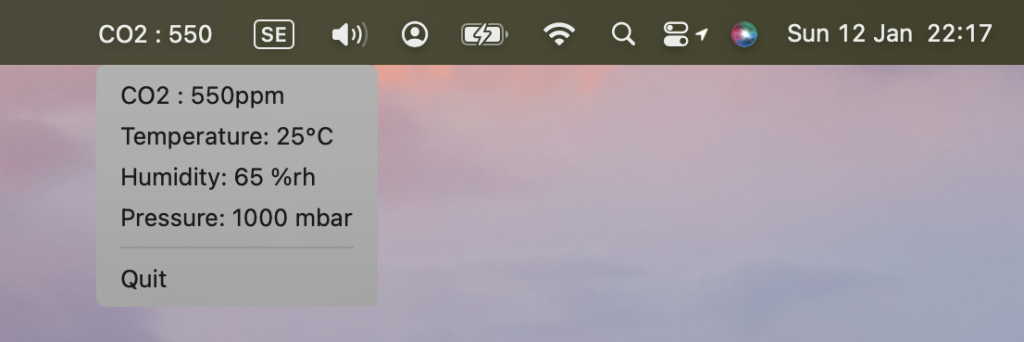
        self.co2_item = rumps.MenuItem(title="CO2 : 550ppm", callback=lambda _: None)
        self.temp_item = rumps.MenuItem(title="Temperature: 25°C", callback=lambda _: None)
        self.hum_item = rumps.MenuItem(title="Humidity: 65 %rh", callback=lambda _: None)
        self.press_item = rumps.MenuItem(title="Pressure: 1000 mbar", callback=lambda _: None)

        self.menu = [
            self.co2_item,
            self.temp_item,
            self.hum_item,
            self.press_item,
            None  # Separator
        ]

        # Establish connection and start scanning on startup
        self.connect_dongle()
        self.start_periodic_scan()

    def connect_dongle(self):
        try:
            self.my_dongle = BleuIO()  # Initialize the dongle
            self.my_dongle.register_evt_cb(my_evt_callback)  # Register event callback
            self.my_dongle.register_scan_cb(my_scan_callback)  # Register scan callback
            print("Dongle connected successfully.")

            # Set the dongle to central mode
            response = self.my_dongle.at_central()
            print("Dongle is now in central mode.")

        except Exception as e:
            print(f"Error connecting to dongle: {e}")

    def scan(self, _=None):  # Added `_` to accept the timer argument
        try:
            # Start scanning for specific data
            response = self.my_dongle.at_findscandata(boardID, 3)
            print(f"Scan initiated. Response: {response.Rsp}")
        except Exception as e:
            print(f"Error during scan: {e}")

    def start_periodic_scan(self):
        try:
            rumps.timer(120)(self.scan)  # Run the scan method every 30 seconds
        except Exception as e:
            print(f"Error setting up periodic scan: {e}")

    def update_menu(self, decoded_data):
        try:
            self.title = f"CO2 : {decoded_data.get('co2', 'N/A')}ppm"  # Update app title
            self.co2_item.title = f"CO2 : {decoded_data.get('co2', 'N/A')}ppm"
            self.temp_item.title = f"Temperature: {decoded_data.get('temp', 'N/A')}°C"
            self.hum_item.title = f"Humidity: {decoded_data.get('hum', 'N/A')} %rh"
            self.press_item.title = f"Pressure: {decoded_data.get('pressure', 'N/A')} mbar"
        except Exception as e:
            print(f"Error updating menu: {e}")

if __name__ == "__main__":
    app = AirQualityApp()
    app.run()

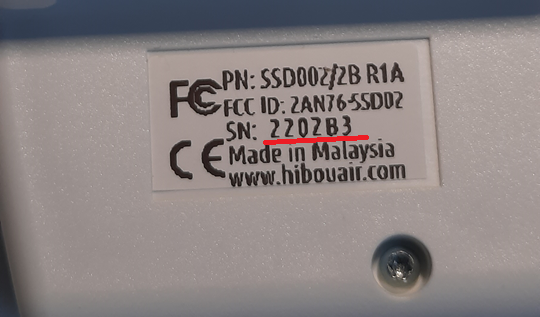
Note : Make sure to change the BoardID to your HibouAir CO2 device on line 6

Step 4: Run the App

  1. Save the script as bleuio.py.
  2. Run the script using:
    python bleuio.py
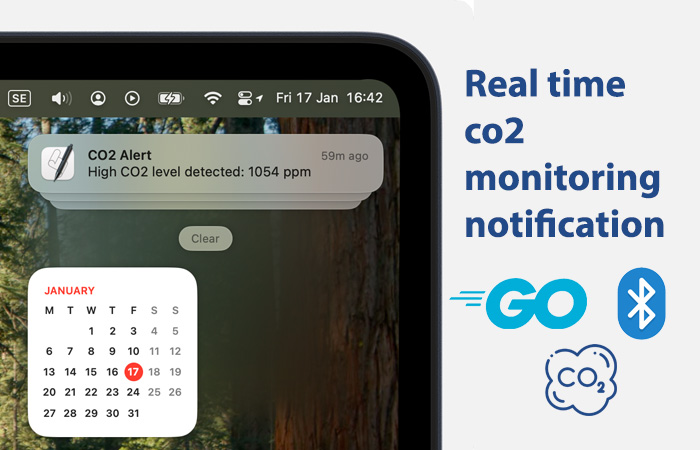
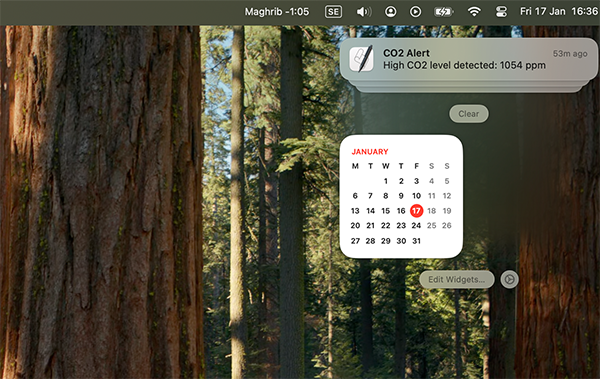
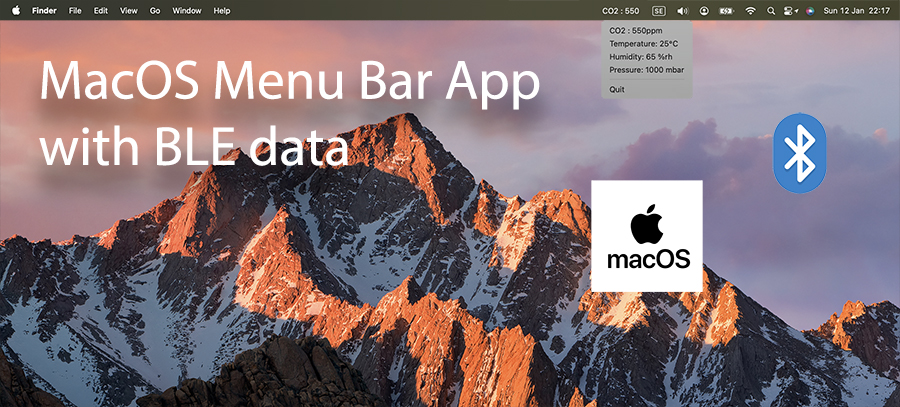
  3. The app will appear in the macOS menu bar with latest CO2 value. Click the icon to view the live BLE data updates.
Output

Extending the Project

This project is a foundation for exploring the capabilities of BleuIO. You can extend it to:

  • Monitor additional BLE devices.
  • Implement alert notifications for specific data thresholds.
  • Log the data to a file or send it to a cloud service for further analysis.
This tutorial demonstrates how to create a real-time macOS menu bar application using the BleuIO dongle. By following this guide, you’ll not only learn how to handle BLE data but also understand how to integrate it into user-friendly macOS applications. BleuIO opens up endless possibilities for BLE-based projects, and we’re excited to see what you create next!

Share this post on :

BleuIO JavaScript Library Updated to Version 1.1.3 : Supports BleuIO Firmware v2.7.7

The BleuIO JavaScript library has received another exciting update, now moving to version 1.1.3 supporting BleuIO Firmware v2.7.7. This release continues to expand the library’s capabilities and ensures compatibility with the latest BleuIO firmware.

Here’s a breakdown of the key new commands introduced in version 1.1.3:

  • at_connectbond(): This function enables scanning for and initiating a connection with a selected bonded device, even if the peer bonded device is advertising with a Private Random Resolvable Address.
    • Example: at_connectbond('40:48:FD:EA:E8:38')
  • at_sra(): This command toggles verbose scan result indexing on or off.
    • 1 for on, 0 for off.
    • Example: at_sra(1)
  • at_siv(): Similar to at_sra(), this command toggles verbose scan result indexing on or off.
    • 1 for on, 0 for off.
    • Example: at_siv(1)
  • at_assn(): Enables or disables displaying device names in scan results from AT+FINDSCANDATA and AT+SCANTARGET scans (off by default).
    • 1 for on, 0 for off.
    • Example: at_assn(1)
  • at_assm(): Turns on or off showing the Manufacturing Specific ID (Company ID) in scan results from AT+GAPSCAN, AT+FINDSCANDATA, and AT+SCANTARGET scans (off by default).
    • 1 for on, 0 for off.
    • Example: at_assm(1)
  • at_connscanparam(): Allows setting or querying the connection scan window and interval used.
    • Example: at_connscanparam('200=100')
    • Refer to the BleuIO documentation for more details on AT+CONNSCANPARAM.
  • at_scanparam(): Enables setting or querying scan parameters.
    • Example: at_scanparam('2=0=200=100=0')
    • Detailed usage can be found in the BleuIO documentation under AT+SCANPARAM.
  • at_sat(): Turns on or off showing address types in scan results from AT+FINDSCANDATA and AT+SCANTARGET scans (off by default).
    • 1 for on, 0 for off.
    • Example: at_sat(1)
  • at_setuoi(): Allows setting a Unique Organization ID, which is stored in flash memory and persists through power cycles. The ID is displayed in the response of the ATI command. Any previously set ID is cleared when a new one is set.
    • Max length: 100 characters.
    • Example: at_setuoi('Your Unique Organization ID')
  • at_clruoi(): Clears any previously set Unique Organization ID.

How to Update

Updating to the BleuIO JavaScript library 1.1.3 is straightforward. Use the following command to install the latest version:

npm i bleuio

Documentation and Further Details

For comprehensive documentation, usage examples, and detailed guidelines on the new functionalities introduced in version 1.1.3, visit the official NPM page: BleuIO NPM Page.

This update solidifies BleuIO’s commitment to providing robust tools for BLE development. Explore the new features and enhance your Bluetooth Low Energy projects with greater customization and efficiency.

Share this post on :

Real-Time BLE Proximity-Based LED Blinking with BleuIO: A Practical Guide

BleuIO, a versatile BLE USB dongle, simplifies BLE application development with its powerful AT commands and cross-platform compatibility. This tutorial demonstrates how to use BleuIO with Python to build a real-time BLE proximity-based LED control system.

In this example, we focus on monitoring the RSSI (Received Signal Strength Indicator) of a specific BLE device and controlling the LED blinking rate of BleuIO based on proximity. The closer the device, the faster the blinking rate. The script also ensures clean termination, turning off the LED when the program exits.

This tutorial uses the BleuIO Python library to showcase a practical use case. However, the concepts can be implemented in any programming language.

Devices and Tools Needed

  1. BleuIO Pro BLE USB Dongle
  2. Python Installed (Python 3.6 or newer recommended)
  3. BleuIO Python Library
    Install the library using
    pip install bleuio
  4. Source Code
    Get the complete source code from GitHub:
    GitHub Repository

Use Case: Real-Time LED Blinking Based on Proximity

Objective:

  1. Continuously monitor the RSSI value of a specific BLE device.
  2. Adjust the LED blinking rate of the BleuIO dongle based on the device’s proximity.
  3. Ensure the LED turns off when the script is terminated.

Workflow:

  1. Scan for BLE devices: Identify the target device using its MAC address.
  2. Read RSSI values: Fetch real-time signal strength data.
  3. Control LED: Adjust the blinking rate based on proximity:
    • Very Close: Fast blinking.
    • Close: Moderate blinking.
    • Far: Slow blinking.
    • Very Far: Very slow blinking.
  4. Graceful Exit: Turn off the LED when the script ends.

The Python Script

Below is the complete script for this project:

import time
import json
import atexit
from bleuio_lib.bleuio_funcs import BleuIO

rssi_value = None
dongle = None  

def scan_callback(scan_input):
    global rssi_value  
    try:
        device_data = json.loads(scan_input[0])  
        if device_data.get("addr") == "[1]6B:C0:5C:BD:CF:14":
            rssi_value = device_data["rssi"]  
            print(f"\nDevice Found! Address: {device_data['addr']}, RSSI: {rssi_value}")
    except json.JSONDecodeError as e:
        print(f"Error decoding JSON: {e}")
    except Exception as e:
        print(f"Unexpected error: {e}")

def send_led_command(dongle, rssi):
    if rssi is not None:  
        if rssi > -40:
            print(f"RSSI: {rssi} | Sending LED Command: 50/50")
            dongle.at_led(toggle="T", on_period="50", off_period="50")
        elif -60 <= rssi <= -40:
            print(f"RSSI: {rssi} | Sending LED Command: 100/100")
            dongle.at_led(toggle="T", on_period="100", off_period="100")
        elif -90 <= rssi < -60:
            print(f"RSSI: {rssi} | Sending LED Command: 200/200")
            dongle.at_led(toggle="T", on_period="200", off_period="200")
        else:
            print(f"RSSI: {rssi} | Sending LED Command: 300/300")
            dongle.at_led(toggle="T", on_period="300", off_period="300")
    else:
        print("No RSSI value available for LED command.")


def cleanup():
    if dongle:
        print("\n--- Turning off LED and cleaning up ---")
        dongle.at_led(0)

# Main logic
def main():
    global rssi_value, dongle  
    dongle = BleuIO()

    atexit.register(cleanup)

    dongle.register_scan_cb(scan_callback)

    print("\n--- Starting BLE Task ---\n")

    print("Setting device role to Central...")
    central_response = dongle.at_central()

    try:
        while True:
            print("\nStarting scan for 2 seconds...")
            dongle.at_gapscan(2)  
            time.sleep(3)  

            send_led_command(dongle, rssi_value)

            print("\nScan cycle completed. Restarting...\n")
            time.sleep(1)
    except KeyboardInterrupt:
        print("\n--- Script Terminated by User ---")

# Run the main function
if __name__ == "__main__":
    main()

How It Works

  1. Initialization: The script initializes the BleuIO dongle and sets it to Central role for scanning.
  2. Scan Callback: The scan_callback function extracts the RSSI value of the target device in real-time.
  3. LED Control: Based on the RSSI value:
    • RSSI > -40: Fast blinking (50ms on/off).
    • -60 <= RSSI <= -40: Moderate blinking (100ms on/off).
    • -90 <= RSSI < -60: Slow blinking (200ms on/off).
    • RSSI < -90: Very slow blinking (300ms on/off).
  4. Graceful Termination: The script turns off the LED when terminated with Ctrl + C.

Output

This example demonstrates how easy it is to use BleuIO for BLE applications. Whether you’re building proximity-based solutions or exploring BLE capabilities, BleuIO’s AT commands and Python library make it simple to get started.

Take this script, adapt it to your needs, and unlock the potential of BLE with BleuIO!

Share this post on :

New Firmware Release for BleuIO and BleuIO Pro: Enhanced Stability and Bug Fixes

We’re excited to announce the release of new firmware updates for our popular BleuIO and BleuIO Pro Bluetooth Low Energy USB dongles. These updates focus on improving the stability and performance of the devices while addressing some critical bugs reported by our users.

With these firmware releases, both BleuIO and BleuIO Pro are now better equipped to handle connection and scan operations, ensuring a smoother experience for developers building Bluetooth Low Energy (BLE) applications.

BleuIO Pro Firmware v1.0.2

The latest firmware for BleuIO Pro brings significant stability improvements and important bug fixes.

Key Updates

Stability Improvements:

  • Improved general stability for more consistent performance.
  • Enhanced stability during connection and scan operations.

Bug Fixes:

  • Resolved issues with incorrectly formatted verbose responses.
  • Fixed a bug where notifications/indications and GATT read operation responses would be cut off if they exceeded a certain length.
  • Fixed an issue where advertising would not automatically restart after a disconnection in verbose mode.

These improvements ensure a seamless experience for developers using BleuIO Pro in their BLE projects, whether for scanning devices, establishing connections, or maintaining robust advertising.


BleuIO Firmware v2.7.7

The new firmware for BleuIO focuses on improving the dongle’s overall stability and addressing bugs that could hinder performance.

Key Updates

Stability Improvements:

  • Enhanced general stability for day-to-day operations.
  • Improved connection and scan stability to ensure reliable performance during development and testing.

Bug Fixes:

  • Resolved issues with incorrectly formatted verbose responses.

These updates further solidify BleuIO as a reliable solution for developers working on BLE applications across various platforms.

How to Update Your Firmware

To take advantage of these updates, download the latest firmware from our firmware page. Ensure you select the correct firmware for your device—BleuIO or BleuIO Pro.

We’ve included a detailed step-by-step guide on the firmware page to make the update process simple and straightforward.

We encourage all users to update their firmware to the latest version to benefit from these stability improvements and bug fixes.

Share this post on :

BleuIO Featured in Renesas’ Success Story: A Testament to Innovation and Excellence

Renesas, a global leader in semiconductor solutions, has highlighted our Bluetooth Low Energy (BLE) USB dongle BleuIO in their Success Stories section. This recognition is a testament to the innovation and dedication behind BleuIO, making it easier for developers to create BLE applications.

A Seamless Way to Add Bluetooth Connectivity

In their feature titled A Seamless Way to Add Bluetooth Low Energy Connectivity to IoT Devices, Renesas acknowledges BleuIO’s plug-and-play simplicity and versatility. Built around Renesas’ SmartBond™ DA14695 Bluetooth chip, BleuIO helps developers to create secure and efficient BLE 5.2 applications with minimal effort. Whether you’re a beginner or an experienced developer, BleuIO eliminates complexities, allowing you to focus on your application logic.

Driving Innovation with Renesas

Renesas’ support has been instrumental in BleuIO’s success. Their contributions have enabled us to deliver a product that meets the highest standards of performance and reliability. As highlighted in their article, our partnership with Renesas has helped us scale globally, reaching new markets and delivering innovative solutions to our customers.

Read the full article on Renesas’ website here and discover how BleuIO can empower your IoT projects.

Share this post on :

Creating a BLE Chat Application Using BleuIO USB Dongle

Bluetooth Low Energy (BLE) has become a core technology in the modern world, enabling secure and efficient communication for IoT devices, wearables, healthcare gadgets, and more. One of the fascinating applications of BLE is in creating private communication systems. In this tutorial, we will explore how to create a BLE chat application using the BleuIO USB dongle, a powerful yet simple device for BLE application development.

Why This Project?

With increasing concerns about privacy, BLE chat offers a solution that keeps communication entirely local. Unlike internet-based messaging systems, BLE chat does not rely on servers or cloud storage, ensuring that no data leaves your devices. This project demonstrates a simple prototype of such a BLE-based communication system.

How It Works

The project involves two laptops, each connected to a BleuIO USB dongle. For simplicity, we designate one laptop as User 1 (Central role) and the other as User 2 (Peripheral role). Here’s a high-level breakdown of the workflow:

  1. Setup:
    Each laptop runs a script to initialize its BleuIO dongle. User 1 starts in a dual role and acts as the central device. User 2 also sets its dongle in a dual role but begins advertising itself.
  2. Connection:
    Once User 2 starts advertising, it displays its MAC address. User 1 uses this MAC address to connect to User 2.
  3. Messaging:
    After establishing a connection, the users can send and receive messages in real time. The communication is direct and local, with no reliance on external servers.

Setting Up the Project

The source code for this project is available on GitHub: BLE Chat Source Code. You can explore, experiment, and build on it to fit your needs.

Steps to Set Up the Project:

  1. Clone the Repository
    Open a terminal on both computers and run
    git clone https://github.com/smart-sensor-devices-ab/ble-chat.git
  2. Install Dependencies
    Navigate to the project directory and install the required Node.js dependencies
    cd ble-chat
    npm install
  3. Run the Server
    Start the server by running
    node server.js
    Ensure the server is running on both computers. The terminal should display messages confirming the dongle is detected.

Running the Scripts

Once the servers are running on both computers, follow these steps to use the BLE chat application:

  1. User 1 Setup:
    • Open the browser and navigate to http://localhost:3000.
    • Click “Chat as User 1.” This will initialize the BleuIO dongle in dual role mode.
  2. User 2 Setup:
    • On the second computer, open the browser and navigate to http://localhost:3000.
    • Click “Chat as User 2.” This will initialize the BleuIO dongle in dual role mode and start advertising. You’ll also see the MAC address of the dongle displayed on the screen. ble chat user 2
  3. Connecting the Devices:
    • Copy the MAC address from User 2’s screen and enter it on User 1’s screen in the provided input field.
    • Click “Connect” on User 1. Once the connection is established, you’ll see a confirmation message.
      ble chat user 1
  4. Start Chatting:
    • Use the chat interface on both devices to send messages back and forth. Messages sent from one device will instantly appear on the other device’s screen.
      ble chat screen

Output

In the video below, we demonstrate how this project works with two BleuIO dongles connected to two different computers. To provide a complete view, we are sharing the screen of the second computer to showcase how the chat functions in real-time.

Use Cases for BLE Chat

The BLE chat prototype we’ve created can inspire real-world applications. Here are some potential use cases:

Secure Local Communication:
BLE chat can be used for private messaging within offices, factories, or homes without the need for internet connectivity.

Education Projects:
BLE chat can be a great project for students learning about BLE technology and its applications.

Why Choose BleuIO for Your BLE Projects?

The BleuIO USB dongle makes BLE application development accessible for everyone, from beginners to advanced developers. Its built-in AT commands allow you to quickly prototype applications without diving into complex BLE stacks or SDKs. Whether you’re working on a small hobby project or an enterprise-level IoT solution, BleuIO provides the tools you need.

Here are some standout features of BleuIO:

  • Cross-Platform Compatibility: Works seamlessly on Windows, macOS, and Linux.
  • Simple AT Commands: No need for extensive coding; just use the built-in commands to control the dongle.
  • Lightweight and Portable: Easy to carry and set up for on-the-go development.

This BLE chat application demonstrates the power and simplicity of BLE communication using the BleuIO USB dongle. While it’s a prototype, it showcases how BLE can enable private, secure, and efficient messaging without relying on external networks.

If you’re interested in exploring this further, the source code for the project is available. You can modify and extend it to fit your specific needs. With BleuIO, the possibilities are endless.

Order Your BleuIO USB Dongle Today!
Ready to create your own BLE applications? Visit BleuIO’s to learn more and order your dongle today.

Share this post on :

BleuIO Pro Now Available on Digi-Key – Smart Sensor Devices Expands Global Accessibility for Advanced BLE Development

Stockholm, SwedenSmart Sensor Devices, a leading innovator in IOT and Bluetooth Low Energy (BLE) solutions, is thrilled to announce the availability of its flagship product, BleuIO Pro, on Digi-Key, one of the world’s largest distributors of electronic components. This strategic move will provide global access to the BleuIO Pro, enabling developers worldwide to effortlessly enhance their BLE applications using Bluetooth 5.2 technology.

The BleuIO Pro is the latest addition to the BleuIO product line, designed specifically for developers working on advanced BLE applications. With support for Bluetooth 5.2, the BleuIO Pro offers improved data transfer speeds, extended range, and enhanced performance, making it the ideal tool for complex IoT, smart home, healthcare, and industrial BLE projects.

“Making the BleuIO Pro available on Digi-Key expands our reach and provides developers across the globe with easy access to the latest in Bluetooth Low Energy technology,” said Axel Hammar, CEO of Smart Sensor Devices. “We are committed to supporting innovation in BLE development, and the BleuIO Pro is a key part of that mission, offering the performance and flexibility needed to bring solutions to life.”

A Commitment to Global Innovation

By partnering with Digi-Key, Smart Sensor Devices ensures that the BleuIO Pro is readily accessible to developers in every corner of the world. With Digi-Key’s established distribution network, the BleuIO Pro can now be purchased quickly and easily, with dependable international shipping and top-tier customer support.

Availability

The BleuIO Pro is now available for purchase through Digi-Key and can also be found on the BleuIO website at www.bleuio.com. With this launch, developers now have an even more convenient way to access one of the most advanced BLE dongles on the market.

About Smart Sensor Devices

Smart Sensor Devices is a leading solution provider of IOT and Bluetooth Low Energy (BLE), specializing in providing powerful, easy-to-use tools for BLE application development. The company’s products, including HibouAir and BleuIO series, help developers create innovative and efficient solutions across various industries, including IoT, healthcare, automotive, and smart home technologies. The company was founded by Axel Hammar, who serves as the CEO.

For more information on the BleuIO Pro and other products, visit www.bleuio.com.

Contact
Smart Sensor Devices
Website: www.bleuio.com
Email: sales@bleuio.com
Phone: +46 703 709 706

Share this post on :

BleuIO Pro Firmware Update v1.0.1 – Exciting New Features, Improvements, and Bug Fixes

We are excited to announce the release of BleuIO Pro (SSD005) Firmware v1.0.1. This latest update brings several new features, enhancements, and bug fixes, ensuring a more stable and flexible experience for developers using the BleuIO Pro (SSD025) device. Below, we’ll explore the key highlights of this update and how it will improve your BLE application development.

Key Features in Firmware v1.0.1

1. Integration of Commands from BleuIO Versions 2.7.5 and 2.7.6

One of the most significant additions to BleuIO Pro firmware v1.0.1 is the inclusion of commands from BleuIO versions 2.7.5 and 2.7.6. This means BleuIO Pro is now fully up to date with the latest functionality available in the BleuIO series, while also maintaining exclusive commands that are specific to the Pro model.

2. Unique Organization ID (UOI) Support

With this update, BleuIO Pro introduces the ability to set a Unique Organization ID (UOI). This ID will be stored in the device’s flash memory, ensuring it persists even after power cycles. The Unique Organization ID can be displayed in the ATI command response if it is set, providing a simple and effective way for developers to manage and identify their devices across larger projects or multiple devices.

3. Extended ASCII Character Support

As part of our continued effort to enhance the functionality and versatility of BleuIO Pro, this firmware update includes support for Extended ASCII characters. This change allows for the handling of a broader range of characters, expanding the potential use cases for your BLE applications.

4. Device Address Type Command (ATSAT)

Firmware v1.0.1 introduces a new command, ATSAT, which allows developers to toggle the visibility of the device’s address type in the advertising data/scan responses. This feature applies to the AT+FINDSCANDATA and AT+SCANTARGET commands, as well as the AT+GAPSCAN command, which will always show the device address type. This added flexibility allows developers to easily track whether devices are using a Private or Public address type, making it easier to manage multiple devices in your BLE applications.

5. Enhanced Bonded Device Storage

One of the significant improvements in this update is the increased storage capacity for bonded devices. Previously, BleuIO Pro could store information for up to 8 bonded devices. With the v1.0.1 update, this number has been expanded to 16 devices. When the number of bonded devices exceeds 16, the firmware will automatically remove the first device in the list that is not currently connected, ensuring that bonding can continue seamlessly. This improvement ensures that BleuIO Pro can handle larger device networks, especially in scenarios with multiple connections.

New Commands in Firmware v1.0.1

Along with the new features, firmware v1.0.1 introduces several important commands:

  • AT+SETUOI – Set the Unique Organization ID, which will be stored in flash memory and persist through power cycles.
  • AT+CLRUOI – Clear any set Unique Organization ID.
  • ATSAT – Toggle the visibility of the device address type in scan results for AT+FINDSCANDATA and AT+SCANTARGET.

These commands offer greater control over device management, especially in environments with many BLE devices.

Bug Fixes in v1.0.1

Firmware updates aren’t just about adding new features – they also address known issues to improve the overall stability and performance of the device. In v1.0.1, we’ve resolved several bugs that impacted the performance of BleuIO Pro:

  • Device Reset During Scanning: A bug has been fixed where BleuIO Pro would reset when scanning and connecting to two or more devices, especially during a disconnection event.
  • Command Handling Improvements: Several fixes have been implemented for commands that require parameters. Previously, some commands would cause BleuIO Pro to reset if parameters were not provided, especially immediately after boot. This issue has now been resolved.
  • Error Handling for String Parameters: We’ve fixed a bug that caused errors when certain commands with string parameters, such as AT+DEVICENAME, AT+SCANPARAM=NAME, and AT+SETUOI, included an equal sign (=) within the string.
  • AT+AUTOEXEC Command Fix: The AT+AUTOEXEC command, which failed to execute in certain cases, is now fully operational.

How to Update Your BleuIO Pro

To take advantage of the new features and bug fixes in firmware v1.0.1, simply download the latest firmware from our website and follow the provided update instructions. We recommend upgrading to the latest version to ensure your device is running optimally and to access the newest functionality available.

Share this post on :

BleuIO Pro Now Available on Tindie

We are excited to announce that our BleuIO Pro (SSD025) is now available for purchase on Tindie, the premier marketplace for innovative electronic products. This marks a significant milestone as it expands accessibility for developers seeking easy-to-use solutions for Bluetooth Low Energy (BLE) application development.

In addition to the BleuIO Pro, our standard BleuIO (SSD005), which was listed earlier, is also available on Tindie. Both products aim to simplify BLE application development by providing an efficient and developer-friendly experience with the help of built-in AT commands.

Introducing BleuIO Pro (SSD025)

The BleuIO Pro builds on the capabilities of BleuIO by introducing enhanced features tailored for advanced development projects. With improved performance and additional support for demanding BLE applications, BleuIO Pro is perfect for developers looking to create robust and scalable BLE solutions.

Whether you’re working on IoT projects, industrial automation, or custom BLE devices, the BleuIO Pro provides the tools and flexibility required to bring your ideas to life.

Why Tindie?

Tindie is a trusted marketplace for unique electronic products and development tools. By listing both BleuIO and BleuIO Pro on Tindie, we aim to make these tools more accessible to developers worldwide. With Tindie’s shopping experience, finding the right BLE development dongle for your project has never been easier.

Visit the BleuIO store today on Tindie to order your desired BleuIO product.

Share this post on :

BleuIO Firmware Update v2.7.6 – Unique Organization ID and Extended ASCII Support

We are excited to announce the release of BleuIO firmware version 2.7.6! 

This update brings important new features, bug fixes, and enhanced functionality that will make BLE application development even smoother. Here’s a breakdown of what’s included in this latest release:

New Features in v2.7.6

  • Unique Organization ID
    A key new feature in this update is the ability to set a Unique Organization ID (UOI). This ID will be stored in the device’s flash memory, allowing it to persist through power cycles. If the Unique Organization ID is set, it will be displayed in the response to the ATI command. This is particularly useful for users managing multiple BLE devices, as it helps uniquely identify each device by the organization. The Unique Organization ID can also be cleared as needed.
  • Support for Extended ASCII Characters
    BleuIO now handles Extended ASCII characters, broadening the range of compatible inputs for developers. This improvement enhances the device’s ability to handle more complex data and increases flexibility when working with BLE communication.

New Commands

With this firmware update, two new commands have been introduced to set and clear the Unique Organization ID:

  • AT+SETUOISet Unique Organization ID
    This command allows you to set a Unique Organization ID, which will be saved in flash memory and persist through power cycles. When set, the Unique Organization ID will be displayed in the response to the ATI command. You can set a Unique Organization ID up to 100 characters in length.
  • AT+CLRUOIClear Unique Organization ID
    If you need to clear the Unique Organization ID that was previously set, this command will allow you to do so. It removes the ID and resets the field to its default state.

Bug Fixes

  • Fixed Stability Issue During Device Connections
    A bug has been fixed in this update where BleuIO would reset when connected to two or more devices while scanning, especially when a disconnection event occurred. This issue could cause instability and interrupts during device connections. With the release of v2.7.6, this problem has been resolved, ensuring smoother operation when connecting to multiple BLE devices.

How to Update

Visit our firmware download page to access the latest firmware and ensure your BleuIO device benefits from these enhanced capabilities. Be sure to select the correct firmware version for your device model—BleuIO or BleuIO Pro—before downloading.

This update makes BleuIO more powerful, with improved stability and added flexibility for developers. The new Unique Organization ID feature and Extended ASCII support will certainly enhance the way you can use BleuIO in your projects. If you haven’t already, be sure to download the latest firmware and take advantage of these exciting new features!

Share this post on :