Swedish IoT company Smart Sensor Devices AB believes developing new Bluetooth applications should be as easy as using them. That’s why they created the BleuIO Bluetooth Low Energy USB dongle – a smart, highly integrated device that lets developers create new BLE 5.0 applications with minimal effort.
Founded in 2016, Smart Sensor Devices provides products and data services for indoor and outdoor applications, mainly in the business-to-business (B2B) sector. This offering is built around its own Internet of Things (IoT) sensor platform, using connectivity based on industry standards such as Bluetooth, Wi-Fi and LTE-M/NB-IoT.
“Our full stack approach gives our customers a complete plug-and-play solution so they can easily start collecting and analyzing sensor data. Thanks to this ease of use, we have been able to establish ourselves as an IoT connected sensor supplier worldwide during the last year,” says CEO Axel Hammar.
Plug-and-play applications
That commitment to ease of use is perfectly demonstrated in the company’s BleuIO Bluetooth Low Energy USB dongle. It offers a quick and easy way to create new BLE 5.0 applications with minimal development effort.
Targeting both B2B and B2C markets, the BleuIO dongle can be used to create peripherals, central applications or both. It offers the latest in Bluetooth security, and is suitable for secured identity and payment applications. With integrated Flash memory and a bootloader, it supports in-field firmware and application upgrades – while custom settings can be stored in Flash or one-time programmable (OTP) memory for greater integrity.
An easy-to-use solution
At the heart of the BleuIO dongle is Dialog’s SmartBond DA14683 high-security, single-chip Bluetooth solution. This combines an ARM microcontroller and Bluetooth 5.0 radio in one energy efficient chip.
“We created a quick, innovative and user-friendly Bluetooth USB dongle based on Dialog’s DA14683 Bluetooth chip and AT commands example. The DA14683 provided a real advantage in power consumption and bill of materials component count while also delivering excellent performance,” Hammar explains.
The use of Smart Sensor Devices’ version of the Dialog AT commands, greatly simplifies development for BleuIO customers. They can develop complete Bluetooth applications without writing a single line of code. Developers can also take advantage of Smart Sensor Devices’ own Python / JavaScript libraries.
Growing market success
This ease of use has already generated market interest in the BleuIO dongle, leading to its use in a range of applications. For example, Swedish air conditioning expert InventiAir is using the dongle in its InventiAir Digital program to digitalize its products and services for even greater energy savings. Within this program, the dongle allows data to be exchanged between ventilation systems and an app on the user’s portable device to control ventilation across multiple units.
Elsewhere, Ipoxo is using the BleuIO dongle as hardware platform for its Phrase Lock USB key password manager. By adding its own software application on top of the dongle’s hardware, Ipoxo has created a brand new product that its own customers can further customize to deliver secure login keys that protect data, people’s identities and IT systems.
Building on such early successes, Smart Sensor Devices is now ready to scale up business in selected sales regions and transition to a stable higher level of business.
“Dialog have always given us outstanding support from all parts of their organization, bringing innovative solutions to our market challenges that help our business move forward and grow. Our company wouldn’t be in as strong a position today without Dialog’s support,” Hammar adds.
BleuIO: BleuIO is Bluetooth low energy (BLE) USB dongle that can be used to create new BLE 5.0 applications in the fastest and easiest way. Just use the AT Commands available on the device or use our Python/Javascript libraries for faster development.
InventiAir: InventiAir´s unique, well-proven ventilation technology and solutions offer a range of benefits. Our system provides better air circulation, cleaner air and an ideal indoor climate. At the same time, it´s possible to reduce the power consumption of your property’s ventilation system, increasing efficiency and lowering costs.
iPoxo IT GmbH: IPoxo provides Phrase-Lock USB-Keys which enables entering passwords into your computer with the mobile phone with strong security. Integrate Phrase-Lock USB-Keys into your own app following our API. To make integration easier for you, we provide libraries for iOS and Android.
The BleuIO comes with a bootloader to allow you to update the firmware or flash your own application to the dongle. To flash the dongle, you will need an image file containing the new firmware or your own application and a host USB loader application.
You can download the latest firmware, and host USB loader from our getting started guide.
This article will explain how to update a BleuIO dongle using a RaspberryPi.
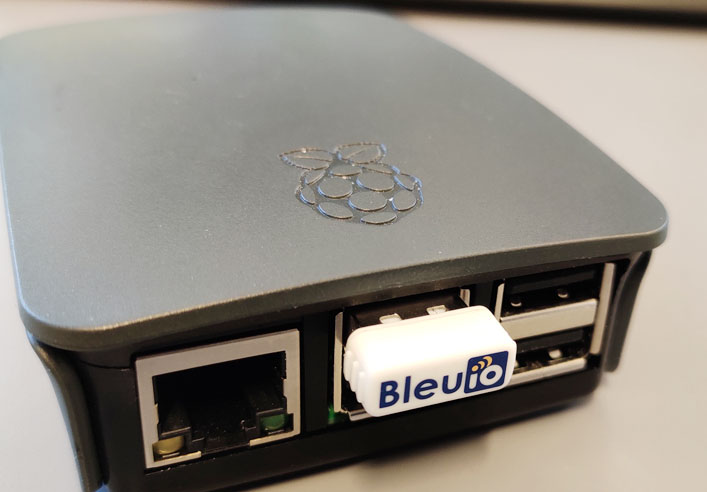
Connect the BleuIO dongle to your Linux / RaspberryPi.
To identify which device name the dongle is connected to, you will need to run ls /dev on the terminal. You might need to do it twice, once before you connect the dongle and once after, to be able to identify which one is the device name.
The following screenshot shows devices list before and after connecting the dongle.
The BleuIO includes a bootloader that allows you to update the firmware easily. When starting up, the dongle will open up a COM port for the bootloader for 10 seconds to allow you to update the firmware (or flash your own application). Afterwards, it will close that port and open a new port for the BleuIO application.
Now that you know the device name, you can run the following command to update the dongle.
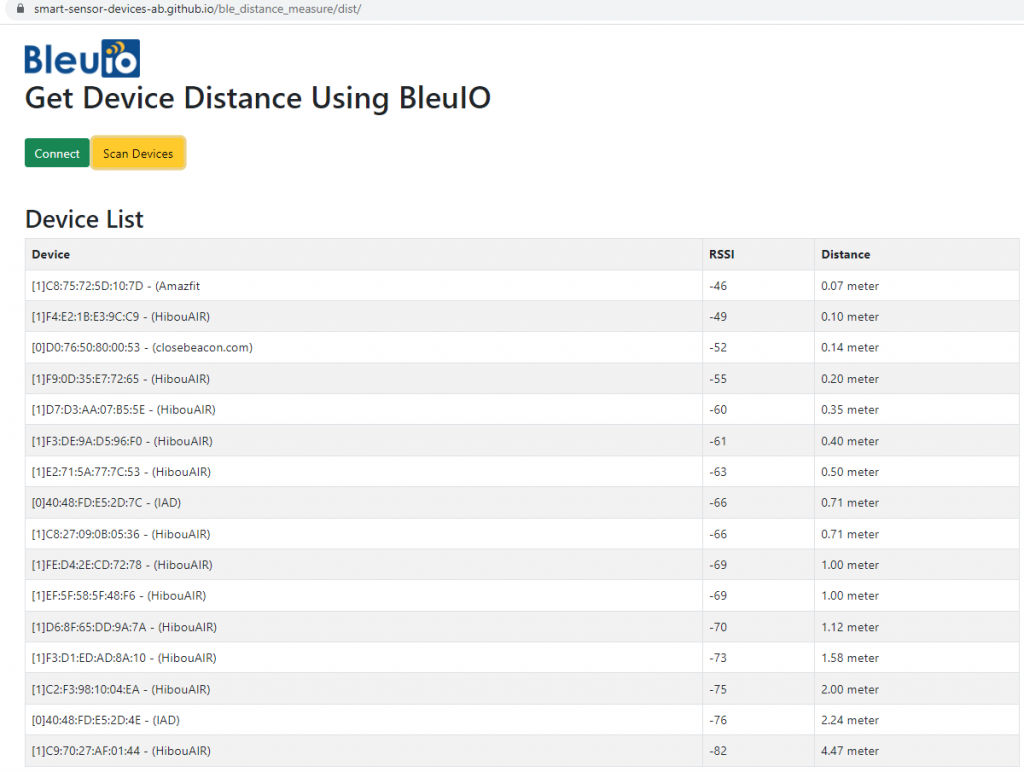
Distance to a Bluetooth device can be measured using RSSI value. The following script will help you locate nearby unique BLE devices within a selected range.
This script scans for nearby unique Bluetooth devices within the given range using a well-known RSSI to distance formula.
Smart Sensor Devices was awarded the Nordic Growth Company award from UC for success in the financial year 2019/2020. The company is doing steady and robust development and growth. The award was given for efforts during the previous financial year. The company sees a continued positive development and sales have increased compared with the previous financial year.
“The development is very positive with steady growth during the current financial year. Demand for our products and services has increased in the recent period for all our offerings, We are very gratefully for all our new customers” says Axel Hammar, Founder & CEO of Smart Sensor Devices.
Bluetooth ranging technology is very popular. There are many localization systems that exist based on beacons. Beacon technology usually estimates the distance between devices using the received signal strength (RSSI).
Bluetooth can be an excellent way to narrow down a search area at close distances when tracking something. This feature can be used in several fields. such as Secure Locks for Buildings and Automotive, Asset localization & tracking, Indoor navigation etc
GPS tracking isn’t excellent at giving accurate measurements of the close distance, especially in the indoor environment. On the other hand, Bluetooth is excellent in short ranges because the waves can go through walls. This might fill the gap that GPS tracking has when tracking devices in indoor spaces.
However, most calculations of the distance between two Bluetooth devices are estimates. It’s hard to determine the exact distance between two Bluetooth devices because many factors affect the calculations. Despite the challenges, there are methods to determine the distance between two Bluetooth devices with an accuracy of at least 60-80%.
The ranging method is simple to implement, and it has the formula to calculate the distance between two Bluetooth devices. As the name suggests, both devices need to be within Bluetooth range to estimate the distance.
This article will share a simple script written in JavaScript to determine nearby Bluetooth devices and their distance in meters.
This script scans for nearby Bluetooth devices and gets an approximation of the distance by using the well-known RSSI to distance formula.
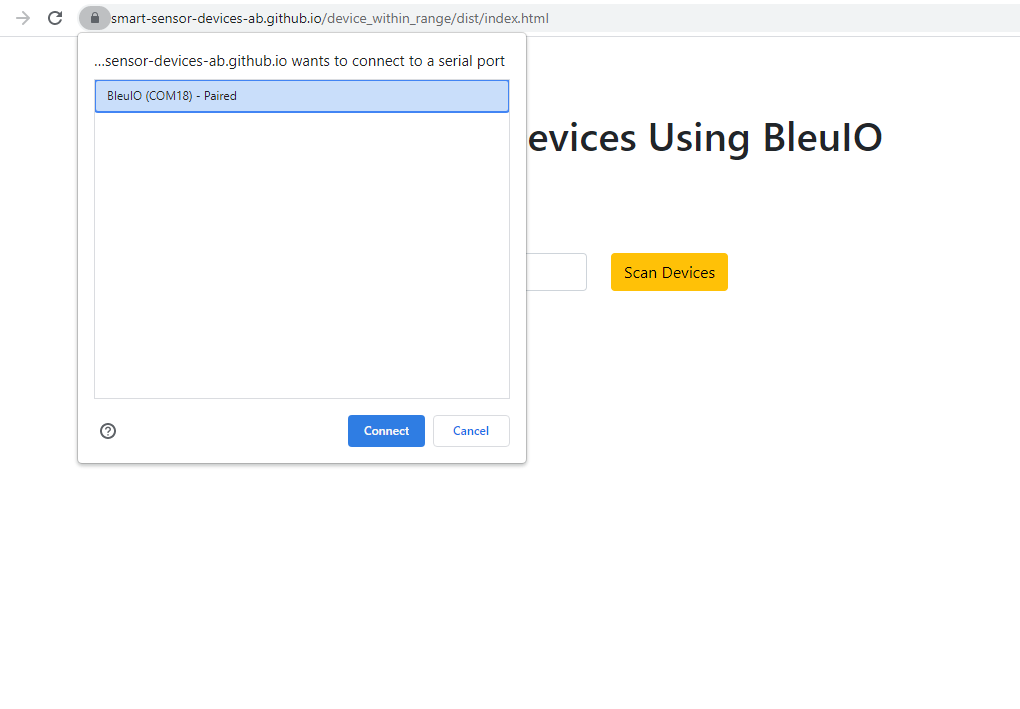
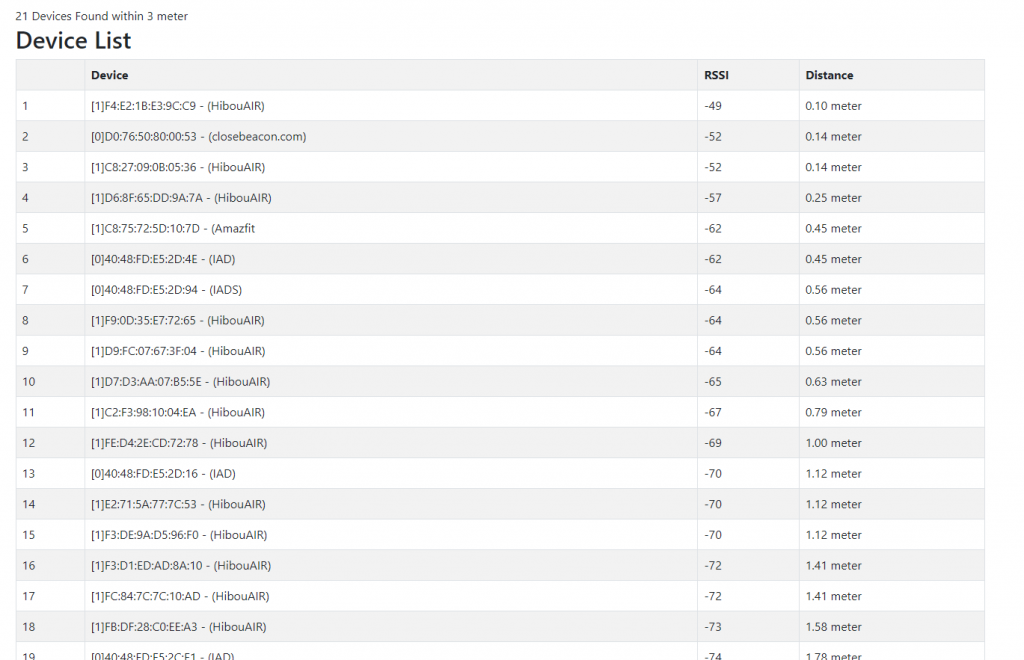
The script will an index.html and script.js file. Index.html is just has a connect and scan for device button. upon connecting we will be able to scan for nearby devices and. Once the scanning is completed we will be able to see a list of devices and their distance from my computer.
The script.js file uses bleuio javascript library to connect and scan for BLE devices. Once we get the device list, we try to sort it out by RSSI value and convert RSSI value to distance. Finally we print the result into a table.
Here is the script.js file
import * as my_dongle from 'bleuio'
document.getElementById('connect').addEventListener('click', function(){
  my_dongle.at_connect()
})

/*
Functions to converts rssi to distance
read more at
https://iotandelectronics.wordpress.com/2016/10/07/how-to-calculate-distance-from-the-rssi-value-of-the-ble-beacon/
*/
const getDistance =(rssi=>{
  let n=2
  let mp=-69
  return 10 ** ((mp - (rssi))/(10 * n))
})
document.getElementById('scan').addEventListener('click', function(){
  var element = document.getElementById("scanning");
  element.classList.remove("d-none");
  my_dongle.at_central().then((data)=>{
    my_dongle.at_gapscan(4,false).then((dev)=>{
      //convert array string to array of object with key value
      const formated = dev.map((item) => {
        const [ id, dev,devid,none,rssi,rssival,devname ] = item.split(' ');
        return { id, dev,devid,none,rssi,rssival,devname};
      });
      //array list unique
      let uniqueArr= formated.filter(y=>y.devname!=undefined)
      //sort based on rssi value
      uniqueArr.sort((a, b) => a.rssival > b.rssival && 1 || -1)

      let withDistance= uniqueArr.map(r=>{
        r.distance=getDistance(r.rssival).toFixed(2)+' meter'
        return r
      })
      //generate output
      let mytable = `<h2>Device List</h2>
      <table class='table table-striped table-bordered'>
      <tr>
      <th>Device</th>
      <th>RSSI</th>
      <th>Distance</th>
      </tr>`;
      withDistance.map(j=>{
        mytable += "<tr><td>" +j.devid+" - "+ j.devname + "</td><td>"+ j.rssival+"</td><td>"+j.distance+"</td></tr>";
      })
      mytable += "</table>";
      document.getElementById("deviceList").innerHTML = mytable;
      element.classList.add("d-none");
    })
  })
})
To run this script , we can use a web bundler called parcel. https://parceljs.org/
lets go inside the folder and in terminal type.
parcel index.html
The script will scan for five seconds for nearby devices. You can update the value based on your requirements.
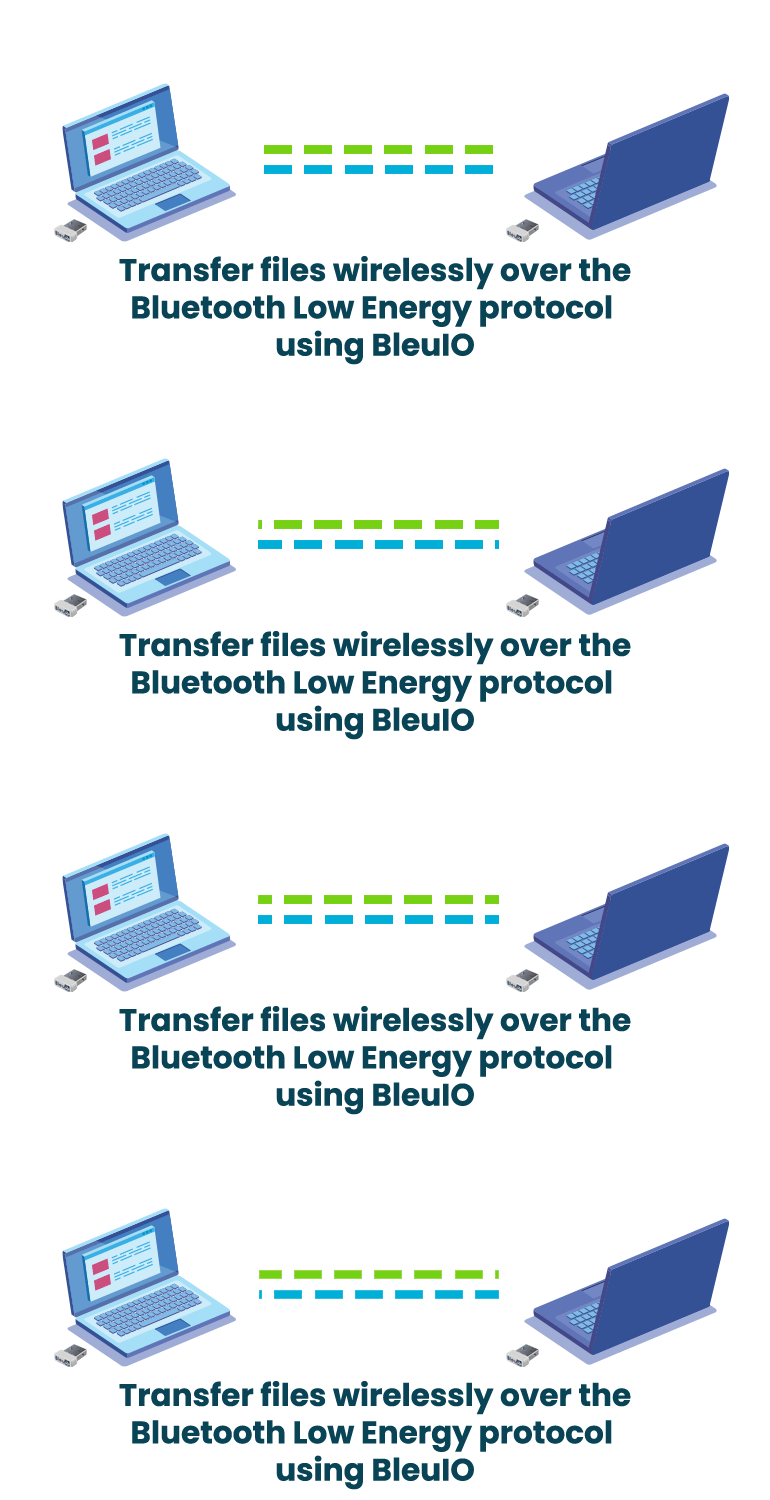
This tutorial will show how to transfer files wirelessly over the Bluetooth Low Energy protocol. We will use two BleuIO dongles for this project—one for sending and another one for receiving. The sender dongle will be in central mode, while the receiver dongle will be in peripheral mode.
We have already created two python scripts for sending and receiving. You can get the source code from
First, connect two BleuIO dongles to your computer.
Note down the COM port for each dongle. You can find the port using device manager.
Try to find receiver dongle MAC id. To do that, start advertising your receiver dongle and note down the MAC id. Follow the video if you need more details on how to do it.
Open file_recieve.py and file_transfer.py files. Update COM port and MAC id where necessary.
Here is the file_recieve.py
import serial
import time

your_com_port = "COM6"  # Change this to the com port your dongle is connected to.
file_name = "result.png"  # Change this to match the file type you are recieving

connecting_to_dongle = True
trying_to_connect = False

print("Connecting to dongle...")
# Trying to connect to dongle until connected. Make sure the port and baudrate is the same as your dongle.
# You can check in the device manager to see what port then right-click and choose properties then the Port Settings
# tab to see the other settings
while connecting_to_dongle:
    try:
        console = serial.Serial(
            port=your_com_port,
            baudrate=57600,
            parity="N",
            stopbits=1,
            bytesize=8,
            timeout=0,
        )
        if console.is_open.__bool__():
            connecting_to_dongle = False
    except:
        print("Dongle not connected. Please reconnect Dongle.")
        time.sleep(5)

print("Connected to Dongle.")

file_data = ""
file_transfer_done = False
connected = "0"
line = ""
while 1 and console.is_open.__bool__() or not file_transfer_done:
    console.write(str.encode("AT+DUAL"))
    console.write("\r".encode())
    print("Putting dongle in Dual role.")
    time.sleep(0.1)
    console.write(str.encode("AT+ADVSTART"))
    console.write("\r".encode())
    time.sleep(0.1)
    print("Starting advertising and awaiting connection from other dongle...")
    while connected == "0":
        dongle_output2 = console.read(console.in_waiting)
        time.sleep(2)
        if not dongle_output2.isspace():
            if dongle_output2.decode().__contains__("\r\nCONNECTED."):
                connected = "1"
                print("Connected!")
            if dongle_output2.decode().__contains__("\r\nDISCONNECTED."):
                connected = "0"
                print("Disconnected!")
            dongle_output2 = " "
    while connected == "1" or not file_transfer_done:
        time.sleep(0.2)
        dongle_output3 = console.read(console.in_waiting)
        if not dongle_output3.isspace():
            if dongle_output3.__contains__(str.encode("\r\nDISCONNECTED.")):
                print("Disconnected!")
                connected = "0"
            elif dongle_output3.__contains__(str.encode("[DONE]")):
                file_transfer_done = True
                print("File transfer complete!\r\n")
                fo = open(file_name, "wb")
                hex = bytes.fromhex(file_data)
                fo.write(hex)
                fo.close()
                print("Exiting script...")
                exit()
            elif dongle_output3.__contains__(str.encode("[Received]:")):
                line = dongle_output3.decode()
                line = line.replace("\r", "")
                line = line.replace("\n", "")
                line = line.replace("[Received]:", "")
                line = line.replace(" ", "")
                file_data += line
                print(line)
            dongle_output3 = ""
        msg = ""
Set the file type that you are expecting to receive. For example, if you are expecting a jpg file, change file_name on file_recieve.py to result.jpg, and for a text file, you can rename it to result.txt
Here is the file_transfer.py
import serial
import time

target_dongle_mac_address = (
    "[0]40:48:FD:E5:2D:AF"  # Change this to the peripheral's mac address.
)
your_com_port = "COM25"  # Change this to the com port your dongle is connected to.

connecting_to_dongle = True
trying_to_connect = False
file_name = "test.txt"

print("Connecting to dongle...")
# Trying to connect to dongle until connected. Make sure the port and baudrate is the same as your dongle.
# You can check in the device manager to see what port then right-click and choose properties then the Port Settings
# tab to see the other settings
while connecting_to_dongle:
    try:
        console = serial.Serial(
            port=your_com_port,
            baudrate=57600,
            parity="N",
            stopbits=1,
            bytesize=8,
            timeout=0,
        )
        if console.is_open.__bool__():
            connecting_to_dongle = False
    except:
        print("Dongle not connected. Please reconnect Dongle.")
        time.sleep(5)

print("Connected to Dongle.")

connected = "0"
while 1 and console.is_open.__bool__():
    console.write(str.encode("AT+DUAL"))
    console.write("\r".encode())
    time.sleep(0.1)
    print("Putting dongle in Dual role and trying to connect to other dongle.")
    while connected == "0":
        time.sleep(0.5)
        if not trying_to_connect:
            console.write(str.encode("AT+GAPCONNECT="))
            console.write(str.encode(target_dongle_mac_address))
            console.write("\r".encode())
            trying_to_connect = True
        dongle_output2 = console.read(console.in_waiting)
        time.sleep(2)
        print("Trying to connect to Peripheral...")
        if not dongle_output2.isspace():
            if dongle_output2.decode().__contains__("\r\nCONNECTED."):
                connected = "1"
                print("Connected!")
                time.sleep(10)
            if dongle_output2.decode().__contains__("\r\nDISCONNECTED."):
                connected = "0"
                print("Disconnected!")
                trying_to_connect = False
            dongle_output2 = " "
    while connected == "1":
        dongle_output3 = console.read(console.in_waiting)
        want_to_exit = input(
            "Press Enter to start sending file or 'exit' to quit script.\n\r>> "
        )
        want_to_exit = want_to_exit.upper()
        if "EXIT" in want_to_exit:
            print("Exiting script...")
            exit()
        hex_to_send = ""
        fo2 = open(file_name, "rb")
        print("Sending file. Please wait...")
        while (byte := fo2.read(1)) :
            hex_to_send += byte.hex().upper()
            if len(hex_to_send) >= 200:
                # my_dongle.at_spssend(hex_to_send)
                console.write(str.encode("AT+SPSSEND=" + hex_to_send + "\r"))
                time.sleep(0.2)
                hex_to_send = ""
        if len(hex_to_send) != 0:
            # my_dongle.at_spssend(hex_to_send)
            console.write(str.encode("AT+SPSSEND=" + hex_to_send + "\r"))
            time.sleep(0.2)
        fo2.close()
        console.write(str.encode("AT+SPSSEND=[DONE]\r"))
        print("File transfer complete!\r\n")
        print("Exiting script...")
        exit()
Keep the file in the same directory with file_transfer.py and change the file name accordingly.
Now run the script file_recieve.py using a terminal. It will start advertising and will be ready to receive.
Now run the file_transfer.py script.
Once both the dongles are connected, you will be asked to send the file from the file transfer script.
The receiver dongle will give you a confirmation once received, and you will find the file stored in the same folder with the receiver script.
Finally, you can check if you received the file correctly by running a checksum.
Please follow the video if you have difficulty in understanding.
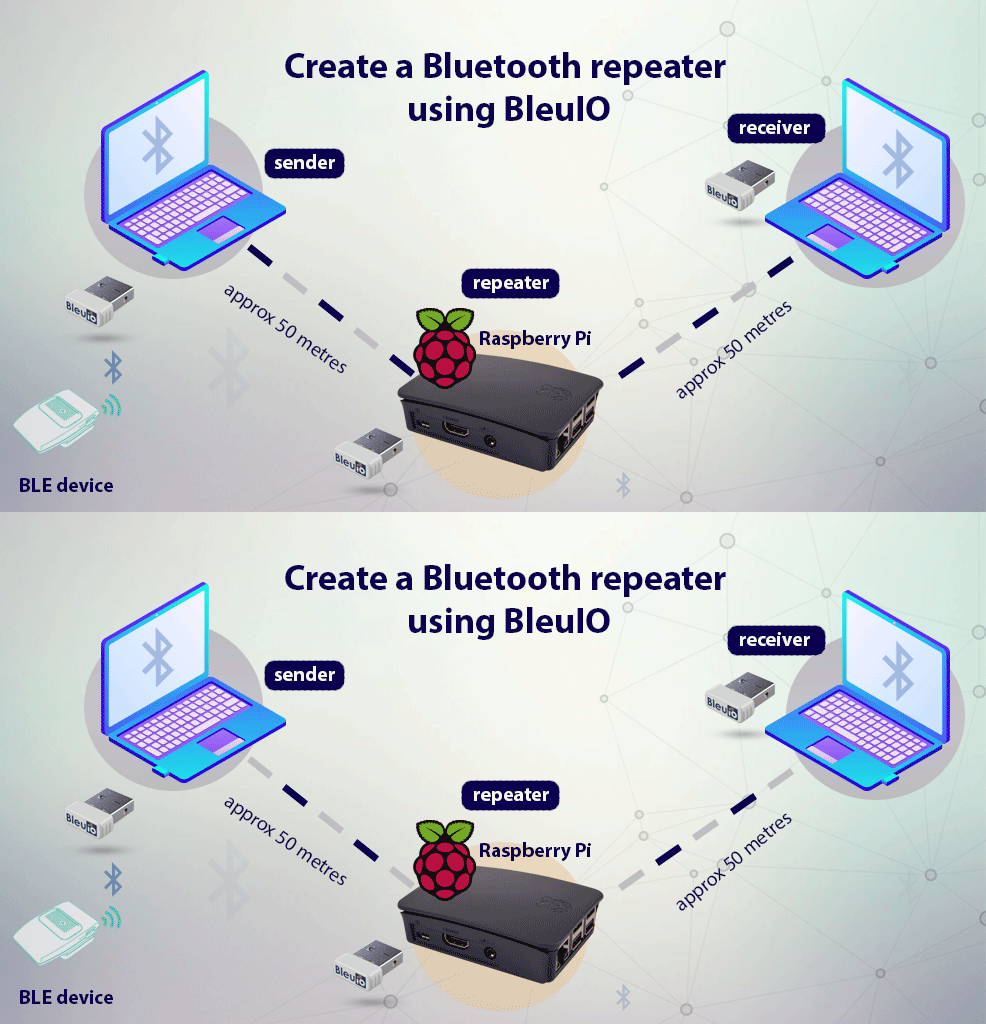
Bluetooth low energy technology offers a suitable way of connecting smart devices. However, despite the convenience, you can bear witness that the range offered can be a little limiting. Sometimes the connection tends to drop or lag when you move a little further away from the device. Fortunately, it’s easy to overcome this range limitation with the Bluetooth repeater.
This article will explain how to create a BLE Repeater using BLE USB dongle called BleuIO and python.
The BleuIO is Bluetooth low energy solution that can be used to create new BLE 5.0 applications in the fastest and easiest way. Using this dongle’s multi-connection feature, we will make a simple repeater where one dongle scans nearby devices data and sends it to the repeater. At the same time, the repeater passes the data to the receiver dongle. And that’s how a repeater will help us overcome the range limitation.
For this project, sender dongle will scan for air quality data from HibouAir device and pass the advertised data along with timestamp to the repeater. The repeater dongle will be connected to a Raspberry pi which will forward data to the receiver dongle.
We have already created a sample script in python, which will help us to do the task.
Let’s start by cloning the repository from https://github.com/smart-sensor-devices-ab/bleuio_repeater_example
Once you cloned the script, you will find three different python script called
repeater_example_reciever_dongle.py
repeater_example_repeter_dongle.py
repeater_example_sender_dongle.py
We need to update the ports on those scripts manually.
repeater_example_reciever_dongle.py
import time
from bleuio_lib.bleuio_funcs import BleuIo


reciever_dongle_port = "COM74"  # Change this to your dongle's COM port
mac_addr_to_repeater = (
    "[0]40:48:FD:E5:2D:74"  # Change this to your repeater dongle's mac address
)

buffer = ""
connected = False
connecting = ""

reciever_dongle = BleuIo(port=reciever_dongle_port)
reciever_dongle.start_daemon()

print("Dongle found.")


def save_msg(buffer):
    """
    Parses incomming data string for just the data and prints it out.
    """
    result = buffer
    result_array1 = result.split("\r\n")
    result_array = result_array1[2].split(" ")
    msg_to_save = str(result_array[0])
    print("Recieved = " + msg_to_save)


try:
    reciever_dongle.at_dual()

    ready = input(
        "Press enter to connect to the repeater dongle. (This should be connected first)."
    )
    print("Connecting...")
    reciever_dongle.at_gapconnect(mac_addr_to_repeater)
    time.sleep(5)
    while not connected:
        connected_status = reciever_dongle.ati()
        if "\r\nConnected" in connected_status[0]:
            connected = True
            break
        if "\r\nNot Connected" in connected_status[0]:
            reciever_dongle.at_gapconnect(mac_addr_to_repeater)
            time.sleep(5)
        print("Trying to connect...")
        time.sleep(2)

    print("Connected.")
    print("Waiting to recieve...")

    while 1:
        buffer = reciever_dongle.rx_buffer.decode("utf-8", "ignore")
        if "\r\nhandle_evt_gattc_notification:" in buffer:
            save_msg(buffer)
        time.sleep(0.5)
except KeyboardInterrupt:
    reciever_dongle.at_cancel_connect()
    reciever_dongle.at_gapdisconnect()
    reciever_dongle.at_advstop()
    print("Shutting down script.")
repeater_example_repeter_dongle.py
import time
from bleuio_lib.bleuio_funcs import BleuIo

repeter_dongle_port = "COM38"  # Change this to your dongle's COM port

repeter_dongle = BleuIo(port=repeter_dongle_port)
repeter_dongle.start_daemon()

buffer = ""
num_of_connected_devices = 0
connection_list = []

print("Dongle found.")

repeter_dongle.at_dual()
repeter_dongle.at_advstart()
repeter_dongle.rx_state = "rx_waiting"
print("Waiting for other dongles to connect...")


def send_msg(buffer):
    """
    Parses incomming data string for just the data and sends it forward via the Serial Port Service.
    """
    try:
        result = buffer
        msg_to_send = ""
        result_array1 = result.split("\r\n")
        for line in result_array1:
            if "[Received]:" in line:
                msg_to_send = line.split(" ")
                msg_to_send = msg_to_send[1]
                break
        print("Forwarding data to reciever:")
        print(msg_to_send)
        if not msg_to_send == "":
            repeter_dongle.at_spssend(msg_to_send)
            repeter_dongle.rx_state = "rx_waiting"
    except:
        print(" ")


try:
    while 1:
        buffer = repeter_dongle.rx_buffer.decode("utf-8", "ignore")
        if "\r\nCONNECTED." in buffer:
            num_of_connected_devices = num_of_connected_devices + 1
            print("A Dongle has connected!")
            repeter_dongle.at_advstart()
            repeter_dongle.rx_state = "rx_waiting"
        if "DISCONNECTED." in buffer:
            num_of_connected_devices = num_of_connected_devices - 1
            connection_list = []
            print("No Dongles connected.")
        if num_of_connected_devices > 1:
            if "\r\n[Received]:" in buffer:
                # print(buffer)
                send_msg(buffer)
        buffer = ""
        time.sleep(0.1)
except KeyboardInterrupt:
    repeter_dongle.at_advstop()
    repeter_dongle.at_gapdisconnect()
    print("Shutting down script.")
repeater_example_sender_dongle.py
import time
from bleuio_lib.bleuio_funcs import BleuIo
import random

sender_dongle_port = "COM73"  # Change this to your dongle's COM port
mac_addr_to_repeater = (
    "[0]40:48:FD:E5:2D:74"  # Change this to your repeater dongle's mac address
)

sender_dongle = BleuIo(port=sender_dongle_port)
sender_dongle.start_daemon()

connected = False
data = ""
buffer = ""


def scan_and_get_results():
    """
    Starts a BLE scan for three seconds, looking for results including the 'FF' flag in the advertising data.
    Then it saves the results in a list and returns one of the results as a string.
    :return: string
    """
    print("Scanning...")
    return_data = ""
    result_list = []
    time.sleep(0.5)
    try:
        scanning = sender_dongle.at_findscandata("FF")
        if "SCANNING" in scanning[0]:
            time.sleep(4)
            sender_dongle.stop_scan()
            time.sleep(0.5)
            result_list = sender_dongle.rx_scanning_results
            if not result_list == []:
                if len(result_list) > 3:
                    lines = result_list[2].split("\r\n")
                    if not lines[1] == "":
                        data_array = lines[1].split(" ")
                        lenght = len(data_array)
                        if lenght == 5:
                            data = data_array[4]
                            return_data = data
            else:
                sender_dongle.stop_scan()
                result_list = []
                sender_dongle.rx_state = "rx_waiting"
                return_data = ""
    except:
        sender_dongle.stop_scan()
        result_list = []
        sender_dongle.rx_state = "rx_waiting"
        return_data = ""
    return return_data


print("Dongle found.")

try:
    sender_dongle.at_dual()
    ready = input(
        "Press enter to connect to the repeater dongle. (This should be connected last)."
    )
    print("Connecting...")
    sender_dongle.at_gapconnect(mac_addr_to_repeater)
    time.sleep(5)
    while not connected:
        connected_status = sender_dongle.ati()
        if "\r\nConnected" in connected_status[0]:
            connected = True
            break
        if "\r\nNot Connected" in connected_status[0]:
            sender_dongle.at_gapconnect(mac_addr_to_repeater)
            time.sleep(5)
        print("Trying to connect...")
        time.sleep(2)

    print("Connected.")
    print("Getting services...")
    get_services = sender_dongle.at_get_services()
    sender_dongle.rx_state = "rx_waiting"
    time.sleep(2)
    ready = input("Press enter to start sending data to the repeater dongle.")

    while 1:
        data = scan_and_get_results()
        time.sleep(1)
        if not data == "":
            sent = sender_dongle.at_spssend(data)
            time.sleep(0.1)
            if len(sent) == 1:
                if "[Sent]" in sent[0]:
                    print("Data = (" + data + ") sent.")
                    time.sleep(1)
            data = ""
        time.sleep(1)
        sender_dongle.rx_state = "rx_waiting"
except KeyboardInterrupt:
    sender_dongle.at_gapdisconnect()
    print("Shutting down script.")
Step 2: Connect two dongles on your PC. You can do the process on three different PC or Raspberry Pi. For this project, I have connected both the sender and receiver dongles to one PC. After connecting the dongles, open device manager (windows) to find ports of each dongle.
On my PC, I have two dongles connected on port 5 and 6. Let’s make COM 5 as the sender, COM 6 as a receiver. Now open the scripts and set the ports number accordingly.
We also need to know repeater dongles ID. To do that, we can simply advertise the dongle on Raspberry pi using AT+ADVSTART command .Then do a gapscan using AT+GAPSCAN from sender dongle and look for a dongle called BleuIO
Once we have repeater dongles id, we can put it on our scripts.
Step 3 :
Now lets run the script.
First move to the script directory on Raspberry pi and using command prompt type sudo python3 repeater_example_repeter_dongle.py to run repeater script.
Similarly, run receiver and sender scripts accordingly on PC.
As the name suggests, the repeater will repeat its content. On the terminal, we will see the message sent to the repeater from the sender, and the repeater forwards the data to the receiver dongle.
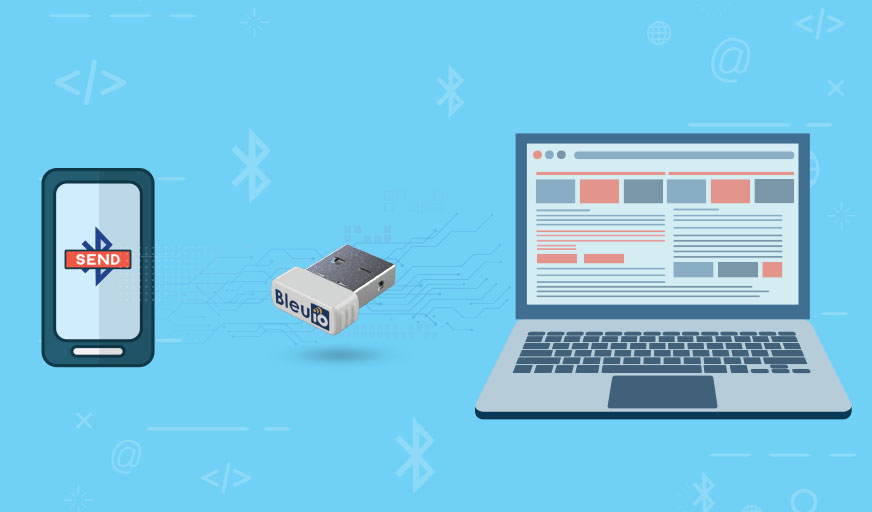
This project will demonstrate how to easily create an android app and transfer data between PC and mobile phone.
At first, we will connect BleuIO dongle to our pc. This dongle will help us connect our pc to mobile app and also the data transfer between them.
We already created a simple android app for this project. All you need to clone this project and run the app on your mobile phone. You can make changes if you need to.
Requirements
BleuIO connected to a pc with ionic framework installed.
We will set BleuIO dongle as peripheral, and our mobile app will connect to this dongle. Then we can start sending data back and forth.
Connect your BleuIO dongle to the computer.
Connect to dongle using comport and start advertising by AT+ADVSTART.
Clone this git repo. git clone https://github.com/smart-sensor-devices-ab/bleuio_sps_example_mobileapp.git
go inside the folder and run npm install on terminal
The most important file of this script is Home.tsx , which is inside src/pages folder. This script has the service UUID information to communicate with the dongle which is connected to our computer.
It also helps the mobile app to connects to the computer and send messages using SPS.
This file also works as front end of the mobile app and takes input from user to send message to computer or receive and display message on mobile screen.
if you run ionic serve on terminal, you will be able to see the layout on the browser. But for this app, we need mobile phones native feature because we need Bluetooth connection. Therefore connect your android phone to your computer and run ionic cap run android on terminal.
If you get an error regarding gradle, Type ionic capacitor update and run ionic cap run android again.
Your app will install and open up on your mobile phone.
Make sure the dongle is on peripheral mode and advertising.
Click scan for BleuIO devices.
On the scan result, select one of your dongles to connect.
After a successful connection, you can send data back and forth, and you will be able to see your messages on both the mobile app and the terminal.
Recently, Bluetooth Low Energy (BLE) has become one of the most popular wireless standards for IoT devices. Most applications are now using this technology to transfer sensitive information between devices. Therefore, designers looking to integrate BLE into their products should be aware of the BLE security features and limitations.
The main security issues with the pairing between devices with BLE are passive eavesdropping, man in the middle (MITM) attacks and identity tracking.
BLE offers several security features and levels for communication between devices. A designers has to be aware of the specific security threats facing BLE, and try to implement and mitigate security risk in both hardware and firmware design.
BleuIO team is continuously updating its firmware and libraries to make the BLE connection more secure between devices.
At the moment, we have Numeric Comparison, Just Works or Passkey Entry for pairing and bonding.
Numeric Comparison: In this scenario, both the devices have a display unit able to display a six-digit number. Both displays show the same number, and the user is asked to confirm that these numbers match.
Passkey Entry: The Passkey Entry is initially intended for the case that one device has a keyboard, but no display unit and the other device has at least a display unit, for example, a BLE and a PC keyboard scenario. The user is shown a six-digit number (from “000000” to “999999”) on the device with a display and then is asked to enter the number on the other device. If the value entered on the second device is correct, the pairing is successful.
Just Works: This model is primarily intended for the most constrained devices in terms of I/O. The Just Works association model uses the Numeric Comparison protocol, but the user is never shown a number, and the application may simply ask the user to accept the connection. This method doesn’t offer protection against a Man in the Middle (MITM) attack, but it provides the same protection level against passive eavesdropping as the Numeric Comparison.
BleuIO security features :
Set the passkey for passkey authentication on your dongle yourself.
Set the minimum security level your dongle will use. This can be done either when already connected to a device or before. If the device you are connecting to does not meet the security level requirement, the dongle will disconnect from it.
Choose if the dongle should auto accept the numeric comparison authentication request or manually.
Can access protected characteristics that need an increased Security Level.
Please take a look at our Get Started guide to know more about it.
Following video shows how to securely pair between two BleuIO devices.
In this article, we will see how to send BLE data to the cloud. Together with the BleuIO javascript library and BleuIO USB dongle, we will get BLE data from HibouAir. After getting the advertised data, we will pass it to a simple function that will give us an object with meaningful air quality data numbers. Then we will send the data to the firebase cloud.
Once it’s installed, go to the app folder and type parcel index.html
You will have your app running on the browser.
Step 4:
Connect your dongle to your pc.
Open the app on your browser and click connect.
Click on the device information. If you see the device is in peripheral mode than you have to make it central.
Click on the central button. And recheck device information.
Step 4:
Lets scan for nearby devices.
Click on the scan button and look at the list of the scanned device on your console log. Pick any HibouAir devices and copy the device information.
Open the index.js file and go to line 95
replace the scan target information with the one you copied.
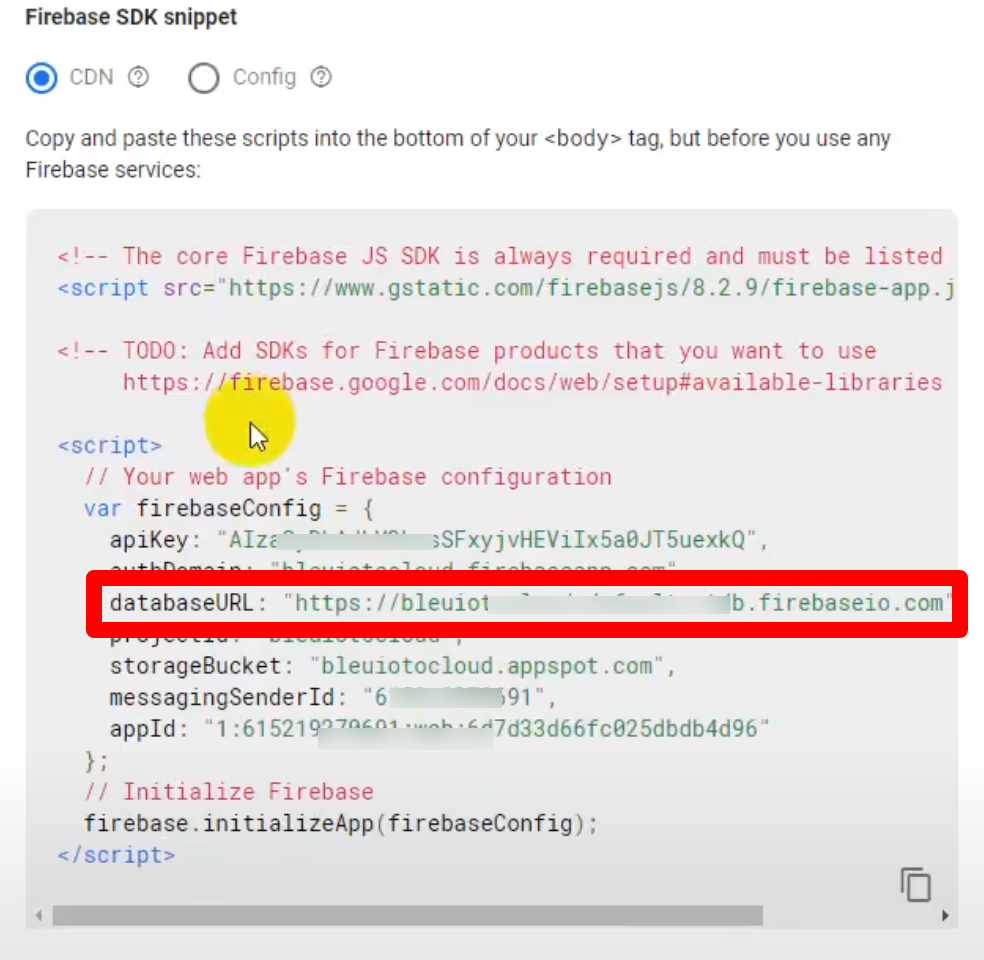
Update firebaseconfig.js with
Now save the page and click on send data to the cloud. If your firebase configuration is correct, you should see data showing on your cloud database.
Here is the code for index.html file
<!DOCTYPE html>
<html lang="en">
  <head>
    <meta charset="UTF-8" />
    <meta http-equiv="X-UA-Compatible" content="IE=edge" />
    <link
      href="https://cdn.jsdelivr.net/npm/bootstrap@5.0.0-beta2/dist/css/bootstrap.min.css"
      rel="stylesheet"
      integrity="sha384-BmbxuPwQa2lc/FVzBcNJ7UAyJxM6wuqIj61tLrc4wSX0szH/Ev+nYRRuWlolflfl"
      crossorigin="anonymous"
    />

    <meta name="viewport" content="width=device-width, initial-scale=1.0" />
    <script src="https://www.gstatic.com/firebasejs/8.2.9/firebase-app.js"></script>
    <script src="https://www.gstatic.com/firebasejs/8.2.9/firebase-database.js"></script>
    <title>BLE data to google firebase</title>
  </head>
  <body>
    <div class="container">
      <h2>Send BLE data to cloud</h2>
      <p>
        This script helps you to connect to BleuIO and sends data to Firebase
        cloud.
      </p>
      <p>
        Learn more about BleuIO.
        <a href="https://www.bleuio.com/">https://www.bleuio.com/</a>
      </p>
      <br />
      <button class="btn btn-success" id="connect">Connect</button>
      <button class="btn btn-success" id="deviceinfo">Device Info</button>
      <!-- To get Ble data from HibouAir (Peripheral device), BleuIO has to be on central mode -->
      <button class="btn btn-success" id="central">Central Mode</button>

      <button class="btn btn-success" id="scan">Scan for devices</button>

      <button class="btn btn-success" id="sendDataTCloudBtn">
        Send data to cloud Data
      </button>

      <button class="btn btn-success" id="stopSendingData">
        Stop Sending Data
      </button>
      <br /><br />
      <h5><div id="log"></div></h5>
    </div>

    <script src="./firebaseconfig.js"></script>
    <script src="./index.js"></script>
  </body>
</html>
Here is the code for index.js file
import * as my_dongle from 'bleuio'
document.getElementById('connect').addEventListener('click', function(){
  my_dongle.at_connect()
})
document.getElementById('deviceinfo').addEventListener('click', function(){
  my_dongle.ati().then((data)=>console.log(data))
})
document.getElementById('central').addEventListener('click', function(){
    my_dongle.at_central().then((data)=>console.log(data))
})
document.getElementById('scan').addEventListener('click', function(){
my_dongle.at_gapscan(2).then((data)=>console.log(data))
})
const parseSensorData = ((input) =>{
    let counter = 13;
    if (input.includes("5B070503")) {
      counter = 17;
    }
    let sensorData = {
      sensorid:
        input[counter + 1] +
        input[counter + 2] +
        input[counter + 3] +
        input[counter + 4] +
        input[counter + 5] +
        input[counter + 6],
      pressure:
        parseInt(
          input[counter + 13] +
            input[counter + 14] +
            input[counter + 11] +
            input[counter + 12],
          16
        ) / 10,
      temperature:
        parseInt(
          input[counter + 17] +
            input[counter + 18] +
            input[counter + 15] +
            input[counter + 16],
          16
        ) / 10,
      humidity:
        parseInt(
          input[counter + 21] +
            input[counter + 22] +
            input[counter + 19] +
            input[counter + 20],
          16
        ) / 10,
        voc:
        parseInt(
          input[counter + 25] +
            input[counter + 26] +
            input[counter + 23] +
            input[counter + 24],
          16
        ) / 10,
      als: parseInt(
        input[counter + 9] +
          input[counter + 10] +
          input[counter + 7] +
          input[counter + 8],
        16
      ),
      pm1:
        parseInt(
          input[counter + 29] +
            input[counter + 30] +
            input[counter + 27] +
            input[counter + 28],
          16
        ) / 10,
      pm25:
        parseInt(
          input[counter + 33] +
            input[counter + 34] +
            input[counter + 31] +
            input[counter + 32],
          16
        ) / 10,
      pm10:
        parseInt(
          input[counter + 37] +
            input[counter + 38] +
            input[counter + 35] +
            input[counter + 36],
          16
        ) / 10}
    return sensorData
  })

const sendDataToCloud = (()=>{
    //get the scan target device id by scanning for device.
    my_dongle.at_scantarget('[1]F9:0D:35:E7:72:65',2).then((data)=>{
        let theAdvData = data.filter(element => element.includes("ADV"));
        if(theAdvData && theAdvData.length>0){
            console.log(theAdvData)
            let advData = theAdvData[0].split("[ADV]: ")
            // converting advertising string to meaningfull numbers
            //and pass it to an array of objects
            let airQualityData = parseSensorData(advData[1])
            console.log(airQualityData)
            // save the data to database
            let database = firebase.database(); // which gets the database
            let ref = database.ref("records");
            //pushing the object to the reference
            ref.push(airQualityData)
        }
    })
})
var intervalId
document.getElementById('sendDataTCloudBtn').addEventListener('click', function(){
    sendDataToCloud()
    if (intervalId) {
        clearInterval(intervalId);
    }
    intervalId = setInterval(sendDataToCloud ,5000);
    document.getElementById("log").innerHTML="Sending data to cloud. Click stop sending data to stop the process.";

})
document.getElementById('stopSendingData').addEventListener('click', function(){
    clearInterval(intervalId)
    document.getElementById("log").innerHTML="Sending data stopped.";
 })
document.getElementById('stopProcess').addEventListener('click', function(){
   console.log(my_dongle.stop())
})
Right now, its sending data every 5 seconds.
You can stop the process by clicking stop sending data.
Have a look at the following video for a better understanding.