Building a BLE Device Detection Web App with Phoenix and BleuIO

In this tutorial, we build a simple but practical web application that demonstrates how BleuIO can be integrated with a modern web framework to interact with Bluetooth Low Energy (BLE) devices in real time. The goal of this project is not to create a full-featured product, but to provide a clear example that developers can learn from and extend for their own use cases.

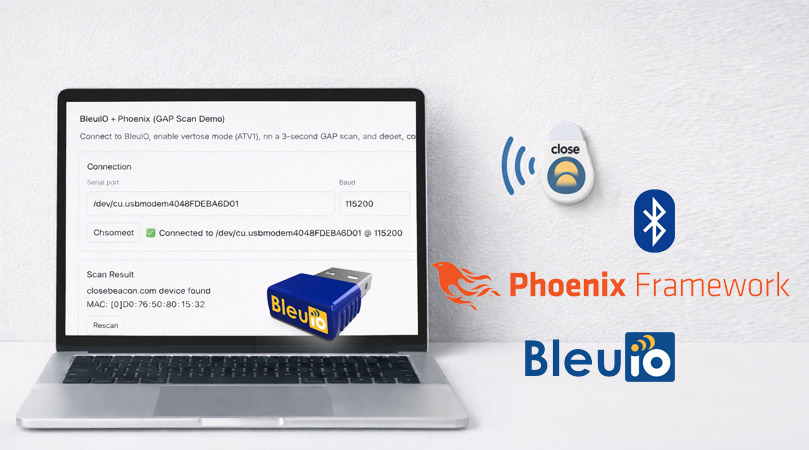
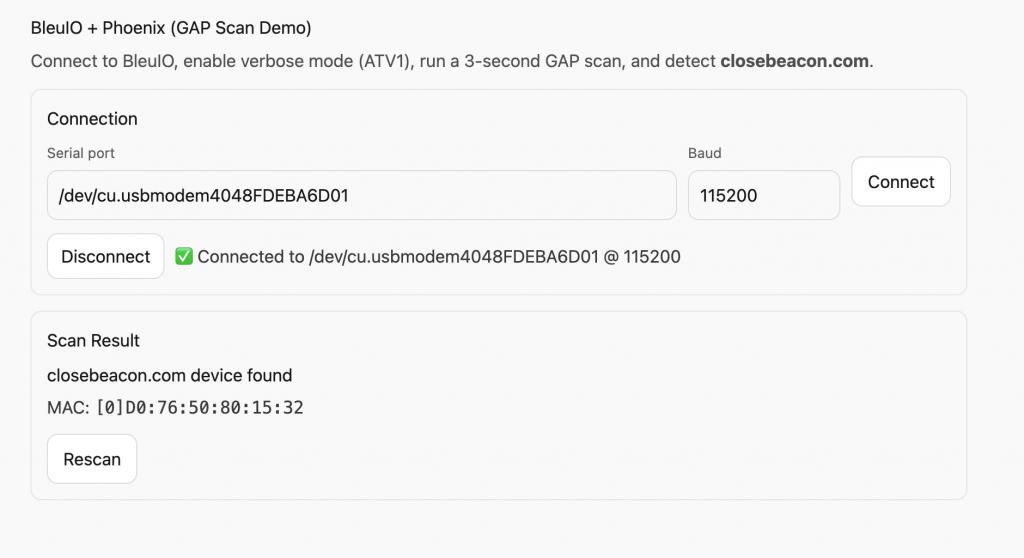
The application connects to a BleuIO USB dongle via a serial port, enables verbose mode, performs a BLE scan, and detects whether a specific nearby BLE device is present. If the target device is found, the application displays its MAC address. This approach is particularly useful for scenarios such as proximity detection, presence monitoring, or gateway-style BLE integrations.

The complete source code for this project is provided separately so developers can easily clone, modify, and build upon it.

Why Phoenix Framework?

Phoenix is a web framework written in Elixir and built on top of the Erlang/OTP ecosystem. It is designed for applications that require high concurrency, real-time updates, and long-running background processes. These characteristics make Phoenix particularly suitable for hardware-integrated applications where continuous communication with external devices is required.

In this project, Phoenix allows the BleuIO serial connection to remain open while BLE scan results are streamed to the web interface. The framework handles process supervision, message passing, and real-time UI updates in a clean and reliable way, without the need for complex front-end JavaScript logic.

How This Differs from a JavaScript-Based Web App

This project does not use the Web Serial API. Web Serial allows browser-based JavaScript applications to access serial devices, but it is primarily intended for interactive, user-driven scenarios. It requires explicit user permission, depends on browser support, and is not suitable for unattended or always-on systems.

By contrast, this Phoenix-based approach keeps all BLE logic on the backend. The web interface simply reflects the current state of the system and allows the user to trigger actions such as connecting or rescanning. This separation makes the application easier to extend, easier to deploy, and more suitable for real-world integrations where reliability and continuous operation are important.

Requirements

To follow this tutorial, you will need:

How the Application Works

The application follows a straightforward process. The user enters the serial port name where the BleuIO dongle is connected and initiates the connection from the web interface. Once connected, the application sends an AT command to enable verbose mode, making the responses easier to read and parse.

After verbose mode is enabled, the application starts a timed BLE scan. As scan results arrive from BleuIO, they are analyzed in real time. If a BLE device advertising the configured target name is detected, the application extracts its MAC address and updates the interface accordingly. The user can repeat the scan at any time using the rescan option.

All serial communication and BLE processing run in the background, while the web interface updates automatically based on events generated by the backend.

Running the Application

Installing Phoenix

Phoenix can be installed on macOS using standard tooling for Elixir. Once Elixir is installed, Phoenix can be added using the official project generator. Detailed installation steps are included in the project documentation.

Running the App

Download the source code from https://github.com/smart-sensor-devices-ab/bleuio-phoenix-erlang

After downloading the source code:

  1. Install dependencies
  2. Start the Phoenix server
  3. Open the application in a browser
  4. Enter the BleuIO serial port
  5. Click Connect
  6. View scan results and detected devices

Follow README.md for more details

The application runs locally and does not require any cloud services.

Configuring the Serial Port and Target Device

Two key parameters are intentionally easy to modify:

Serial Port

The serial port used by BleuIO can be updated either through the web interface or in the configuration file (config>runtime.exs). This allows the project to run on different machines without code changes.

The serial port name depends on the operating system being used. On macOS, BleuIO typically appears as a device starting with /dev/cu.usbmodem. On Linux systems, the dongle is commonly available as /dev/ttyUSB0 or /dev/ttyACM0, depending on the system configuration. On Windows, BleuIO appears as a COM port, such as COM3 or COM5.

Target BLE Device

The application looks for a specific BLE device name during scanning. This name is defined as a constant in the backend code on lib>bleuio_phx>bleuio_worker.ex and is matched case-insensitively.

Proximity Detection and CloseBeacon Use Case

In the example implementation, the application detects a device advertising the name closebeacon.com. This makes the project suitable for proximity detection use cases, such as presence awareness, zone monitoring, or asset tracking.
BLE beacons like CloseBeacon are commonly used in proximity-based systems, and this project demonstrates how BleuIO can serve as a reliable BLE scanning interface for such applications. More information about CloseBeacon can be found at https://www.closebeacon.com/.

How This Project Helps Developers

This tutorial is intended as an example project rather than a finished solution. It shows how BleuIO can be integrated with a backend web framework to handle BLE scanning in a clean and scalable way. Developers can use this project as a reference to understand the overall architecture and then build their own custom logic on top of it.

The complete source code is provided so that anyone interested can explore the implementation details, experiment with different configurations, and adapt the project for their own BLE-enabled applications.

By combining BleuIO with Phoenix, developers can build BLE-enabled web applications that are not limited by browser APIs or client-side constraints. This example demonstrates a backend-first approach to BLE scanning that is well suited for gateways, monitoring tools, and proximity detection systems.
Share this post on :

BleuIO Pro Firmware Update v1.0.5.6 Released

We are happy to announce a new firmware update for BleuIO Pro, version v1.0.5.6. This release introduces improved control over connection behavior, expanded command functionality, and important stability enhancements to ensure a more reliable development experience.

Below is an overview of what’s new and improved in this firmware update.

New Auto Reconnect Control

One of the key improvements in this release is the ability to enable or disable the auto reconnect feature.

Previously, auto reconnect was always enabled. This meant the dongle would automatically attempt to reconnect to a target device if a disconnect event occurred immediately after connection, specifically with disconnect reason 0x3E (Connection failed to be established).

With firmware v1.0.5.6, users now have full control over this behavior.

New Commands:

  • ATAR1 – Enable auto reconnect (default)
  • ATAR0 – Disable auto reconnect

By default, auto reconnect remains enabled to preserve existing behavior, but developers can now turn it off when more precise connection handling is required.

Read-Back Support Added to Multiple Commands

This update adds read functionality to several AT commands that previously allowed configuration changes but did not provide a way to read back their current state.

This enhancement improves transparency and makes it easier to verify configuration during runtime or debugging.

Commands with New Read Support:

  • ATA
  • ATAR
  • ATASPS
  • ATASSN
  • ATASSM
  • ATDS
  • ATE
  • ATES
  • ATEW
  • ATSIV
  • ATSRA
  • ATSAT
  • AT+FRSSI
  • AT+SHOWRSSI

With these additions, developers can now query the current settings directly from the dongle, resulting in better control and easier diagnostics.

Stability Improvements

Firmware v1.0.5.6 also includes several internal improvements aimed at making BleuIO Pro more robust and reliable.

Key Enhancements:

  • Fixed multiple issues that could cause unexpected dongle reboots
  • Improved internal connection state handling
  • Enhanced overall firmware stability during connection and disconnection events

These changes help ensure smoother operation, especially in applications with frequent BLE connections.

Firmware v1.0.5.6 for BleuIO Pro introduces several important improvements that enhance both usability and reliability. This release gives developers direct control over the auto reconnect functionality, allowing it to be enabled or disabled based on application needs. It also adds read-back support to many commonly used AT commands, making it easier to verify current settings and improve debugging workflows. In addition, overall stability has been improved through better internal connection state handling and fixes for issues that could previously cause unexpected dongle reboots.

We recommend updating to this latest version to take advantage of the new features and reliability improvements.

For download instructions and update guides, please visit the BleuIO Pro firmware update section on our support page.

Share this post on :

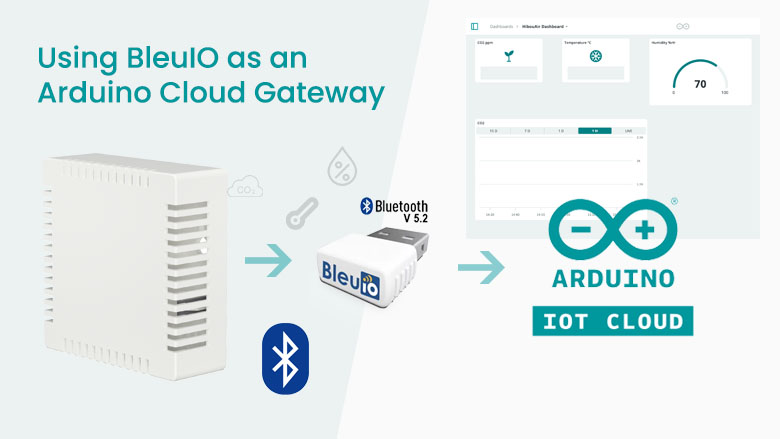
Sending BLE Air Quality Data to Arduino Cloud Using BleuIO

Bluetooth Low Energy (BLE) devices are widely used for environmental monitoring, but getting their data into the cloud often requires complex SDKs, gateways, or proprietary platforms. In this tutorial, we demonstrate a simple and flexible alternative: sending BLE advertisement data directly to Arduino Cloud using BleuIO as a USB BLE gateway.

In this project, we build a lightweight data pipeline where a HibouAir air quality sensor broadcasts environmental data over BLE advertisements, BleuIO scans and captures that data, a Python script decodes the values, and the results are sent straight to Arduino Cloud for storage and visualization — all using free tools.

This project is designed as a showcase example to illustrate how BLE development and cloud integration can be done quickly and transparently, without BLE SDKs or embedded firmware development.

Why Arduino Cloud?

Arduino Cloud offers a convenient and reliable platform for storing and visualizing IoT data without the need to build and maintain a custom backend. Although it is often associated with Arduino hardware, the platform supports Manual Devices, which makes it suitable for gateway-based solutions where data originates from external devices such as BLE sensors. In this project, Arduino Cloud serves as a secure endpoint where decoded air quality data can be published using standard MQTT communication. Its integrated dashboards allow developers to quickly visualize sensor data, making it especially useful for prototyping, demonstrations, and proof-of-concept projects that require minimal setup.

Hardware and Software Requirements

Hardware

Software

  • Python 3.9 or later
  • pyserial Python library
  • arduino-iot-cloud Python library
  • Arduino Cloud

No embedded programming or BLE SDKs are required.

How the System Works

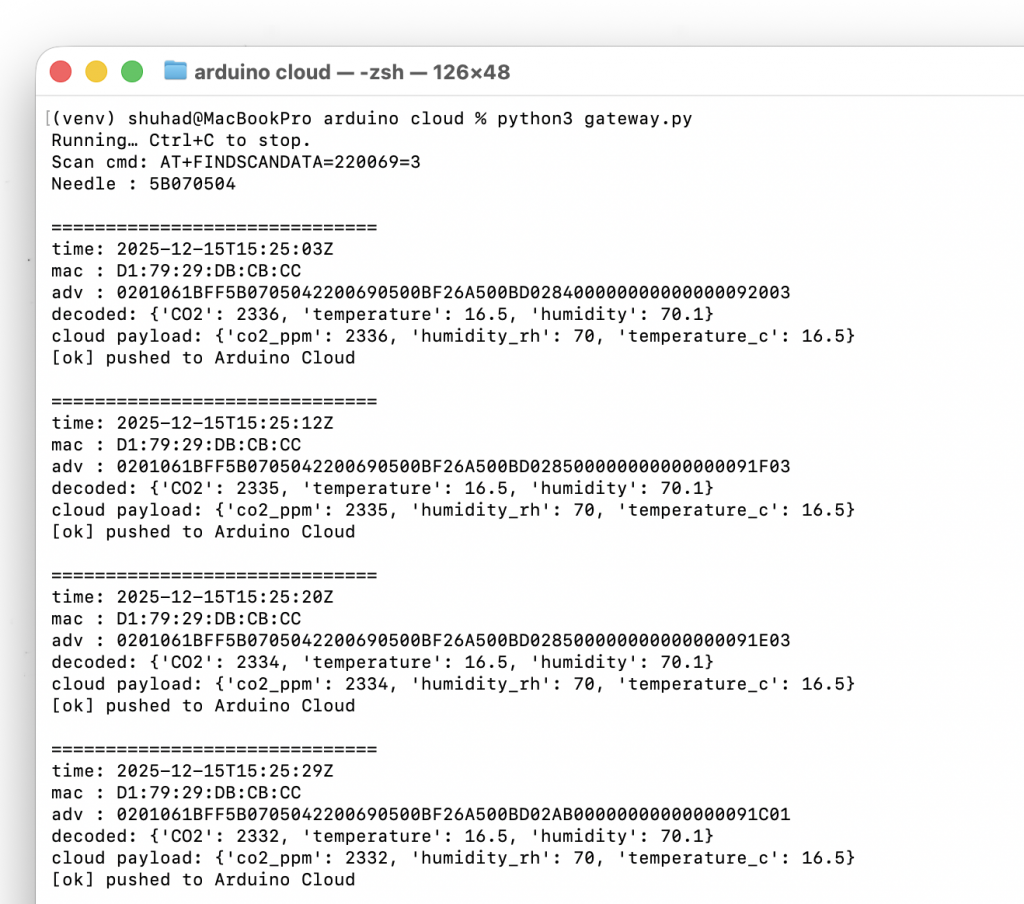
The HibouAir device periodically broadcasts air quality data within its BLE advertisement payload. BleuIO continuously scans for nearby BLE advertisements and filters packets that match a specific device identifier. When a matching advertisement is detected, the Python gateway script extracts the raw data and applies decoding logic to convert the hexadecimal values into human-readable measurements. These decoded values are then published to Arduino Cloud using authenticated MQTT communication. The entire process runs continuously, enabling real-time data updates without establishing a persistent BLE connection to the sensor.

Arduino Cloud Setup (Step by Step)

Step 1: Create or Log In to Arduino Cloud

Go to:
https://app.arduino.cc/dashboards

Create a free account or log in to your existing one. After login Arduino Cloud will generate

  • Device ID
  • Secret Key

Save these securely — they will be used in the Python script.

Step 2: Create a Device

Navigate to:
https://app.arduino.cc/devices

  • Click Add Device from left menu
  • Choose Manual Device
  • Name the device HibouAir

Step 3: Create a Thing

When prompted after creating device, create a new Thing and name it HibouAir Thing.

Step 4: Add Cloud Variables

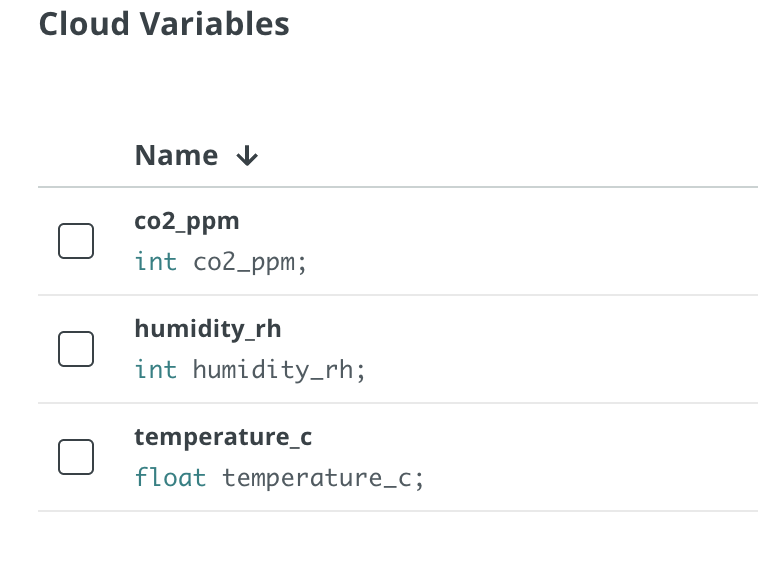
Add the following variables to the Thing:

Variable NameTypeDescription
co2_ppmintCO₂ concentration (ppm)
temperature_cfloatTemperature in °C
humidity_rhfloatRelative humidity (%)

Step 5: Create a Dashboard

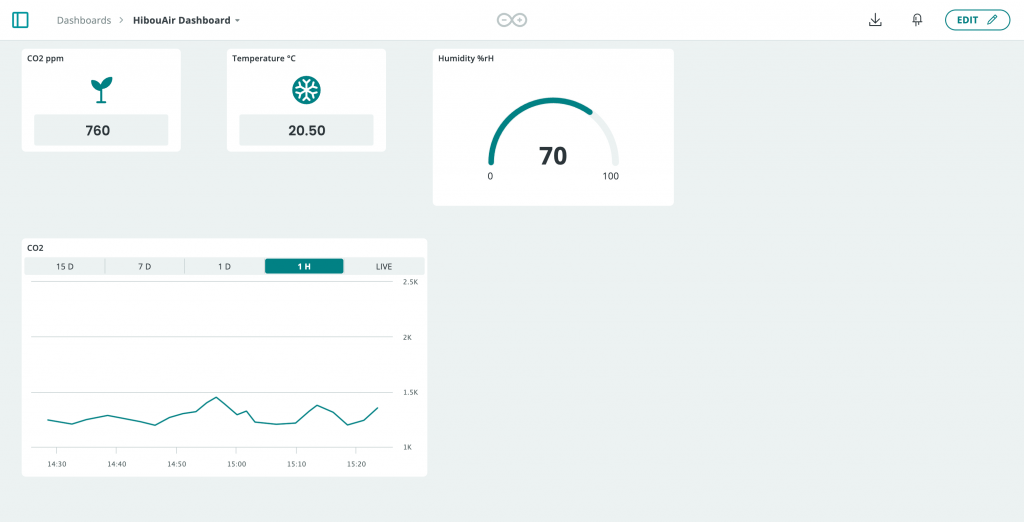
Go back to Dashboards and create a new dashboard.

Add widgets such as:

  • Value widget for CO2
  • Gauge widget for temperature
  • Chart widget for humidity over time

Your cloud setup is now complete.

Project Source Code

Clone or download the project from GitHub:

https://github.com/smart-sensor-devices-ab/bleuio-to-arduino-cloud

Configure secrets.py

Update the following values:

DEVICE_ID = "YOUR_DEVICE_ID"
SECRET_KEY = "YOUR_SECRET_KEY"
SERIAL_PORT = "/dev/tty.usbmodemXXXX"

Make sure the serial port matches where BleuIO is connected.

Configure gateway.py

In gateway.py, update the scan command:

SCAN_CMD = "AT+FINDSCANDATA=220069=3"

In this example, 220069 is the HibouAir board ID used in the BLE advertisement.
If your HibouAir device uses a different ID, update this value accordingly.

Running the Project

Once the Arduino Cloud configuration and local script setup are complete, running the project requires only a single command.

python3 gateway.py

When the gateway script is executed, BleuIO is placed into dual-role mode and begins scanning for BLE advertisements that match the specified HibouAir board identifier. As advertisement packets are received, the script decodes the sensor values and immediately publishes them to Arduino Cloud. Within moments, the dashboard begins displaying live air quality data. This continuous loop allows the system to operate as a real-time BLE-to-cloud gateway with minimal overhead.

Customizing the Dashboard

Arduino Cloud dashboards can be customized to present air quality data in a way that best fits the user’s needs. Live values can be displayed using numeric widgets, gauges can be used to visualize ranges such as CO2 concentration or temperature, and chart widgets can be added to show trends over time. By arranging and configuring these widgets, users can create a clear and informative interface for monitoring indoor air quality. This flexibility makes the dashboard suitable not only for development and testing, but also for presentations and live demonstrations.

This project demonstrates how BLE advertisement data can be efficiently captured and delivered to the cloud using a minimal and transparent approach. By combining HibouAir sensors, BleuIO, a simple Python gateway, and Arduino Cloud, it is possible to create a complete end-to-end monitoring solution without relying on complex SDKs or embedded firmware development. While this tutorial focuses on air quality data, the same method can be extended to other BLE-based sensors and cloud platforms. As a showcase example, it highlights the flexibility of BleuIO as a BLE development tool and provides a solid foundation for developers who want to build and expand their own BLE-enabled cloud solutions.

Share this post on :

BleuIO (SSD005) Firmware v2.7.9.51 Releases — A More Stable and Reliable Experience

We are pleased to announce the release of firmware v2.7.9.51 for the BleuIO SSD005. This update focuses heavily on improving overall stability and strengthening the firmware’s ability to handle complex Bluetooth Low Energy operations. The result is a smoother, more reliable experience for developers and users working with demanding BLE environments.

Stability Improvements

This version delivers significant enhancements to the firmware’s internal handling of data-intensive operations. As BLE devices continue to grow in complexity, the dongle must process larger amounts of information quickly and without interruption. The new update refines these processes, reducing the risk of unexpected behavior and ensuring that the dongle performs more consistently during everyday use.

Improved Handling of Large Service and Characteristic Discoveries

A key focus of this release was resolving an issue that could cause the dongle to reboot when discovering a large number of services and characteristics. Devices with extensive GATT profiles place additional strain on the system, and the previous firmware could occasionally become overwhelmed. Version 2.7.9.51 addresses this problem by improving how these discoveries are managed, resulting in a far more reliable interaction with complex peripherals.

Strengthened Internal Checks for Scan Results and Notifications

The update also refines several internal validation mechanisms. Earlier versions, under specific conditions, could trigger a sudden reboot while viewing scan results or handling incoming notifications. These checks have now been reinforced, allowing the dongle to operate more securely even when managing rapid or high-volume BLE traffic.

Fixes for Write Operations and Notification Configuration

Two commonly used AT commands received important stability fixes in this release. The AT+GATTCWRITEWRB command, used for write operations, previously encountered rare cases where insufficient validation could lead to an unexpected reboot. Similarly, the command for setting notifications, AT+SETNOTI, has been improved to ensure stable behavior when enabling or adjusting notification settings. These corrections help ensure dependable communication between the dongle and connected devices, particularly in applications that rely heavily on write requests and real-time notifications.

A More Resilient Platform for Developers

Firmware v2.7.9.51 marks another meaningful step toward making the SSD005 dongle a highly dependable tool for BLE development. By addressing edge-case stability issues and strengthening how the dongle handles large or rapidly changing data sets, this update offers a more resilient foundation for both prototyping and production-level applications.

How to Update

The new firmware is available for download on the BleuIO support website. We encourage all users to upgrade to this version to take advantage of the improved stability and robustness it provides.

Share this post on :

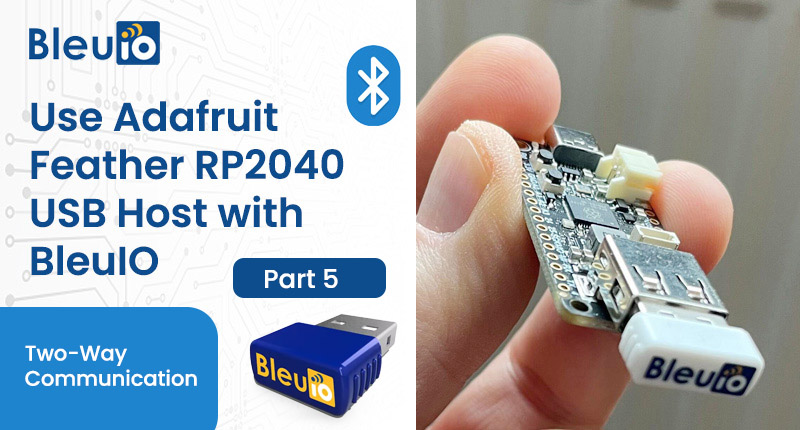
Integrating BleuIO with Adafruit Feather RP2040 for Seamless BLE Applications – Part 5 (Two-Way Communication)

In the earlier parts of this series, we combined the Adafruit Feather RP2040 with the BleuIO USB dongle to build different BLE applications: setting up the RP2040 as a USB host, reading sensor data, advertising measurements and handling secure connections.

In this Part 5, we take the next step and create a simple two-way communication setup. Instead of only broadcasting data, we let a Python script running on your computer talk to the BleuIO dongle connected to the Feather RP2040 and control its LED in real time. At the same time, the Feather responds over the Serial Port Service (SPS), echoing messages back so you can see exactly what was sent on both sides.

This project is a good starting point if you want to remotely control devices, test custom BLE command protocols or build interactive demos using BleuIO and RP2040.

What This Project Does

Arduino project on Adafruit Feather RP2040

On the hardware side, the Adafruit Feather RP2040 is configured as a USB host for the BleuIO dongle, using the same TinyUSB and Pico PIO USB approach as in Part 1 of the series. When the board starts, it initializes the USB host stack, detects the BleuIO dongle and sends a short sequence of AT commands. These commands disable echo, ask the dongle for its own MAC address, set a friendly advertising name (BleuIO Arduino Example) and start BLE advertising. After that, the sketch simply listens for BLE connection events and SPS messages. Depending on what text message it receives over SPS, it either echoes the message back or sends a command to change the LED behaviour on the dongle.

Python script on the computer

On the computer, a Python script acts as the BLE central. It uses the MAC address printed by the Feather’s serial output to connect to the advertising BleuIO dongle. Once connected, it sends text commands over SPS such as ALERT, NORMAL or OFF, and reads back whatever the Feather sends in response. When the Python script sends one of these special words, the Feather generates BLEU AT commands to control the dongle’s LED; for any other text, it just echoes the message. This creates a complete round-trip: you type in Python, the message travels over BLE to the RP2040 and BleuIO, and a response comes back the same way.

Requirements

Hardware

Software

If you already followed Part 1, your RP2040 USB host environment and board configuration should be ready to use.

Source Code on GitHub

You can find the complete source code for this project — both the Arduino sketch and the Python script — in our public GitHub repository: bleuio_arduino_message_transfer_example. Visit the repository at:

https://github.com/smart-sensor-devices-ab/bleuio_arduino_message_transfer_example

Feel free to clone or download the repo to get started quickly. All necessary files — including the .ino, helper headers, and the Python script — are included, so you can replicate the example or adapt it for your own project.

Recap: Preparing the Feather RP2040 as a USB Host

To quickly recap the setup from the earlier article: you install the Raspberry Pi RP2040 board package in the Arduino IDE, select the Feather RP2040 board, and install the Adafruit TinyUSB and Pico PIO USB libraries. You then make sure the CPU speed is set to 120 MHz or 240 MHz, since Pico PIO USB requires a clock that is a multiple of 120 MHz.

Uploading the Arduino Sketch

  1. Open the bleuio_arduino_connect_example.ino and usbh_helper.h in the same Arduino sketch folder.
  2. Select Adafruit Feather RP2040 (or your RP2040 board) under Tools → Board.
  1. Choose the correct COM port for the Feather.
  2. Click Upload.

After upload:

  1. Open Serial Monitor at 9600 baud.
  2. You should see something like:
Connect test v1.0
Core1 setup to run TinyUSB host with pio-usb
SerialHost is connected to a new CDC device. Idx: 0

BleuIO response:
{"own_mac_addr":"xx:xx:xx:xx:xx:xx"}
----
  1. Every 10 seconds (based on ALIVE_TIME) you’ll see an update:
H:M:S - 0:0:10
own_mac_addr: xx:xx:xx:xx:xx:xx
Not connected!

Initially it will say Not connected! because no BLE central is connected yet.

The Python Script (BLE Central)

The Python script acts as a BLE central that connects to the advertising BleuIO dongle and uses the Serial Port Service (SPS).

A typical flow in the Python script is:

  1. Read the MAC address printed by the Arduino Serial Monitor (own_mac_addr).
  2. Use the BleuIO Python library (or BLE stack) to connect to that address.
  3. Once connected, send plain text messages over SPS:
    • "ALERT"
    • "NORMAL"
    • "OFF"
    • Or any other text.

On the Python side you’ll see:

  • Connection success message.
  • Any SPS response sent from the RP2040 (e.g. [RP2040] Alert command Received: [...] or [RP2040] Echo: ...).

On the Arduino Serial Monitor you’ll see:

Connected!
SPS Received!
BleuIO response:
{"type":"SPS","evt":{"len":5,"ascii":"ALERT"}}
----
Sending command: AT+SPSSEND=[RP2040] Alert command Received: [ALERT]

And the LED on the BleuIO dongle will react according to the command:

  • ALERT → Blink pattern (AT+LED=T=100=100).
  • NORMAL → Toggle LED (AT+LED=T).
  • OFF → Turn LED off (AT+LED=0).
  • Any other message → Just an echo, no LED change.

Where to Go Next

This example completes the journey from simple advertising to full two-way communication between a computer application and a BleuIO dongle hosted by an Adafruit Feather RP2040. With this pattern in place, you can replace the LED commands with your own device protocol, combine it with the sensor examples from Part 2 and Part 4, or feed the exchanged messages into larger systems for logging, dashboards or control logic. Because the communication relies on the standard Serial Port Service and BleuIO AT commands, the same structure can be reused for many other projects where a PC, an embedded board and a BLE device need to work together.

Share this post on :

How AI Makes BLE Development Even Easier with BleuIO

Bluetooth Low Energy (BLE) has become a key technology in modern wireless applications—from IoT devices and sensors to wearables, smart tools, and more. While BLE development can traditionally require time, experience, and familiarity with complex protocols, BleuIO dramatically simplifies the process.

BleuIO is a powerful USB BLE dongle designed to help developers of all levels build BLE applications quickly and efficiently. With straightforward AT commands, intuitive documentation, and cross-platform flexibility, it allows users to prototype and develop BLE solutions without the usual learning curve.

But now, with the rapid growth of AI tools such as ChatGPT and Gemini, the development workflow becomes even smoother. AI can help generate ready-to-run scripts, automate coding tasks, and speed up BLE experiments—making the combination of BleuIO + AI incredibly valuable for developers.

Common Challenges in BLE Development

Developing Bluetooth Low Energy applications often requires a solid understanding of BLE protocols and command structures, which can be intimidating for beginners. Developers must also write code that interfaces correctly with hardware such as dongles or embedded devices, and this process can involve repetitive boilerplate code—especially when handling tasks like scanning, connecting, and transferring data. Another common challenge is ensuring that code works consistently across different languages and platforms. These factors can slow down development and create barriers for those who simply want to prototype or test BLE functionality quickly.

How BleuIO and AI Solve These Problems

BleuIO addresses many of these challenges by offering straightforward AT commands that simplify common BLE operations. When paired with modern AI tools, the development process becomes even more efficient. AI systems can read the BleuIO AT Command List and instantly generate complete scripts that integrate these commands correctly, significantly speeding up prototyping. This eliminates the need for manually writing repetitive code, allowing developers to focus on their application rather than the setup. Because BleuIO works seamlessly with Python, JavaScript, C#, Node.js, and many other environments, developers can choose the language they prefer. Even newcomers can get started easily, as AI-generated scripts help bridge any knowledge gaps and provide a smooth entry point into BLE development.

Example: Using ChatGPT and Gemini to Generate a BLE Scan Script

To demonstrate how effectively BleuIO and AI work together, we created a simple test scenario. We began by downloading the BleuIO AT Command List PDF from the Getting Started guide and then asked both ChatGPT and Gemini to generate a Python script that communicates with the BleuIO BLE USB dongle. The script needed to use the correct AT commands, include the appropriate COM port, and perform a scan for nearby BLE devices lasting five seconds. After generating the scripts, we ran them to compare the output produced by the two AI tools.

Video Demonstration

You can watch the full demonstration below, where we walk through the entire process—from downloading the command list to generating and testing the scripts:

This example demonstrates just how powerful the combination of BleuIO and modern AI tools can be. By letting AI generate boilerplate code and BLE scripts, you can focus on building features, testing ideas, or integrating wireless communication into your products.

BleuIO already makes BLE development easy—but with AI, it becomes even more efficient, accessible, and developer-friendly.

Share this post on :