What Is BLE Advertising and How Does It Work?
Advertising is the first visible step in many BLE experiences: a nearby device announces its presence without an existing connection.
What you’ll learn
- Explain why devices advertise
- Distinguish advertising from connected GATT data
- Interpret basic fields from a BLE scan
What an advertisement does
A BLE advertising device transmits short packets so nearby scanners can detect it. Advertisements may include a device name, service identifiers, manufacturer data, or other fields, depending on the device and packet format. A scanner can observe these packets without establishing a connection. A scannable advertiser may also provide extra data in a scan response when an active scanner requests it.
Advertising is not always an invitation to connect
Some advertising is connectable and supports a connection request. Other advertising is intended only for broadcasting data, such as a beacon identifier. Privacy features may rotate an address, so a changing address alone is not proof that the physical device changed.
What a scan result tells you
BleuIO’s AT+GAPSCAN output can list a device index, address information, RSSI, and sometimes a name. RSSI is received signal strength, commonly shown as a negative dBm value. It changes with distance, orientation, walls, antennas, and interference; do not treat one reading as a precise distance measurement.
If one result is −50 dBm and another is −80 dBm in the same scan, the first was received more strongly at that moment. It may be closer, but the reading alone cannot prove distance.
Observe the environment
A five-second scan is a useful first experiment. Nearby results depend on which devices are advertising at that moment and how your computer and dongle receive them. Repeat the scan after moving a test peripheral or changing its advertising state, then compare the results.
Watch: Scanning BLE Devices with the BleuIO Web App
Watch a short demonstration of discovering nearby Bluetooth Low Energy devices using the BleuIO Web App without coding. Then follow the steps below with your own BleuIO dongle.
Video unavailable here? Watch on YouTube ↗
Scan Nearby Bluetooth Low Energy Devices
Use the existing BleuIO Web App to discover advertising devices and identify a scan result.
A BleuIO or BleuIO Pro USB dongle, a computer with a USB port, and a current desktop browser with Web Serial support such as Chrome or Edge. Use the Web App over HTTPS and allow access to the dongle when prompted. Browser and operating system support varies.
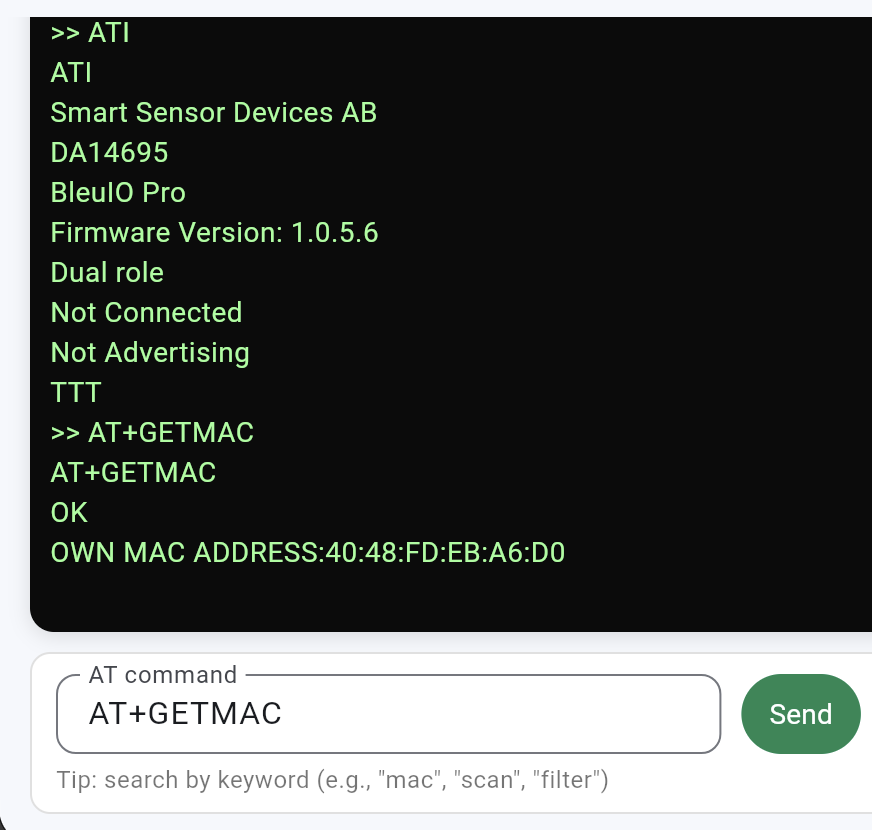
- Plug your BleuIO dongle into the computer and open the BleuIO Web App in a supported desktop browser.
- Use the Web App’s Connect control. Choose the BleuIO serial port in the browser prompt and allow access.
- In the Web App command input, send AT to confirm communication. Look for OK in the output.
- If the dongle is not already in central role, send AT+CENTRAL while disconnected and not advertising.
- Send AT+GAPSCAN=5 for a five-second scan. Read the device entries and RSSI values in the output.
- Repeat the scan and compare which devices appear and how RSSI changes. Return here to interpret the result.
Commands to send
ATAT+CENTRALAT+GAPSCAN=5AT
OK
AT+CENTRAL
OK
AT+GAPSCAN=5
SCANNING...
[01] Device: [1]30:63:C5:D0:B1:DE RSSI: -38
SCAN COMPLETETroubleshooting tips
- If no serial port appears, check that the dongle is plugged in and close any other program using its port.
- If the browser has no Web Serial support, switch to a supported desktop browser such as current Chrome or Edge.
- If the scan is empty, check that a nearby BLE device is actively advertising; some devices advertise only in pairing mode.
- If a role change is rejected, disconnect or stop advertising first. Exact responses vary by firmware and mode.
Need a visual reference? See BleuIO’s illustrated Web App guide.
Check your understanding
Does seeing a BLE advertisement guarantee that you can connect to its device?
Key takeaways
- Advertisements enable discovery without an existing connection.
- A scan result is an observation, not a guarantee of connectability.
- RSSI is a signal-strength measurement, not an exact distance.
Further Reading and Resources
Save your progress in this browser.