BleuIO

BleuIO

  • Get Support
  • Buy Now
  • Manual
  • List of AT Commands
  • BleuIO Web App
  • Help

›Raspberry PI Pico

Manual

  • How it works
  • How to use
  • Verbose Mode
  • Known Issues
  • Troubleshooting

Firmware Updates

    BleuIO Pro (SSD025)

    • Firmware Updates
    • Release History

    BleuIO (SSD005)

    • Firmware Updates
    • Release History of BleuIO (SSD005)

AT-Commands

  • List of AT Commands

BleuIO Libraries

  • JavaScript Library
  • Python Library

Scripts & Tutorials

  • Python: iBeacon
  • Python: Eddystone Beacon
  • Python: Scan
  • Python: Scan and Store
  • Python: SPS Script
  • Python: File transfer Script
  • Python: Repeater Script
  • Javascript: Google chrome.serial Beacon
  • C# Console App Example
  • C# WFA Example

Script using libraries

    Python library > v1.2.0

    • Custom Services example using Python library
    • Eddystone example using Python library
    • IBeacon example using Python library
    • Scan example using Python library
    • Scan and store example using Python library

    Python library < v1.2.0

    • Eddystone example using Python library
    • IBeacon example using Python library
    • Scan example using Python library
    • Scan and store example using Python library
    • SPS example using Python library
    • Security Example using Python library

    JS library

    • Eddystone example using Javascript library
    • IBeacon example using Javascript library
    • Scan example using Javascript library
    • Security Example using Javascript library
    • Get Device Distance

Projects

    Arduino

    • Arduino Example

    Beaglebone

    • Beaglebone Example

    Raspberry Pi

    • Raspberry PI into Beacon
    • Raspberry PI home automation

    Raspberry PI Pico

    • BleuIO integration (Part1)
    • BleuIO integration (Part2)
    • BleuIO integration (Part3)
    • BleuIO integration (Part4)

    Renesas RA4M2

    • Signal Strength Monitoring
    • Real-Time CO2 monitor
    • Monitoring Air Quality

    STM32 Nucleo-144

    • Nucleo-144 board example
    • Smart Bulb Example

    M5Stack's CoreMP135

    • M5Stack's CoreMP135 board example

Build Your Own Firmware

  • Build Your Own Firmware
  • Advertising Example

More

  • Links
  • Vulnerability Disclosure Policy
Order Now

BleuIO

$24.99

Buy Now

BleuIO integration (Part4)
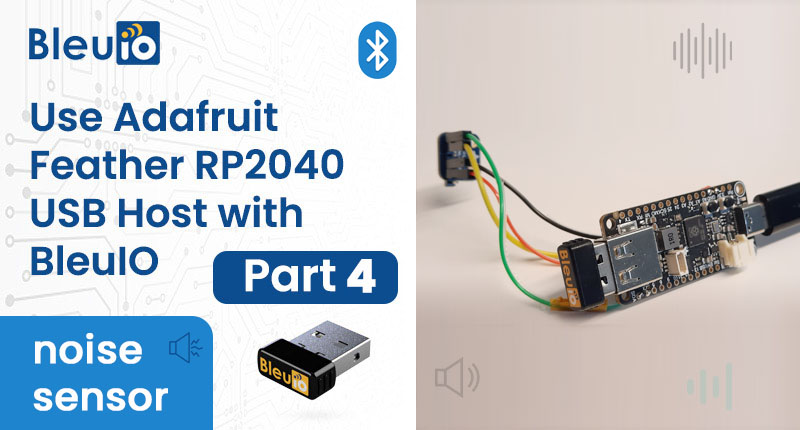
Integrating BleuIO with Adafruit Feather RP2040 for Seamless BLE Applications (noise sensor) : Part 4

Introduction

This example is going to showcase how to connect a PDM MEMS Microphone to a Adafruit Feather RP2040, together with a BlueIO to create a background noise sensor that measures and advertisises the current sound level in decibel (dB).
This example is very similar to Integrating BleuIO with Adafruit Feather RP2040 for Seamless BLE Applications Part 2 but instead of reading sensor data over SPI every few seconds, we’re using the arduino PDM interface to continuously fill a buffer with data then everytime the buffer is full we’re going to translate the data into the current sound level in dB.
The buffer size of 8000 bytes (2 bytes per sample) and the sample rate of 16kHz means we record 250ms each time we fill the buffer.

Requirements

  • Adafruit Feather RP2040 Board
  • BleuIO – Bluetooth Low Energy USB Dongle
  • Arduino IDE
  • PDM MEMS Microphone
  • Our example project [Download from GitHub]

Connecting PDM Microphone.

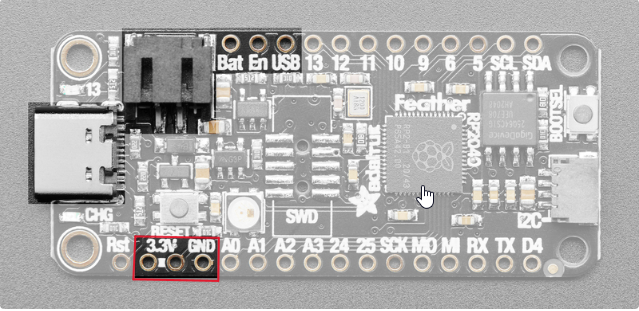
  • Connect four wires from the PDM Microphone (3V, GND, DAT, CLK) to the following pins on the Feather Board:
  • 3V to 3.3V to power the device, then GND to GND.
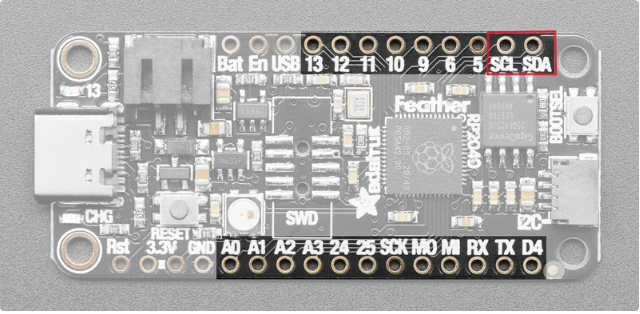
  • And CLK to SCL, and DAT to SDA.

Running the example

  • Make sure the BleuIO Dongle is connected to the Feather RP2040 Board.
  • Connect the Feather RP2040 Board to your computer using the USB cable.
  • Make sure the Feather RP2040 Board is selected as well as the correct COM port in the drop-down menu.
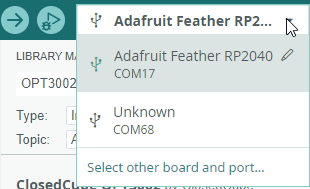
  • (Optional) Change the frequency the advertising message is updated with the dB value, in the code
    // How often we update the advertising message (in seconds) #define READ_UPDATE_FREQUENCY 1
  • Click the Upload button.

  • Done! The dongle should now be advertising the sensor values. (If you just plugged in the Feather it may take about 10 seconds before advertising starts as the BleuIO bootloader opens and closes)
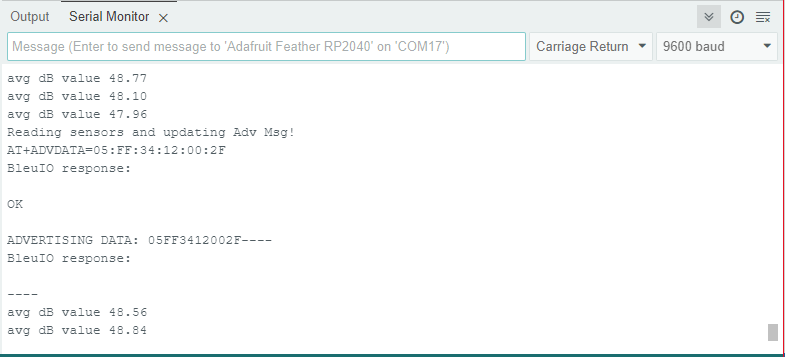
  • (Optional) Open Serial Monitor. You can open the Serial Monitor from the menu: Tools>Serial Monitor
    You should now see the output from the project.
Scanning the results

To see the results you can use any BLE scanner app.
Here we use nRF Connect:
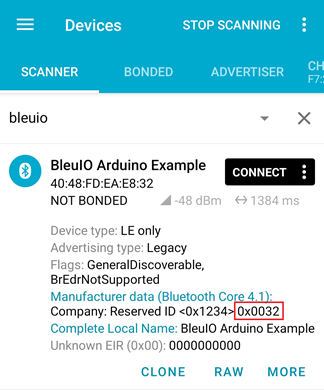
The data in the red box is our sensor values:
0x0032

When we parse the hex into decimal values we get:
0x0032 = 50 dB

← BleuIO integration (Part3)Signal Strength Monitoring →
  • Introduction
  • Requirements
  • Connecting PDM Microphone.
  • Running the example
  • Scanning the results

Support Request

If you have any queries or technical questions, please don't hesitate to send us a message. We will reply within 24 hours.

Message Sent!

Docs
ManualAT CommandsHelp
Community
YouTubeLinkedInFacebook
More
BleuIOSmart Sensor DevicesGitHub
Sales & Support
support@bleuio.comsales@bleuio.com
Copyright © 2025 BleuIO. A product of Smart Sensor Devices