We’re happy to announce the release of BleuIO Firmware v2.7.9.70. This update focuses on improving stability and reliability when scanning and connecting to Bluetooth devices.
We recommend all BleuIO users update to the latest firmware to ensure the best performance and the most reliable Bluetooth Low Energy experience.
What’s New in v2.7.9.70
This release includes important bug fixes that improve device behavior during scanning and connection processes.
Fixed Duplicate Scan Results
In previous firmware versions, there were cases where the same Bluetooth device could appear twice in scan results. This could sometimes make it harder to interpret scan outputs or manage discovered devices.
With v2.7.9.70, this issue has been resolved, ensuring scan results are now displayed correctly and consistently.
Improved MTU Exchange Reliability
Another improvement addresses a situation where the MTU exchange was not always triggered after establishing a connection.
MTU exchange is important because it determines the maximum size of data packets transferred between BLE devices. With this fix, the MTU negotiation process is now reliably triggered during connection, improving data transfer stability.
How to Update Your BleuIO Firmware
You can also follow the firmware update instructions available in our documentation:
This guide walks you through the update process step-by-step.
Stay Updated
Keeping your firmware up to date ensures you benefit from the latest improvements and fixes. We continue working on improving BleuIO and appreciate feedback from our developer community.
If you haven’t already, update your BleuIO device to Firmware v2.7.9.70 today.
Bluetooth Low Energy (BLE) has become one of the most widely used wireless technologies for IoT devices, sensors, wearables, and industrial monitoring systems. Developers working with embedded systems, automation platforms, and hardware integration often rely on C++ because of its performance, low-level hardware access, and portability.
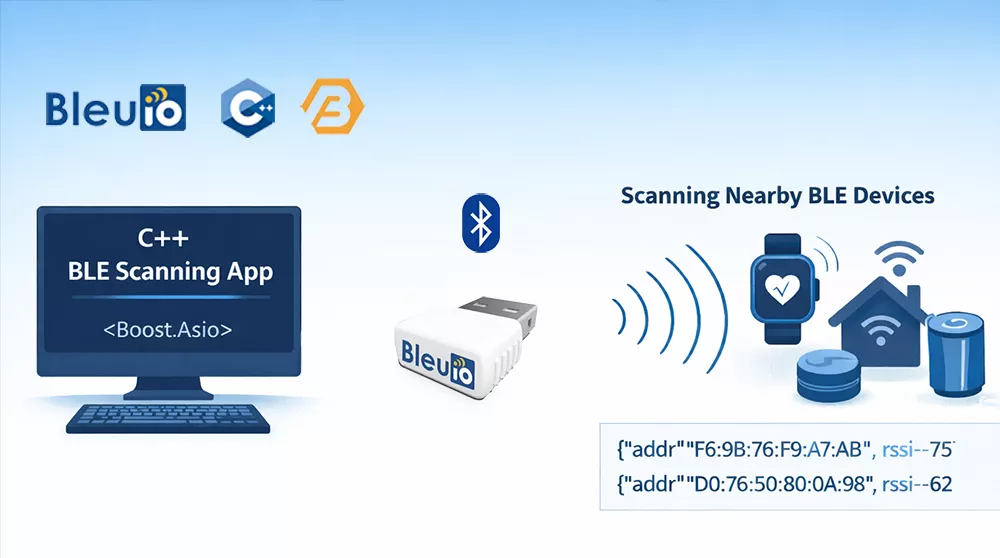
In this tutorial, we will create a simple command-line BLE scanning application using C++. The program connects to the BleuIO USB dongle through a serial port and sends AT commands to control Bluetooth operations. After starting the program, the user enters the number of seconds to scan, and the application instructs the BleuIO dongle to perform a BLE scan and print the detected devices directly in the terminal. This example demonstrates the basic workflow of communicating with BleuIO from a C++ application.
Why C++ and Boost Are Commonly Used for Bluetooth Development
C++ is widely used in Bluetooth and embedded development because it provides high performance and direct access to hardware interfaces such as serial communication. Many IoT gateways, embedded systems, and industrial applications rely on C++ to interact with sensors and wireless devices. To simplify development, developers often use the Boost libraries, which extend the C++ standard library with reliable cross-platform tools. In this tutorial we use Boost.Asio, which provides a portable and efficient way to handle serial communication and asynchronous input/output across different operating systems.
Requirements
Before starting this project, you should have the following:
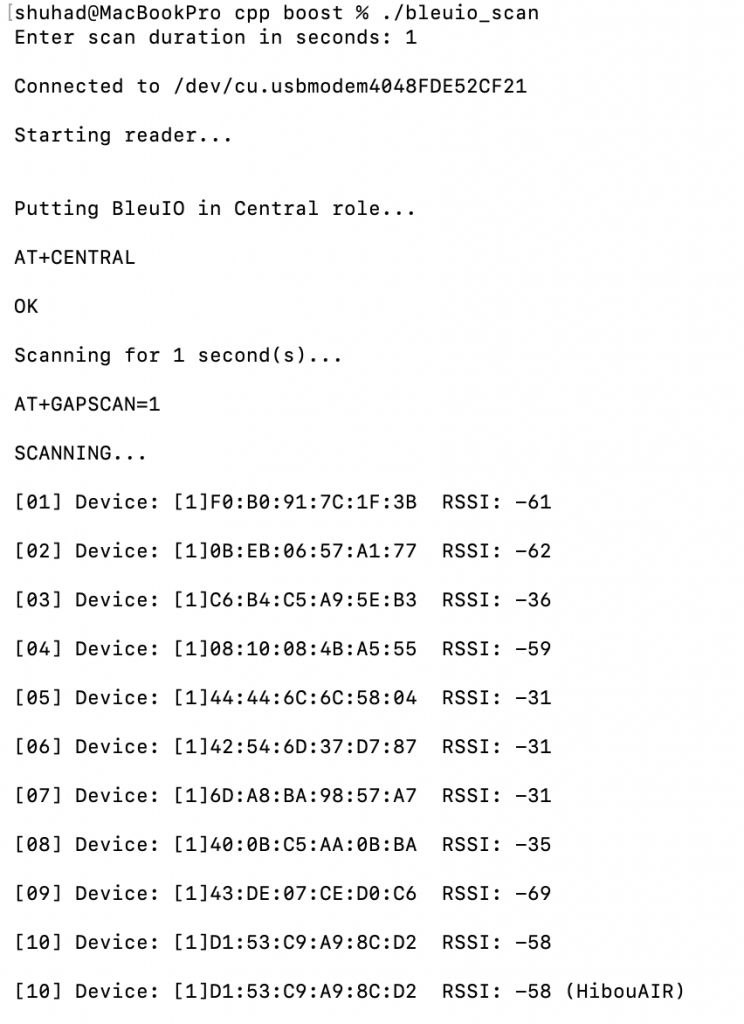
Connect to the BleuIO serial port,Put the dongle into central mode,Start scanning for BLE devices,Print scan results in the terminal
Example output may look like this:
Locating the BleuIO Serial Port
Before running the program, you need to identify the serial port where the BleuIO dongle is connected.
On macOS, you can list available serial devices using the terminal command:
ls /dev/cu.*
The BleuIO device will typically appear with a name similar to:
/dev/cu.usbmodemXXXXXXXX
This value can then be used in the script as the serial port path.
On Windows, the serial port can be identified through Device Manager. After plugging in the BleuIO dongle, open Device Manager and expand the Ports (COM & LPT) section. The device will appear as a USB serial device with a COM port number, such as COM17.
Expanding This Example
The script in this tutorial is a basic example showing how to communicate with the BleuIO dongle using C++ and Boost.Asio. Although it only performs BLE scanning, the same approach can be used to send any AT command supported by BleuIO. Developers can extend this example to connect to devices, read GATT characteristics, parse advertisement data, or integrate BLE functionality into larger applications such as IoT gateways, monitoring tools, or automation systems.