Sending BLE Air Quality Data to Arduino Cloud Using BleuIO
December 15, 2025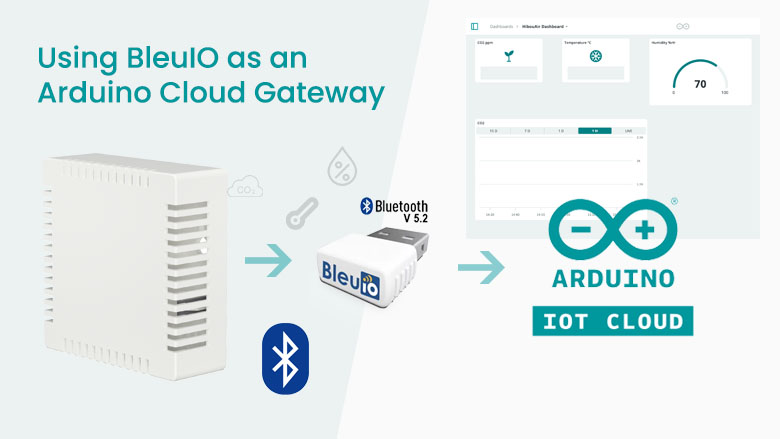
Bluetooth Low Energy (BLE) devices are widely used for environmental monitoring, but getting their data into the cloud often requires complex SDKs, gateways, or proprietary platforms. In this tutorial, we demonstrate a simple and flexible alternative: sending BLE advertisement data directly to Arduino Cloud using BleuIO as a USB BLE gateway.
In this project, we build a lightweight data pipeline where a HibouAir air quality sensor broadcasts environmental data over BLE advertisements, BleuIO scans and captures that data, a Python script decodes the values, and the results are sent straight to Arduino Cloud for storage and visualization — all using free tools.
This project is designed as a showcase example to illustrate how BLE development and cloud integration can be done quickly and transparently, without BLE SDKs or embedded firmware development.
Why Arduino Cloud?
Arduino Cloud offers a convenient and reliable platform for storing and visualizing IoT data without the need to build and maintain a custom backend. Although it is often associated with Arduino hardware, the platform supports Manual Devices, which makes it suitable for gateway-based solutions where data originates from external devices such as BLE sensors. In this project, Arduino Cloud serves as a secure endpoint where decoded air quality data can be published using standard MQTT communication. Its integrated dashboards allow developers to quickly visualize sensor data, making it especially useful for prototyping, demonstrations, and proof-of-concept projects that require minimal setup.
Hardware and Software Requirements
Hardware
Software
- Python 3.9 or later
pyserialPython libraryarduino-iot-cloudPython library- Arduino Cloud
No embedded programming or BLE SDKs are required.
How the System Works
The HibouAir device periodically broadcasts air quality data within its BLE advertisement payload. BleuIO continuously scans for nearby BLE advertisements and filters packets that match a specific device identifier. When a matching advertisement is detected, the Python gateway script extracts the raw data and applies decoding logic to convert the hexadecimal values into human-readable measurements. These decoded values are then published to Arduino Cloud using authenticated MQTT communication. The entire process runs continuously, enabling real-time data updates without establishing a persistent BLE connection to the sensor.
Arduino Cloud Setup (Step by Step)
Step 1: Create or Log In to Arduino Cloud
Go to:
https://app.arduino.cc/dashboards
Create a free account or log in to your existing one. After login Arduino Cloud will generate
- Device ID
- Secret Key
Save these securely — they will be used in the Python script.
Step 2: Create a Device
Navigate to:
https://app.arduino.cc/devices
- Click Add Device from left menu
- Choose Manual Device
- Name the device HibouAir
Step 3: Create a Thing
When prompted after creating device, create a new Thing and name it HibouAir Thing.
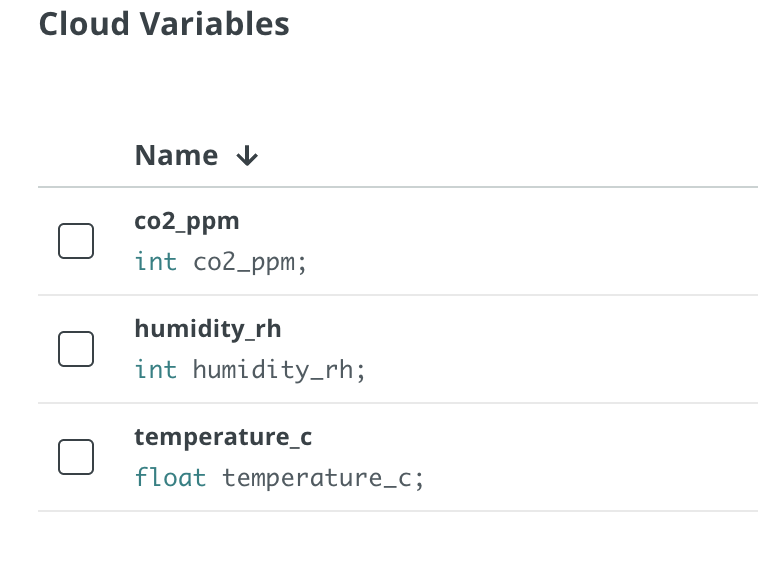
Step 4: Add Cloud Variables
Add the following variables to the Thing:
| Variable Name | Type | Description |
|---|---|---|
co2_ppm | int | CO₂ concentration (ppm) |
temperature_c | float | Temperature in °C |
humidity_rh | float | Relative humidity (%) |
Step 5: Create a Dashboard
Go back to Dashboards and create a new dashboard.
Add widgets such as:
- Value widget for CO2
- Gauge widget for temperature
- Chart widget for humidity over time
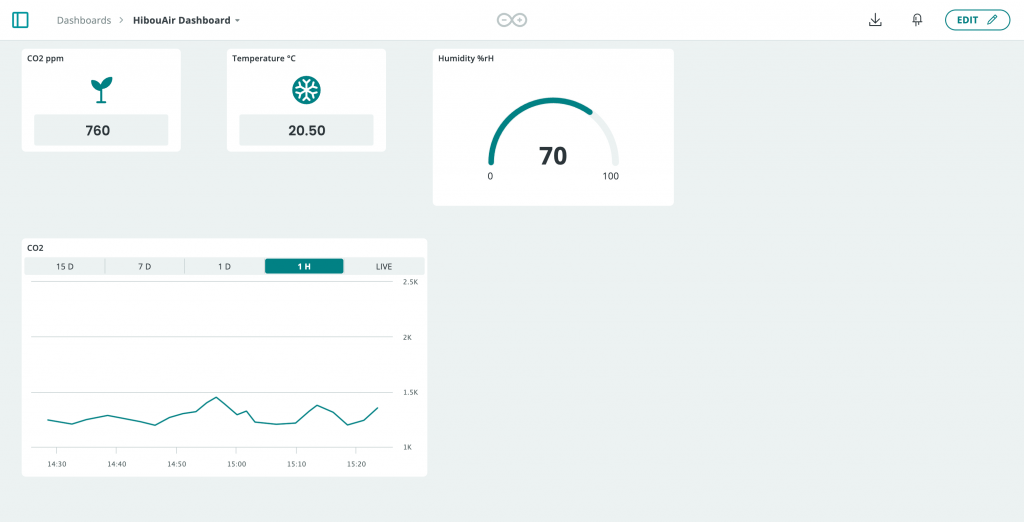
Your cloud setup is now complete.
Project Source Code
Clone or download the project from GitHub:
https://github.com/smart-sensor-devices-ab/bleuio-to-arduino-cloud
Configure secrets.py
Update the following values:
DEVICE_ID = "YOUR_DEVICE_ID"
SECRET_KEY = "YOUR_SECRET_KEY"
SERIAL_PORT = "/dev/tty.usbmodemXXXX"
Make sure the serial port matches where BleuIO is connected.
Configure gateway.py
In gateway.py, update the scan command:
SCAN_CMD = "AT+FINDSCANDATA=220069=3"
In this example, 220069 is the HibouAir board ID used in the BLE advertisement.
If your HibouAir device uses a different ID, update this value accordingly.
Running the Project
Once the Arduino Cloud configuration and local script setup are complete, running the project requires only a single command.
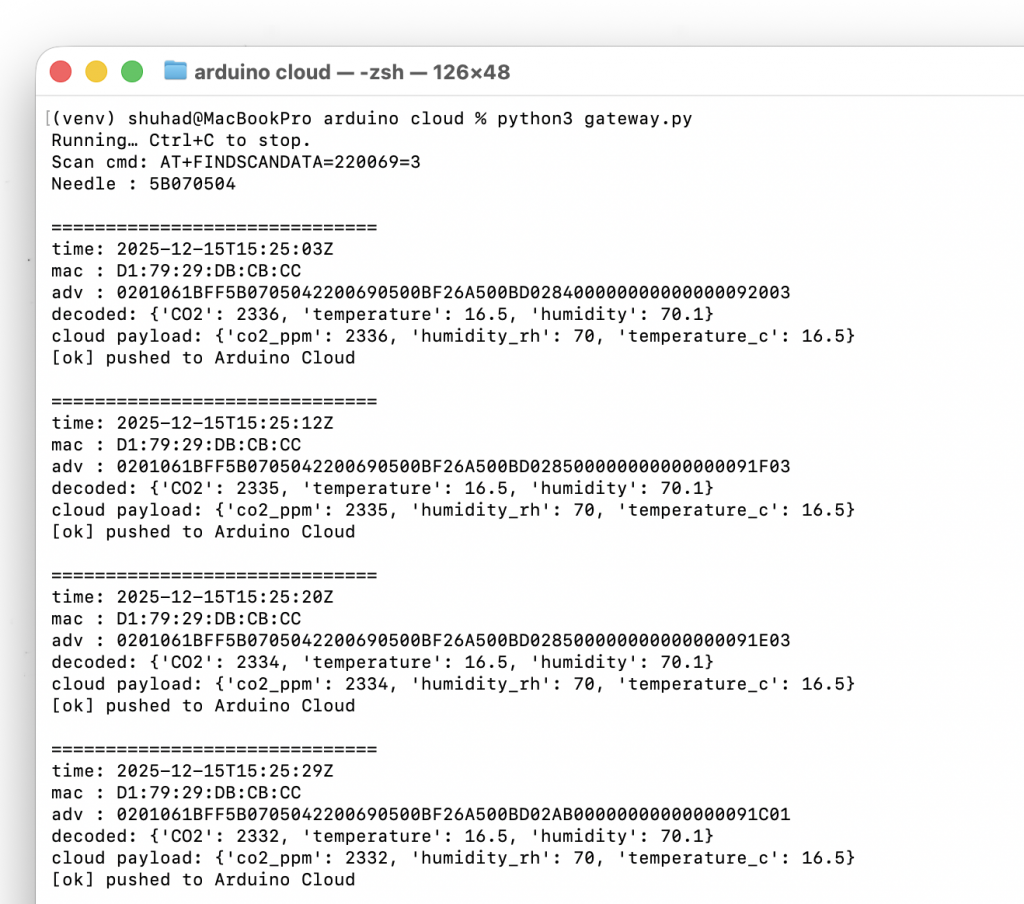
python3 gateway.pyWhen the gateway script is executed, BleuIO is placed into dual-role mode and begins scanning for BLE advertisements that match the specified HibouAir board identifier. As advertisement packets are received, the script decodes the sensor values and immediately publishes them to Arduino Cloud. Within moments, the dashboard begins displaying live air quality data. This continuous loop allows the system to operate as a real-time BLE-to-cloud gateway with minimal overhead.
Customizing the Dashboard
Arduino Cloud dashboards can be customized to present air quality data in a way that best fits the user’s needs. Live values can be displayed using numeric widgets, gauges can be used to visualize ranges such as CO2 concentration or temperature, and chart widgets can be added to show trends over time. By arranging and configuring these widgets, users can create a clear and informative interface for monitoring indoor air quality. This flexibility makes the dashboard suitable not only for development and testing, but also for presentations and live demonstrations.
This project demonstrates how BLE advertisement data can be efficiently captured and delivered to the cloud using a minimal and transparent approach. By combining HibouAir sensors, BleuIO, a simple Python gateway, and Arduino Cloud, it is possible to create a complete end-to-end monitoring solution without relying on complex SDKs or embedded firmware development. While this tutorial focuses on air quality data, the same method can be extended to other BLE-based sensors and cloud platforms. As a showcase example, it highlights the flexibility of BleuIO as a BLE development tool and provides a solid foundation for developers who want to build and expand their own BLE-enabled cloud solutions.