Building a BLE Sensor Scanner with Nim and BleuIO
April 10, 2026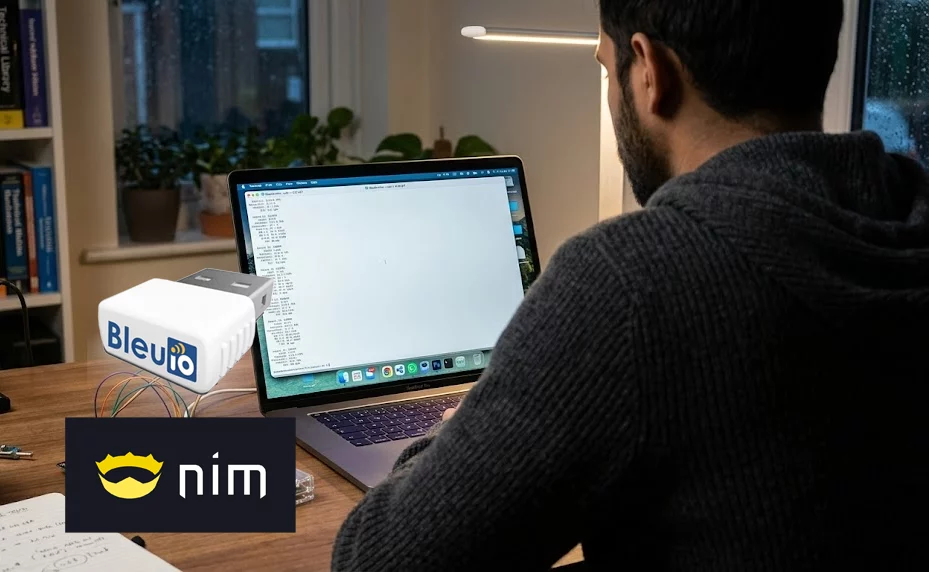
Working with Bluetooth Low Energy devices often means dealing with multiple layers—hardware, protocols, and data decoding. In this tutorial, we are going to simplify that process by building a small command-line application using Nim and a BleuIO USB Dongle.
The goal is simple: scan nearby BLE devices, detect HibouAir sensors, decode their broadcast data, and display readable environmental values directly in the terminal.
By the end, you will have a working local tool that reads real-time air quality data without needing cloud connectivity.
What We Are Building
In this project, we build a lightweight desktop utility that connects to a BleuIO dongle and continuously scans for BLE advertisement data. When a compatible HibouAir device is detected, the application decodes the raw hex payload and prints meaningful values such as temperature, humidity, pressure, CO2, and particulate matter levels.
This is not a heavy application or a full dashboard. It is intentionally simple. The idea is to give developers a clean starting point to understand how BLE data flows from a device to a readable format.
Why Nim with BleuIO?
Nim is a compiled programming language that feels lightweight but powerful. It combines the simplicity of scripting languages with the performance of C. For developers who want fast execution, low memory usage, and clean syntax, Nim is a very practical choice.
Using Nim with BleuIO makes the development process even smoother. The BleuIO dongle abstracts away complex BLE stack handling and exposes everything through simple AT commands over a serial interface. Instead of dealing with platform-specific BLE APIs, you can send commands and receive structured data in return.
This combination allows you to focus more on logic and less on low-level Bluetooth complexity.
Requirements
Before running the project, make sure you have the following:
- BleuIO USB Dongle
- A nearby HibouAir sensor device
- Nim installed on your system
- Homebrew packages:
libserialportandpkg-config - The project source code
How the Project Works
When the application starts, it first looks for the connected BleuIO dongle by checking the USB device identifiers. Once the dongle is found, the program opens the serial port and prepares the device for communication.
The setup phase uses a short sequence of AT commands:
ATV0
ATE0
ATV1
These commands are used to configure how the dongle responds over serial so that the application can read and process the output more reliably.
After setup, the application starts scanning for BLE advertisement data using this command:
AT+FINDSCANDATA=FF5B07
This tells BleuIO to scan and report advertisement packets that match the data pattern used by HibouAir devices.
As scan results come in, the program reads the serial output line by line. It looks for valid scan data entries and then extracts the raw advertisement payload. Once a matching payload is found, the Nim code decodes the hex data into readable sensor values such as temperature, humidity, pressure, CO2, and particulate matter values depending on the device type.
When you stop the program with Ctrl + C, it also sends a final reset command to close things down cleanly:
ATR
Example Output
Below is an example of how the data appears in the terminal when a device is detected and decoded.
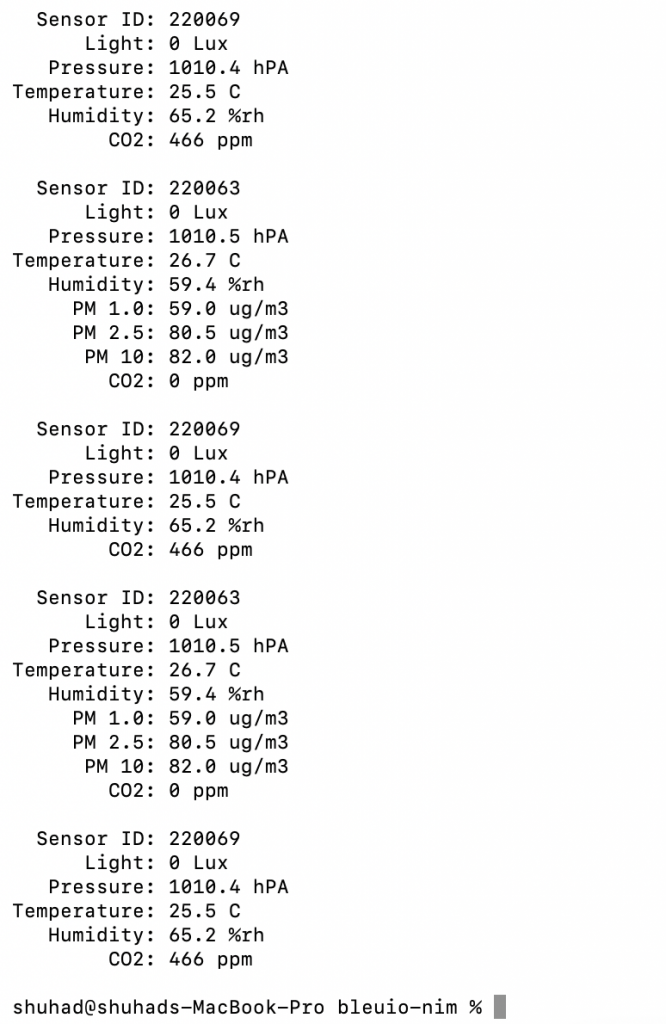
You will see values like temperature, humidity, pressure, and CO2 being printed in real time as the device broadcasts data.
Source Code
You can access the full project source code here:
The code is intentionally kept small and readable so it is easy to follow and modify.
Running the Project
Once the project is downloaded and the BleuIO dongle is plugged into your Mac, you can build and run it directly from Terminal.
First, move into the project folder:
cd ~/Downloads/bleuio-nim
If you have not already installed the required tools, install them with Homebrew:
brew install nim libserialport pkg-config
After that, build the project:
nimble build
Once the build is complete, run it with:
nimble run
If everything is set up correctly, the application will detect the connected BleuIO dongle, initialize it, and begin scanning for HibouAir advertisement data. Within a few seconds, you should start seeing decoded sensor readings appear in the terminal.
When you want to stop the scanner, press:
Ctrl + C
The application will then stop scanning, send its cleanup command, and close the serial connection.
This project is best seen as a foundation rather than a finished product. It shows how to connect to a BLE device, scan for advertisement data, and decode it into something useful.
From here, you can take it in many directions. You might want to store the data locally, send it to a cloud service, build a graphical dashboard, or integrate it into a larger system. Since the core BLE communication is already handled through BleuIO, extending the project becomes much easier.