Scanning HibouAir Sensors with CircuitPython, BleuIO and the Cytron MOTION 2350 Pro
October 16, 2026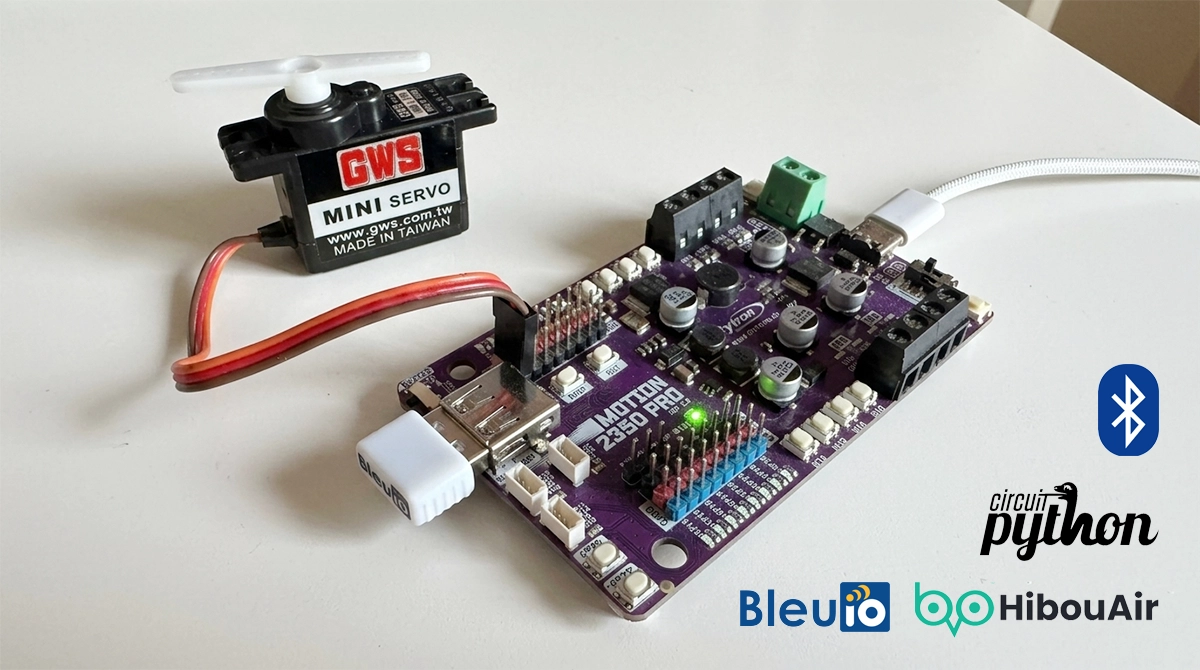
In this tutorial we will use CircuitPython to turn a Cytron MOTION 2350 Pro into a HibouAir scanner. The board’s RP2350 has no Bluetooth radio of its own. A BleuIO dongle in the board’s USB-A host port provides Bluetooth Low Energy, and a short CircuitPython program talks to it with ordinary AT commands.
The program scans for air quality monitoring device HibouAir advertisements, decodes them, and keeps the latest readings in global variables. One of them, the PM10 value from a HibouAir PM sensor, is ready to be used by the rest of your program. As an example, the program turns a hobby servo on one of the board’s servo ports into an analog PM10 gauge.
Everything runs on the board. No computer is needed once the code is in place, and the HibouAir sensors do not need to be paired.
Requirements
Hardware
- Cytron MOTION 2350 Pro
- BleuIO USB dongle. This tutorial was tested with a BleuIO Pro, firmware 1.0.7.1.
- One or more HibouAir air quality sensors. A HibouAir PM sensor is needed for the PM10 value.
- A USB-C data cable between the board and your computer
- Optional: a hobby servo for the PM10 gauge
Software
- CircuitPython 10.x for the Cytron MOTION 2350 Pro, from circuitpython.org. The tutorial uses 10.3.1.
- Two libraries from the Adafruit CircuitPython Library Bundle for version 10.x, copied into the
libfolder on theCIRCUITPYdrive:asyncio(the whole folder)adafruit_ticks.mpy, whichasyncioneeds
With circup installed on your computer, one command copies both:
circup install asyncioEverything else the program uses is built into CircuitPython: usb_host, usb.core, json, binascii, microcontroller, pwmio and time. The servo is driven with pwmio directly, so it needs no extra library. No boot.py is needed.
What Does This Project Do?
1. The board becomes a USB host
The MOTION 2350 Pro’s USB-A port is driven by the RP2350’s PIO. CircuitPython starts it with usb_host.Port on GPIO24 and GPIO25. The board definition has no named pins for this port, so the program uses the raw pins.
2. CircuitPython finds BleuIO
The program waits until a device with vendor ID 0x2DCF and product ID 0x6002 appears, which is BleuIO. It selects the dongle’s configuration and sets DTR and RTS, so that BleuIO starts sending its output.
3. The dongle is brought into a known state
BleuIO remembers what it was doing, so a scan from an earlier run may still be going. The program first sends Ctrl-C three times to stop it. It then throws away everything the dongle sends until it has been quiet for 0.3 seconds. After that it sends:
ATE0, which turns echo offATV1, which turns verbose mode on, so every reply is one line of JSON
4. BleuIO scans for HibouAir only
AT+FINDSCANDATA=FF5B07This reports only advertisements that contain FF5B07. FF is the AD type for manufacturer-specific data, and 5B 07 is HibouAir’s company ID, 0x075B, as it appears in the packet. Each result arrives as a line such as:
{"SF":127,"addr":"D9:63:8F:8E:01:0D","type":0,"data":"0201061BFF5B070504220095AE009627CF00AC014200000000000000019902"}5. The board decodes the advertisement
The program walks the advertisement’s AD structures until it finds the HibouAir manufacturer data. This works whether or not the flags field comes first. Counting from the company ID, the sensor beacon (beacon type 0x05) holds:
| Offset | Field | Format |
|---|---|---|
| 2 | Beacon type | 0x05 for sensor readings |
| 3 | Board type | 0x03 is the PM sensor |
| 4–6 | Sensor ID | as shown in the HibouAir app, e.g. 22026A |
| 9 | Pressure | 16-bit little-endian, tenths of hPa |
| 11 | Temperature | 16-bit little-endian, signed, tenths of °C |
| 13 | Humidity | 16-bit little-endian, tenths of %rh |
| 17 | PM1.0 | 16-bit little-endian, tenths of µg/m³ |
| 19 | PM2.5 | 16-bit little-endian, tenths of µg/m³ |
| 21 | PM10 | 16-bit little-endian, tenths of µg/m³ |
| 23 | CO2 | 16-bit big-endian, ppm |
6. The readings are kept in global variables
pm10: the latest PM10 value in µg/m³, orNoneuntil a PM sensor has been heardpm10_sensor: the ID of the sensor it came frompm10_time:time.monotonic()when it arrived, so that a stale value can be recognisedsensors: a dictionary with everything the last beacon of every HibouAir sensor said, keyed by sensor ID
If you have more than one PM sensor, set PM_SENSOR_ID to the one pm10 should follow. If nothing has been heard for 15 seconds, the program starts the scan again.
Showing PM10 on a Servo Gauge
The MOTION 2350 Pro has eight servo ports, on GP0 to GP7, each with a PWM channel of its own. The program drives a servo on GP0 as a needle: 0 µg/m³ at 0 degrees, and 100 µg/m³ or more at 180 degrees.
With that full scale, the PM10 limits the HibouAir app uses fall at simple angles. That is where to draw the bands on a paper scale behind the servo arm:
| PM10 | Level | Needle |
|---|---|---|
| 0–20 µg/m³ | Good | 0–36° |
| 20–50 µg/m³ | Fair | 36–90° |
| 50–100 µg/m³ | Poor | 90–180° |
| 100 µg/m³ and above | Bad | 180° |
The gauge is its own asyncio task, beside the reader and the command logic:
- It sends a 50 Hz servo signal, from 500 µs at 0 degrees to 2500 µs at 180.
- It moves the needle 2 degrees every 20 ms, so the arm swings to a new reading instead of jumping.
- At start it sweeps once across the whole scale. A servo that is not connected is then noticed at once, instead of being taken for clean air.
- Once the needle has been still for half a second, the pulses stop. A servo told to hold a position holds it actively, and at 0 degrees, the commonest reading of all, it pushes against its end stop and hums. Without pulses an ordinary hobby servo goes quiet and stays where it is.
- The pulses start again when a new reading moves the needle by at least one degree, so readings of 0.0 and 0.1 µg/m³ taking turns do not wake it.
Connect the servo to the GP0 servo header, matching the servo cable to the markings next to the header. Check Cytron’s datasheet for how the servo ports are supplied before connecting a larger servo.
The settings are at the top of code.py:
SERVO_PIN: the port,board.GP0toboard.GP7PM10_FULL_SCALE: the PM10 value at 180 degreesSERVO_MIN_USandSERVO_MAX_US: the pulse widths at the ends. Narrow them if your servo strains at its end stops.SERVO_STEP_DEG: how fast the needle movesSERVO_REST_SandSERVO_DEADBAND_DEG: how long the needle is still before it rests, and how far a reading must move it to wake it
The board’s four DC motor drivers, on GP8 to GP15 (board.M1A to board.M4B in CircuitPython), would suit a different use of the same value, such as running a fan faster as PM10 rises.
Why the Flush After Ctrl-C Matters
Ctrl-C stops the scan, but whatever BleuIO had already queued still arrives afterwards. Often the last piece is a line cut off in the middle, sometimes with a byte that is not valid UTF-8.
In early versions of this program, a reader that tried to decode that line before removing it from its buffer stuck on it. Every later piece of data was appended behind the same broken line, and the program heard nothing more, in about half of all restarts.
The program now does two things:
- It removes each line from the buffer before decoding it, so a broken line costs that line only.
- It discards everything until the dongle has been quiet before sending the next command.
With both in place, the start-up worked every time in repeated tests, whether the dongle was fresh (echo on, verbose off) or left in verbose mode by an earlier run.
How to Run the Project
Step 1: Install CircuitPython
Download the CircuitPython UF2 for the Cytron MOTION 2350 Pro and put the board into its UF2 bootloader mode. On RP2350 boards this is done by holding BOOT while pressing RESET, or while connecting the USB cable. Copy the UF2 to the RP2350 drive that appears. The board restarts as a drive named CIRCUITPY.
Step 2: Add the libraries
Run circup install asyncio, or copy the asyncio folder and adafruit_ticks.mpy from the library bundle into CIRCUITPY/lib.
Step 3: Copy the program
Save the code at the end of this post as code.py on the CIRCUITPY drive. CircuitPython starts it as soon as the file is saved.
Step 4: Connect BleuIO
Insert the BleuIO dongle into the board’s USB-A port. Do not connect BleuIO to the computer for this setup.
Step 5: Connect the servo (optional)
Plug the servo into the GP0 servo header. It sweeps once from 0 to 180 degrees and back when the program starts, then follows PM10, and goes quiet whenever the needle is still.
Step 6: Watch the serial console
Open the board’s serial console at 115200 baud. Use Mu, Thonny or the CircuitPython web workflow, or on macOS and Linux:
screen /dev/cu.usbmodem2101 115200The device name differs from computer to computer. If the console shows raw REPL; CTRL-B to exit, an editor has left it in raw REPL mode: press Ctrl-B, then Ctrl-D to start code.py.
Expected Output
BleuIO dongle found! (0x2dcf:0x6002)
CDC Control Lines (DTR/RTS) enabled.
Starting background USB reader task...
Starting the HibouAir scan...
[Sending]: ATE0
[Sending]: ATV1
[Sending]: AT+FINDSCANDATA=FF5B07
[HibouAir 22026A] PM10 0.1 ug/m3  PM2.5 0.1  PM1 0.0  21.8 C
[HibouAir 22008C] board 0x04, 21.5 C, 39.8 %rh, CO2 459 ppm
[HibouAir 220095] board 0x04, 20.8 C, 42.9 %rh, CO2 411 ppm
[HibouAir 22005A] board 0x04, 19.6 C, 44.2 %rh, CO2 721 ppm
[HibouAir 220265] board 0x09, 19.8 C, 45.5 %rh, CO2 533 ppm
Every HibouAir sensor in range appears with its ID. Lines from the PM sensor show the particle readings; the others show temperature, humidity and CO2. Each new PM line also updates pm10.
The Code
Source code is available to download from
https://github.com/smart-sensor-devices-ab/hibouair-with-circuitpython
This project is a practical example of how BleuIO can bring Bluetooth Low Energy connectivity to development boards without built-in Bluetooth support. Using the Cytron MOTION 2350 Pro and CircuitPython, we demonstrated how to scan for HibouAir sensors, read real-time data, and use that data to control a servo motor.
The complete source code is available for developers to explore, modify, and integrate into their own projects. Whether you’re building sensor monitoring systems, automation solutions, or custom IoT applications, this example provides a starting point for using BleuIO with compatible development boards.